How to Find Oversharing Before Microsoft 365 Copilot Does
Quick Answer: Use the Tenant Dashboard for Microsoft 365 to identify oversharing before Copilot does. Surface anonymous links, organization-wide sharing, external access, broken permission inheritance, over-permissioned groups, risky workspace settings, and gaps in Microsoft Purview sensitivity label coverage across your tenant. You can drill into each finding, trace the source of the exposure, and remove risky access or clean up permissions at scale.
Key Takeaways
- Copilot surfaces information users are already permitted to access.
- Oversharing builds up from years of broad links, group membership, broken inheritance, external access, and weak ownership.
- Tenant Dashboard shows you where to start by bringing together risky links, external sharing, broken permissions, sensitivity label coverage, inactive workspaces, and ownership gaps in a tenant-wide Power BI view.
- Drill-down Power BI views take you from a tenant-wide picture down to individual workspaces and findings so you can start acting on what you find.
- Microsoft Purview and SharePoint Advanced Management add classification, information protection, and policy controls.
- Monitoring should continue after launch, because permissions and sharing keep changing and will keep building up.
When Copilot Becomes the Permissions Auditor You Didn't Ask For
"Microsoft Copilot found a decade of our oversharing in about a week."
That was one administrator's takeaway from a Copilot pilot, after a routine budget question surfaced figures from a finance folder shared with the entire organization. Copilot had not bypassed security. It had found information the user could already access.
It's true, Microsoft 365 Copilot can become your best permissions auditor at the worst possible time. It is a bit like discovering your basement leaks after a flood. The problem was already there. The difference now is that it's impossible to ignore.
Before moving beyond a pilot, you need to know what's already exposed, fix the highest-risk issues, and put a process in place to prevent permissions from drifting again. Tenant Dashboard for Microsoft 365 helps you identify that oversharing before Copilot does.
What Is Microsoft 365 Copilot Oversharing?
Oversharing in Microsoft 365 happens when it displays content a user can technically access but wasn't intended to see. Copilot doesn't bypass security, but it has broader permissions than organizations realize, leading to oversharing when access exceeds need.
AI tools like Copilot and generative AI increase the risk of oversharing. They distinguish between truly accessible and intended-to-be accessible content. Unlike traditional search, Copilot not only locates documents but also retrieves, analyses, and consolidates content from your environment.
If a user can access a file, even unintentionally, Copilot might include it in chats or summaries. This can pull hidden files from obscure SharePoint folders or Teams chats into workflows, even if access was years old and previously undetected, because natural-language prompts make them easier to find and use.
Why Permissions Are the Real Root Cause of Oversharing
Organizations frequently misdiagnose the root cause of Copilot oversharing. They may blame prompts, doubt user judgment, or question how Copilot works. However, the underlying problem is actually permissions.
Microsoft 365 permissions determine what actions users can perform within the platform. These permissions can be assigned at various levels, including tenant, group, and resource levels. Here are the three key permission types:
- Tenant level: Organization-wide settings and admin roles that apply everywhere, such as default external sharing and link policies.
- Group and site level: Access tied to a Microsoft 365 group, Team, or SharePoint site, so everyone in the group inherits the group's permissions.
- Item-level: Sharing links and direct permissions on a single file, folder, or library, often created ad hoc in the flow of work.
Each decision can independently increase access, such as relaxing tenant settings, expanding group membership, or a stray "Anyone" link on a sensitive folder. Different people make these decisions, often unaware of their cumulative effect. Access is granted in bits, but the total exposure is the sum of all those bits.
Many environments are open by default, with wide sharing options and no link expiration policies, often unnoticed until a security issue arises. This lack of control means employees sometimes have more access than necessary, highlighting the disconnect between what is permissible and what is truly required for their work.
Oversharing often results from fast-moving, decentralized teamwork, where documents are shared quickly, workspaces are created spontaneously, and governance struggles to keep pace. The patterns that create this exposure include:
- Sites opened to everyone during reorganizations
- Organization-wide sharing links
- "Anyone" links that were never removed
- Large or outdated group memberships
- External guests who retained access
- Broken permission inheritance
- Public Teams and SharePoint sites
- Ownerless or inactive workspaces
- Missing sensitivity labels
No single action seems like a significant incident. The risk increases slowly and subtly, with most tenants accumulating it over many years. These are referred to as "Tenant Trouble Spots," and they influence governance more than you might think because:
- Overshared files make content accessible to people who shouldn't have it, creating security and compliance risks that Copilot amplifies.
- Unclassified content means that sharing rules and Copilot usage can't account for sensitivity.
- Content sprawl, such as stale sites, orphaned workspaces, and inactive OneDrive accounts, grows silently, costing money and confusing both users and AI agents.
- User life cycle gaps mean deactivated users still own sites, unlicensed accounts still have access, and no one's tracking it.
Permissions can lead to oversharing if not managed carefully. To keep things secure, review access levels from all angles, apply the principle of least privilege, and conduct regular reviews. Remember, this is an ongoing journey, not just a one-time fix. The Tenant Dashboard provides helpful visibility to support this process.
For a deeper look at how these sharing risks develop and how to address them, see our guide to preventing oversharing in Microsoft 365.
What Does a Pre-Deployment Oversharing Audit Involve?
If exposure builds up in layers, an audit has to peel back those layers in the same way. Before any product or AI enters the conversation, a pre-deployment audit is necessary and must cover three things.
1. Find the exposure. Build a single, complete view of sharing, permissions, guests, ownership, activity, and sensitivity label coverage across the tenant. Because access is granted at the tenant, group, and item levels, you can't assess real exposure until you can see all three in one place. You can't prioritize what you can't see.
2. Prioritize what matters. Not every open permission is a critical risk. Separate acceptable collaboration from genuine exposure by weighing:
- Sensitivity of the content
- Size and type of the audience with access
- Whether access is external or anonymous
- Workspace ownership and accountability
- Age of the workspace and last activity
- Whether access still supports a live business need
3. Fix the access. Remove unnecessary permissions, re-scope sharing links, update memberships, fix broken inheritance, delete outdated guests, assign owners, and set the correct sensitivity labels. Lasting solutions require a combination of visibility, policy enforcement, and user awareness, and they take more than a one-time cleanup.
This find → prioritize → fix flow perfectly aligns with the workflow that the Tenant Dashboard for Microsoft 365 is designed to support. Addressing it before scaling Copilot helps prevent a layered permissions issue from turning into a tenant-wide vulnerability.
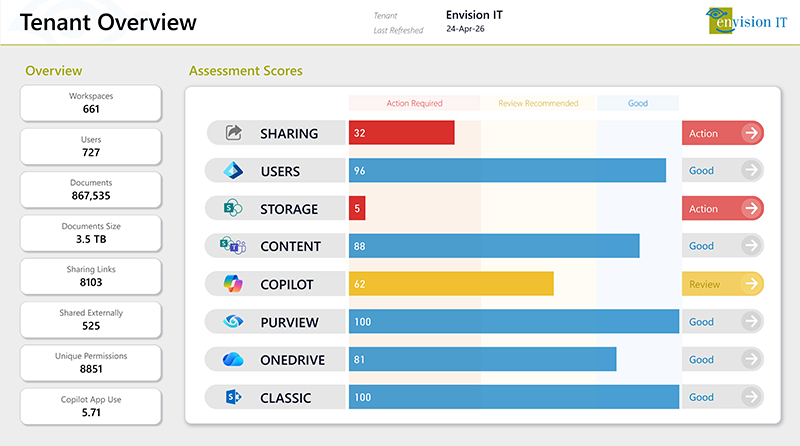
How the Tenant Dashboard for Microsoft 365 Finds Oversharing
The find → prioritize → fix process sounds simple in theory, but in practice it’s challenging to do manually and can leave an admin’s head spinning. That’s precisely where the Tenant Dashboard was designed to bridge the gap.
We originally analyzed open sharing, oversharing, and other Microsoft 365 risks using PowerShell scripts and Power BI reports developed for client projects. We've since formalized that work into the Tenant Dashboard for Microsoft 365, giving administrators a visual way to identify what's overshared, investigate the source of access, and act on tenant insights.
Unlike many governance tools that offer only a dashboard, a score, or recommendations, Tenant Dashboard helps you move from identifying issues to taking action, rather than presenting a report without clear next steps.
What the Oversharing Module in Tenant Dashboard Surfaces
Because access is granted at the tenant, group, and item levels, the dashboard pulls all three into a single view:
- Every anonymous link, organization-wide share, and external access point across the tenant
- Broken permission inheritance and over-permissioned groups
- Default sharing settings per workspace, including allowed sharing type and default link type
- Missing sensitivity labels and Purview coverage gaps
- Inactive and unmanaged workspaces
- User life cycle and ownership gaps
From Tenant-Wide Risk to the Source
Drill-down features turn a governance dashboard from a basic spreadsheet into something much more useful. They let you filter scores by workspace, type, sensitivity, and file type, so you can start with an overview of the whole tenant and then zoom into a specific workspace, user, or even a sharing link.
This means you can trace risky access to its source and see the context before making any changes. That’s where the important steps of "find" and "prioritize' happen. This makes managing security easier and more informed.
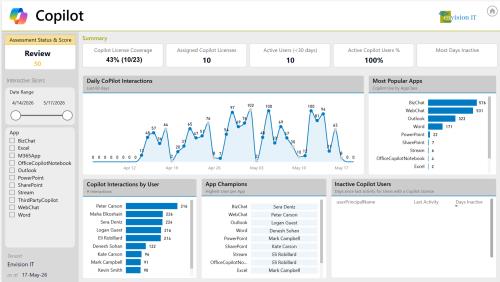
From Insight to Action
Findings shouldn't end up dead in a spreadsheet. From the dashboard, you can start moving on to what you find, with Microsoft's native admin tools and, where needed, PowerShell handling the heavier remediation. In practice, that can include:
- Review and tighten risky access
- Work through permission cleanup at scale
- Record decisions in a decision log
- Work with Purview labels on sites and libraries
- Flag content for archiving or deletion
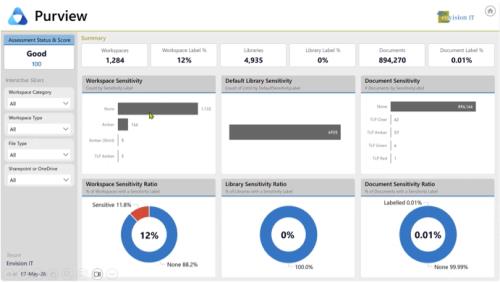
The result: the visibility that would take weeks of scripting and spreadsheet-wrangling comes together in one place, with a clear view of where the real risk sits and a sensible starting point for addressing it.
What Should You Fix First?
Once the dashboard gives you a list of findings, the next step is deciding where to start, since not all open permissions are equally urgent. Begin with the most critical exposure and work your way down to the less urgent housekeeping tasks.
1. Sensitive content with broad internal access: Financial, HR, legal, executive, acquisition, intellectual property, and client information will be your highest-risk findings regardless of how the access was created.
2. Anonymous and Anyone links: They are easy to create and just as easy to forget, and they are open long after they're needed. Remove or expire them right away.
3. Organization-wide sharing: Review both individual links and entire workspaces that are open to everyone in the company.
4. External users and guests: Confirm the relationship and access are still active. Guests with open-ended access to internal content are still an active exposure. Close guest accounts that haven’t been accessed in months or years.
5. Broken permission inheritance: Files and folders that no longer follow the surrounding permissions. Invisible to users and routinely missed in manual reviews, which is exactly what makes them dangerous.
6. Ownerless and inactive workspaces: Assign accountability before you validate access, since deactivated users often still own sites that nobody is watching.
7. Missing sensitivity labels: With the average tenant at only 12% label coverage, this is often the largest compliance gap in the environment. Treat coverage as a signal, but don't assume that unlabelled content isn't sensitive.
Start by assessing the file's sensitivity, then see how widely it is shared. A confidential document available to everyone in the company is riskier than a less sensitive one shared with only one external guest. Address the biggest risks first to reduce overall risk effectively, then tackle the less urgent sharing exposures.
Where Microsoft Purview and SharePoint Advanced Management Fit
Tenant Dashboard doesn't replace Microsoft's native governance tools; it works alongside them. Remediating oversharing involves three tasks, each in its place: detecting exposure, safeguarding content, and applying policies. Here’s how:
| If your goal is | Use | What it does |
|---|---|---|
| See and prioritize oversharing across the tenant | Tenant Dashboard for Microsoft 365 | Surfaces risky access, link sharing, broken inheritance, ownership gaps, and label coverage, then drills down from tenant-wide trends to the individual workspace. |
| Start acting on findings | Tenant Dashboard for Microsoft 365 | Helps you move from findings to action by reviewing access, working with labels, flagging content, and recording decisions in a built-in log. |
| Classify and protect sensitive information | Microsoft Purview | Applies sensitivity labels, encryption, DLP, and auditing so protection travels with the content. |
| Apply SharePoint access and life cycle policies | SharePoint Advanced Management | Provides Microsoft-native access reviews, site life cycle, and policy controls. |
| Hide your riskiest sites from Copilot during cleanup | Restricted Content Discovery (SAM) | Excludes selected sites from Copilot and organization-wide search while you remediate. |
| Keep labelled sensitive content out of Copilot answers | Purview DLP for Copilot | Blocks content with chosen sensitivity labels from being used in Copilot responses. |
In short: the Tenant Dashboard identifies and ranks exposure; Microsoft Purview keeps content safe; and SharePoint Advanced Management enforces rules. These tools work together to provide better visibility, security, and policy control, all aligned with the same goals. During setup, the last two steps are especially important: Restricted Content Discovery and DLP for Copilot. These steps help quickly identify high-risk content, even before permissions are fully updated. Together, they limit Copilot’s access and reduce the parts of your tenant that require dramatic changes.
Find Oversharing Before Copilot Does
Even if you successfully pass the Copilot pilot, it doesn't guarantee continued readiness or success. Over time, links form, guests invite themselves, roles change, owners leave, and new files appear without labels. The oversharing you address initially can gradually reemerge by month six. Therefore, proactive teams treat oversharing as an ongoing concern, not a one-time fix. Expanding Copilot doesn't require a perfect setup, but it does demand clear visibility into real risks and straightforward ways to manage them as they arise.
Copilot shouldn't be the first to tell you that a finance site is open to everyone. The Tenant Dashboard for Microsoft 365 gives you the full picture of your tenant health, including oversharing, inactive users, storage, compliance, and Copilot readiness, with the insight to spot every issue and point you to how to resolve it. You see where the exposure comes from, prioritize what matters, and start addressing it before Copilot expands the audience for a problem that already exists, because it's much better to find the basement leak before the flood.
See What Copilot Could Surface
Launch a free scan with Tenant Dashboard for Microsoft 365 to uncover oversharing, permission gaps, missing sensitivity labels, and unmanaged workspaces across your environment.
Subscribe to Modern Work Monthly
Get the latest Microsoft 365 + Copilot insights to help your teams work smarter, faster.
We respect your inbox. Unsubscribe anytime.