1.3% of Our Files, Two-Thirds of Our Storage: What Was Hiding in Our Tenant?
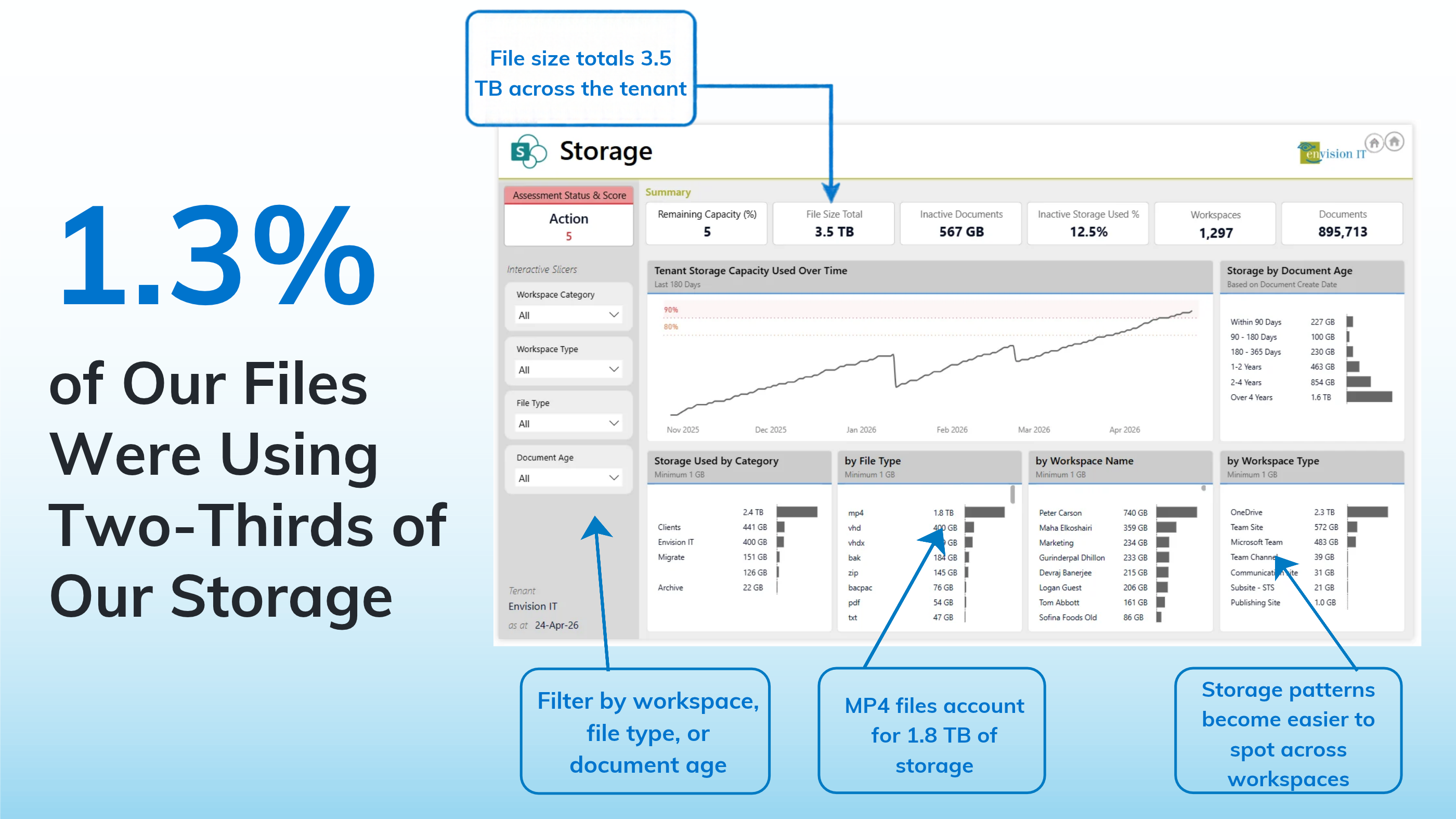
We discovered this while running Tenant Dashboard on our own Microsoft 365 tenant for our webinar, What's Hiding in Your Microsoft 365 Tenant? Instead of using a demo, we worked with our actual data. Our tenant exceeded its storage quota in May, and by late August, we were about 6% over. A previous cleanup had only brought us back to even.
This finding mattered on its own, but it made even more sense as we looked further. Without visibility across a Microsoft 365 tenant, a few files can quietly become a much bigger problem.
It made us think of a game we played at the Toronto M365 Community Conference. We asked visitors at our booth to guess how many red gumballs were in a jar, with the red ones standing for overshared files. People guessed anywhere from 10 to 50,000, but the real number was 138. No one guessed correctly, which was exactly the point. Content, access, and permissions build up in a tenant, and you can't really know what's hidden until you take a closer look.
Microsoft 365 storage just happened to be the example we found. In this article, we’ll share what we discovered, how we traced it to specific files, and what it taught us about the value of seeing your whole environment.
The Microsoft 365 Storage Problem We Couldn't See
Teams meeting recordings are a common example of content that can quietly accumulate in the background until it becomes a problem for your tenant.
Recording a Teams meeting can be genuinely useful for someone who couldn’t attend, to capture a discussion, or to revisit a training session.
Each recording has value, but over time, it can cause more trouble than you’d think. A few big files might not look like a problem at first, but across teams, projects, and years, they can use up a lot of storage. It’s even harder to notice when content is spread out across the tenant.
If you check only one SharePoint site, you might not notice much. But when you look across the whole tenant, you can see a completely different picture.
Most Microsoft 365 plans give organizations a shared SharePoint storage pool of 1 TB, plus 10 GB for each eligible license. Every SharePoint site, including those used by Teams, uses that pool. Content can slowly pile up in different spots, so no single site stands out as the main issue. Sometimes, the number of files isn't what matters. A few large files can take up most of your storage.
The Tenant Dashboard showed that we exceeded our storage quota around May and were about 6% over by late August. When we sorted our MP4 files by size, two conference keynotes filmed on a digital SLR stood out. Removing just those two files would probably have put us back under quota. But you couldn't tell from the surface.
When More Storage Isn't Necessarily the Answer
When your tenant runs low on storage, buying more is a common response, and Microsoft makes it easy to add SharePoint capacity. But that’s not the only choice.
Microsoft 365 Archive is a lower-cost tier for content you need to keep but no longer use day to day. It's currently priced at US$0.05 per GB, and you're charged only when your active and archived SharePoint storage together exceed your tenant's licensed capacity.
This changes the question. Instead of asking whether you can buy more storage, ask whether you should pay active-storage prices for content no one uses.
Here’s what that choice looks like for the same 2 TB of content, using example rates of about $0.20 per GB for extra active storage and $0.05 per GB for archive:
| If you … | Monthly cost | Yearly cost |
|---|---|---|
| Leave 2 TB over quota in active storage | $400 | $4,800 |
| Archive 1 TB of it and keep 1 TB active | $250 | $3,000 |
| Archive all 2 TB | $100 | $1,200 |
| Archive 1 TB while staying 2 TB under quota | $0 | $0 |
These are just example prices. Yearly costs are monthly costs times 12.
Still, the numbers are only part of the story. If you add storage without knowing what’s using your space, you might repeat the same problem. It’s better to start by looking at the content itself:
- Is the pressure coming from a large volume of useful business information or a few very large files?
- Is that content still in use?
- Does it need to stay active, or would archiving be a better fit?
These questions turn storage from a technical or cost issue into a business conversation about your information's value. The goal isn’t to cut storage at any cost. It’s to ensure what you store has a good reason to be there.
What Do You Actually Need to Keep: Active vs. Inactive Content
For many meetings, the lasting value is in the discussion: what was decided, what someone committed to, or what was explained. In those cases, the transcript may be enough.
This separates the information's value from the format in which it was first captured.
Some recordings will naturally remain valuable as video. An interview, product demonstration, event presentation, or marketing asset may need to be kept in its original form. An ordinary internal meeting from several years ago may be different.
Instead of using one rule for every recording, it’s better to understand why you’re keeping the content and base your decision on that.
There’s also an AI angle here. As organizations use Copilot in more places, the quality and relevance of the information it can access matter more. Information management isn’t just about storage and compliance now; it also affects what employees can find and use. So it’s not just about how much content you keep, but which content should stay active.
Turn Visibility Into Action With the Tenant Dashboard
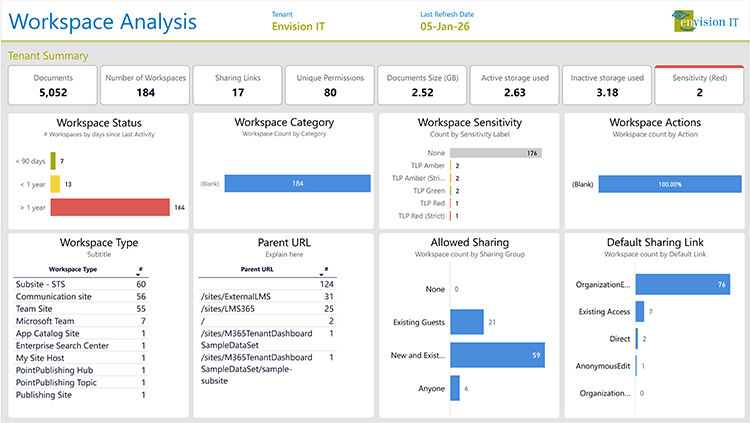
Our tenant had over a million documents, so checking them one by one wasn’t realistic. Once we found the MP4s that needed attention, Tenant Dashboard helped us focus on about 10,000 video files across SharePoint and OneDrive.
Then we could see which content should stay active, which no longer had a purpose, which recordings could be kept as transcripts, and which files still needed to be kept but didn’t have to be available right away.
From there, each file fit into one of four options: keep, delete, transform, or archive. The Excel workbook lets you use familiar filtering and sorting to make these choices. Once you record your decisions, you can apply them at scale. Visibility only matters if it leads to action.
The Tenant Dashboard Excel workbook gives you a practical way to make these decisions with familiar filtering and sorting. Once you’ve recorded your choices, you can apply them at scale, so admins don’t have to review thousands of files one by one.
Where Microsoft 365 Archive Fits
Not everything that leaves active storage needs to be deleted. Microsoft 365 Archive offers a middle ground for information you need to keep but don’t use every day. It can lower the cost of storing inactive content and keep older material out of current Search and Copilot results. Whether a file should go into the archive depends on what it is and why you’re keeping it.
Archiving gives organizations another way to manage information over time. Active storage can focus on content people use now, while older material with business or compliance value stays available. But not every old file should go in the archive. The right choice depends on the information and why the organization needs to keep it.
Storage is Only One Part of the Story
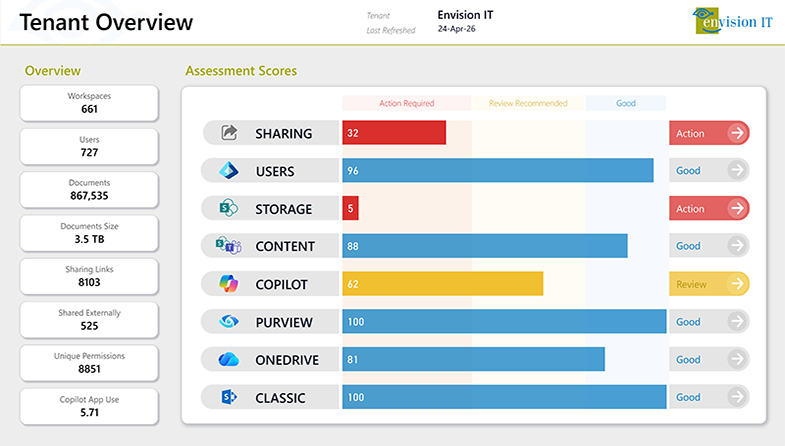
We noticed storage first, but it wasn’t the only thing hiding in our tenant. When we checked sharing in our marketing workspace, which holds about a quarter of a terabyte of content, we found anonymous and organization-wide links from 2020 and 2021. Some were created for good reasons, like sharing banner concepts with vendors before a trade show that’s now over. Others weren’t needed because everyone in the company already had access to the workspace.
Looking back, our tenant’s problems were hidden in three ways. Some were hidden by volume, with a few large files among more than a million documents. Some were hidden by time, like project links that were created and never looked at again. Others were hidden by convenience. Teams create sharing links automatically as people work, and Copilot can do the same, so no one sets them up on purpose.
And for your tenant, it could be something else entirely. The same patterns show up elsewhere in a tenant. Guest access outlasts the project it was created for. Outdated content keeps accumulating. Purview labels cover less than you'd expect.
None of this means anyone made a bad decision. Most of the time, people are just doing their jobs. But over time, thousands of reasonable actions can add up and make the environment hard to understand when you look at it site by site.
That’s why visibility matters. We had a problem hiding in plain sight, and we didn’t really understand it until we looked at the tenant as a whole. Once we saw it, the question changed from whether we needed more storage to what was using our storage, why we kept it, and what to do about it.
A Clearer View Leads to Better Decisions
We started with what seemed like a capacity problem. Once we looked across the tenant, it was clear that a small number of files used most of our storage. So now, instead of asking how much more storage we need, we could ask if the content still has value, who should decide, and what to do next. Those are better questions, and you can only get to them once you can see what’s there.
Your tenant will have its own version of this story. It might be recordings, sharing links, guest access, or content that Copilot can still find but shouldn’t. You won’t know until you look, and launching a free scan of your environment is a good way to start finding it.
Ready to See What’s Hiding in Your Microsoft 365 Tenant?
Your tenant has its own 1.3%. Have the tool to find it.
We only noticed our storage problem because we looked more closely. A free Tenant Dashboard scan gives you a first look at your Microsoft 365 environment, so you can prioritize what needs attention.
Prefer to See It in Action First?
Watch the 30-minute on-demand, product-focused webinar, What's Hiding in Your Microsoft 365 Tenant?, to learn more about the Tenant Dashboard for partners and clients and to see the storage investigation that led to this article.

Microsoft 365 Storage Frequently Asked Questions
Subscribe to Modern Work Monthly
Get the latest Microsoft 365 + Copilot insights to help your teams work smarter, faster.
We respect your inbox. Unsubscribe anytime.