Using the Editor in EUM
EUM uses Froala editor in EUM Admin, EUM Portal, and CMS to allow easy HTML Editor with the best features. The editor is present in multiple sections of EUM:
EUM Admin:
-
Group Join Page - while creating or editing a Public or Private Group
- Join Page Rollup
- Join Page Content
- Group Member Page - while creating or editing any group with a Auto Generated Member Page
- Email Template - while creating or editing an Email Template
EUM Portal:
While writing contents for creating or editing a page.
EUM CMS:
While writing contents for creating or editing a page.
This article will help understanding some important features of the Froala editor EUM uses.
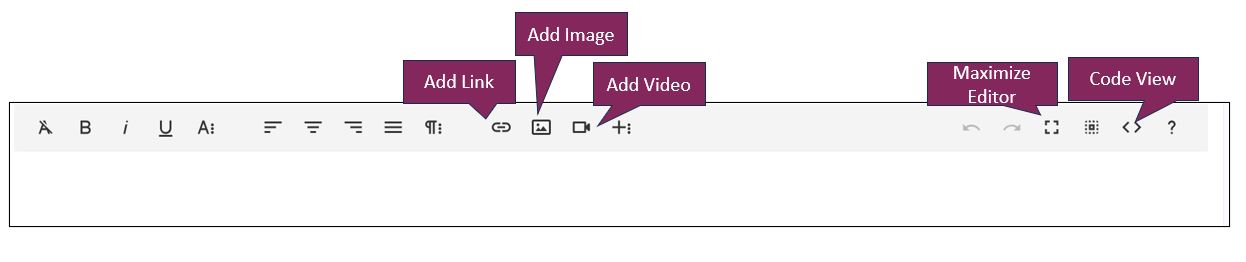
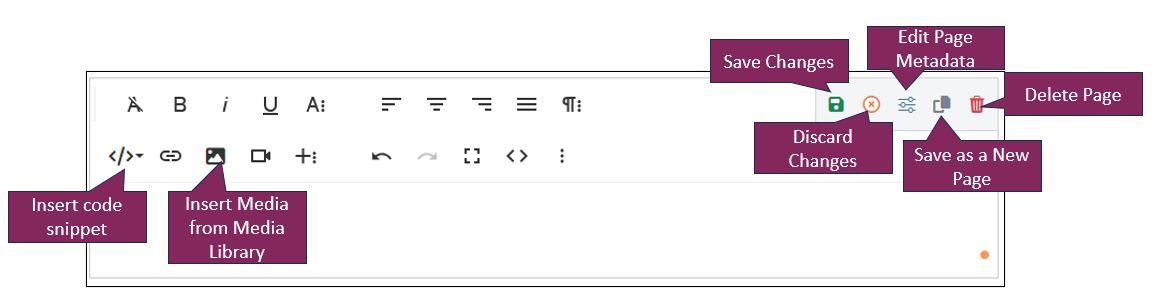
There are a few extra buttons in the EUM Portal Froala editor.
Add Link
To add a link in a sentence, as shown in the screenshot
- Please point the cursor where link has to be added
- Click the Add Link button
- Fill in the form
- Click Insert
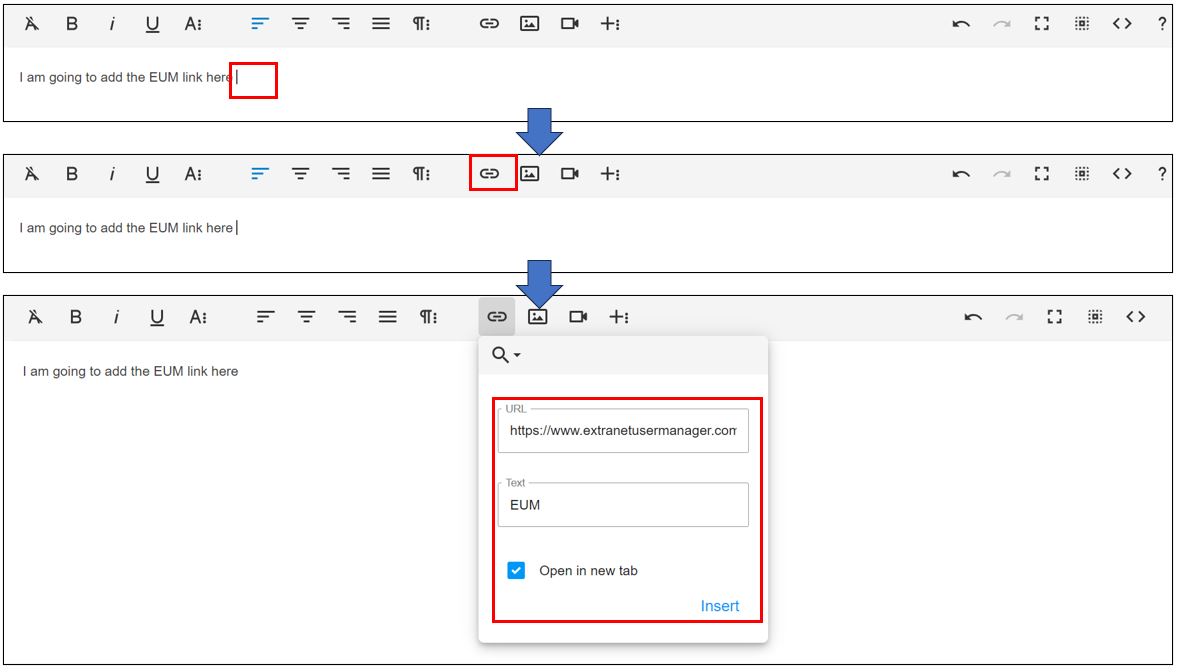
Note: If the form does display in full, please close it, please enable the Maximize Editor
Add Image
To add an image, click the Image icon

An image can be added using the form in a few ways:

- Drag and drop the image
- Add the Image URL. The image should be available to access freely
- Browse to the folder in your SharePoint for images already present
Add Video
To add a video, click the Video icon. A video can be added in a few ways:
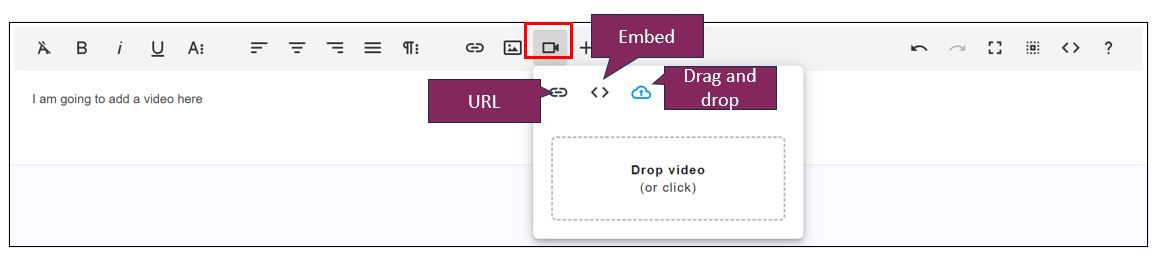
- Drag and drop an video
- Embed the video by putting in the embed code
- Insert the video URL. The video should be available tp access freely
Maximize Editor
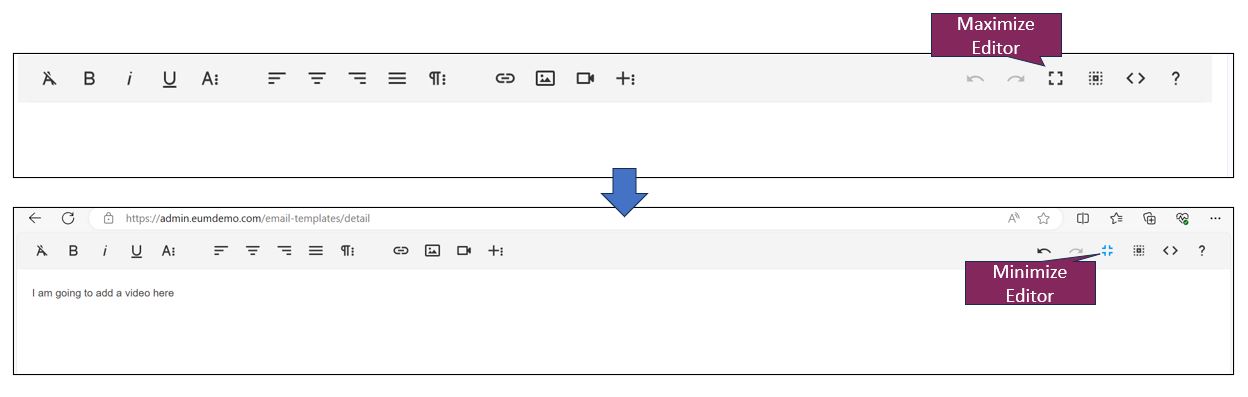
Click the Maximize editor button to maximize the editor, so that the entire browser space is taken over by the editor. Click the Minimize button to minimize the editor to its original size in EUM.
Code View
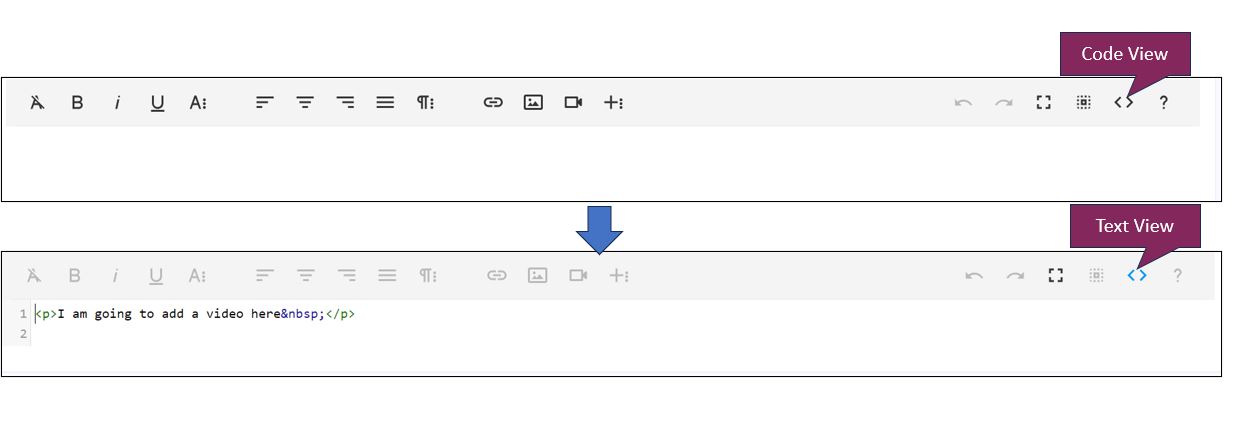
Click the Code View button to be able to write HTML codes in the editor. Click the Code View button again to come back to the normal view.
Insert Code Snippet
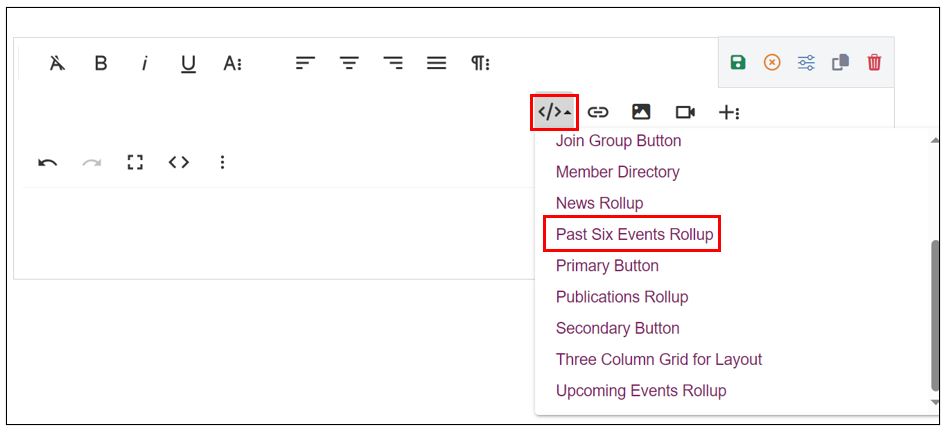
Without needing to write a code, the following items can be added to a EUM Portal page by inserting a code snippet.
-
Events Rollup:
- All Past Events
- Past Six Events
- Upcoming Events
- Articles Rollup
- News Rollup
- Publications Rollup
- Data Portal Reports Page
- Data Portal Reports Rollup
- Data Portal Reports Rollup filtered by Report Type
- Member Directory
- Join Group Button
- Primary Button
- Secondary Button
- Three Columns Grid for Layout
To add one of these snippets, please click the Insert Code Snippet button, and select the snippet you want to add from the list.
Insert Media from Media Library
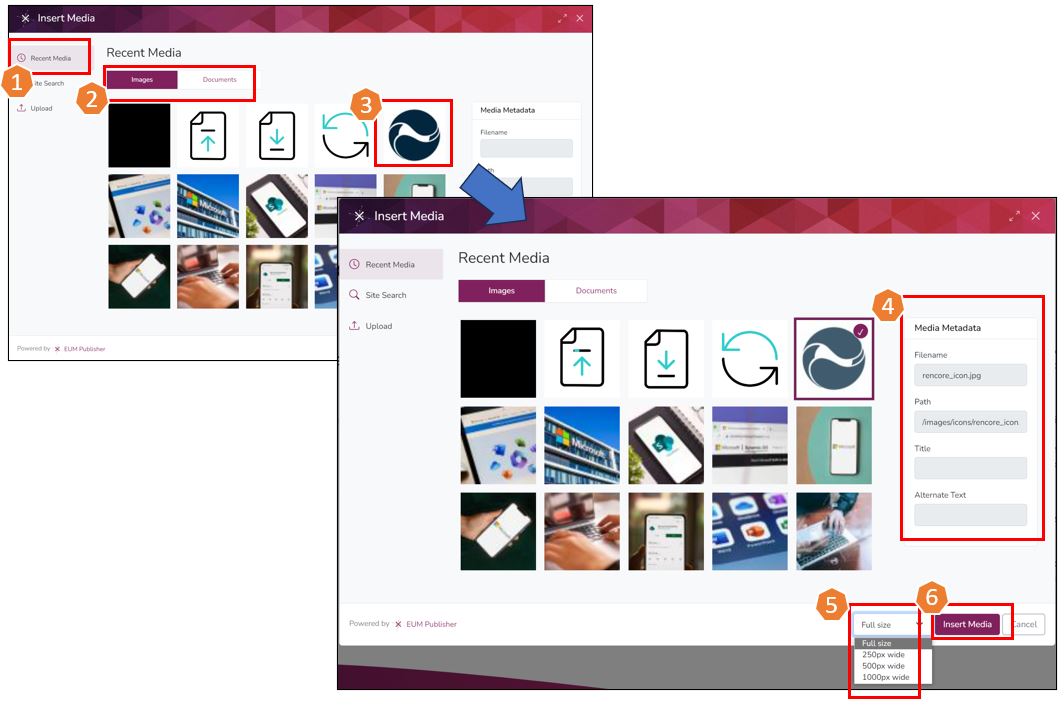
Use this button to add Images or Documents used recently, or searching from the site library, or uploading a new one.
Recent Media
Upon clicking Insert Media button, a popup window will open.
- Select Recent Media from the left hand menu
- Select among Images or Documents to see the recent Images or Documents to choose from
- Select the image or document you want to insert
- The Media Metadata will populate with the details
- Select the size
- Click Insert Media
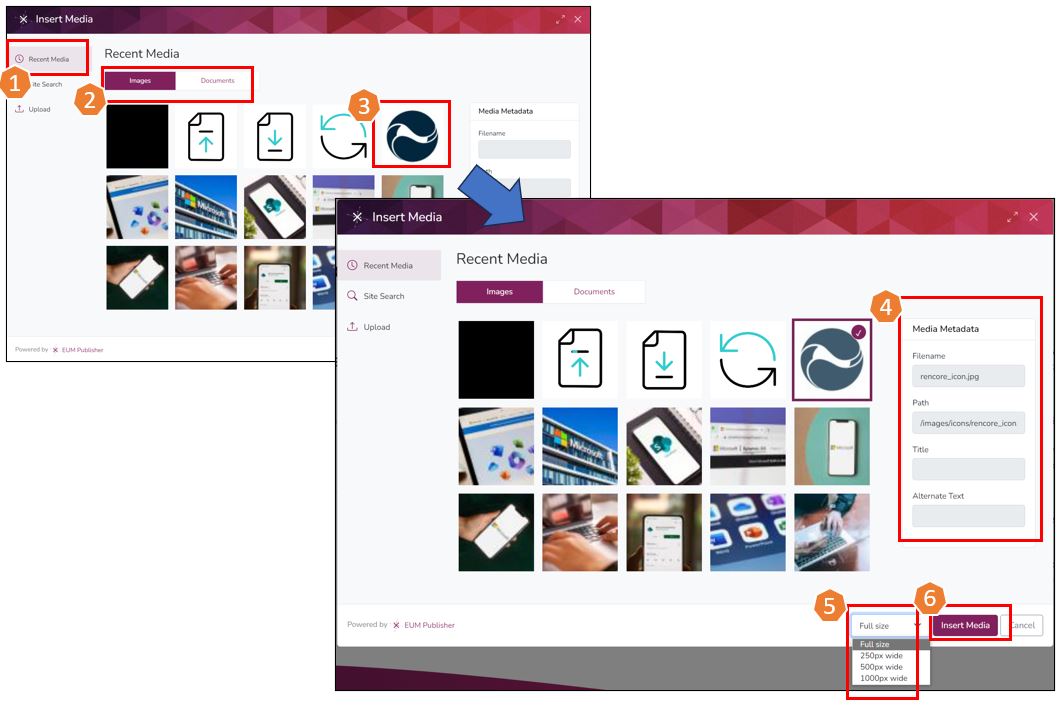
Site Search
Upon clicking Insert Media button, a popup window will open.
- Select Site Search from the left hand menu
- Type in the image or Document name and click enter
- Select the image or document you want to insert
- The Media Metadata will populate with the details
- Select the size
- Click Insert Media
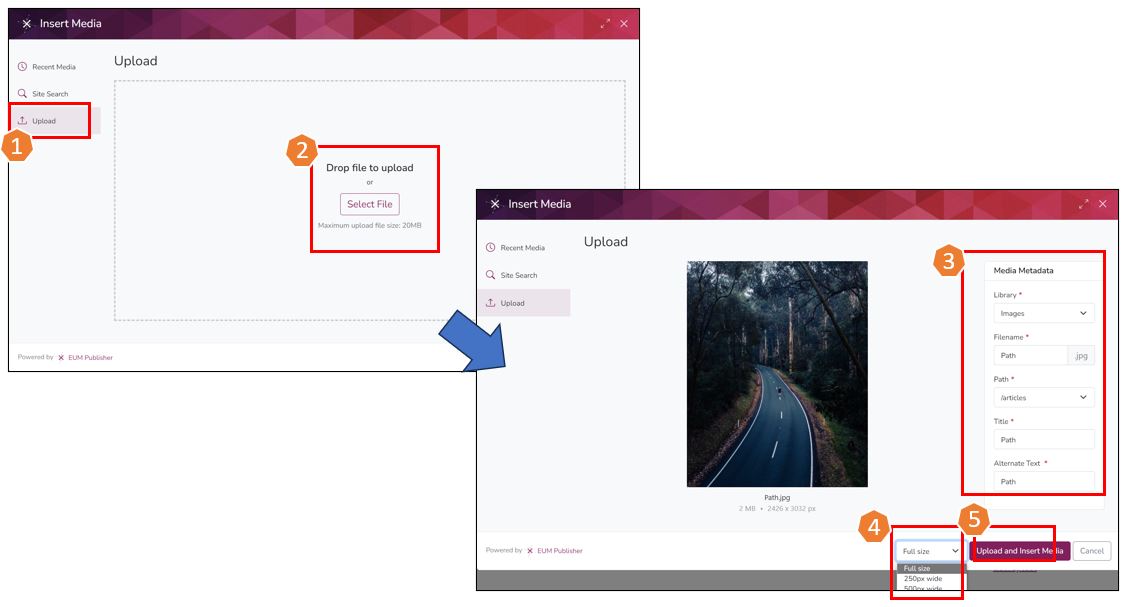
Upload
Upon clicking Insert Media button, a popup window will open.
- Select Upload from the left hand menu
- Drag and Drop the image/document to be uploaded
- Fill in the image/document details in the Metadata
- Select the size
- Click Insert Media