Setup Group Welcome Email
|
Published
Once a EUM Group is created, you can setup the Group Welcome Email. When a user is added to the group as a Member, the Group Welcome Email, if setup, would be sent to the user.
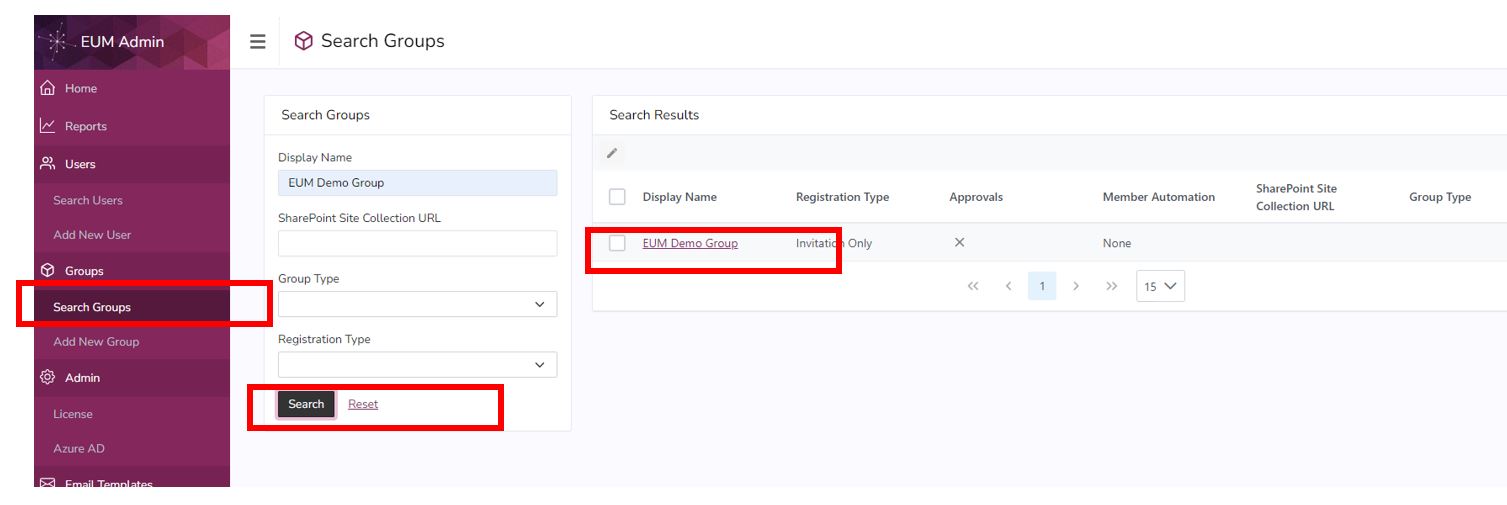
- Login to EUM Admin and navigate to the group you want to set up the Group Welcome Email for.
- Click Search Groups in the left hand menu
- Type in the Group Display Name in the Search form
- Click Search
- Click the group from the displayed search result
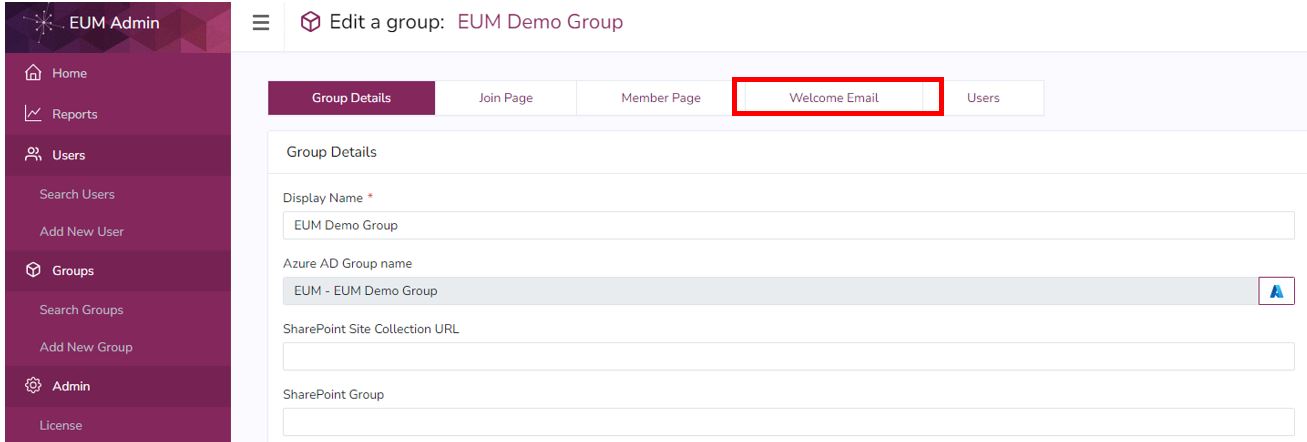
- Once in the Group Details page, click the Welcome Email tab
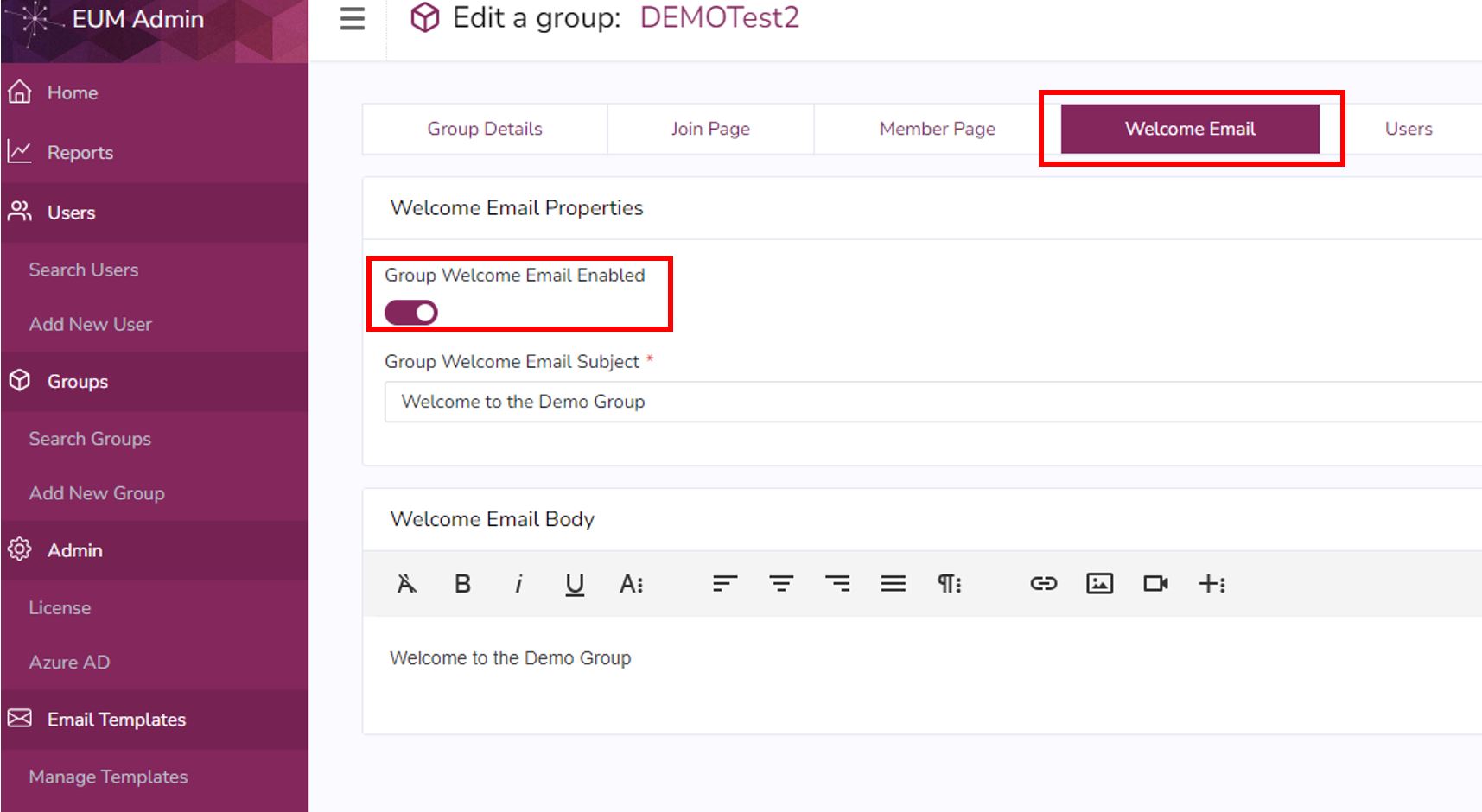
- Click ON the Group Welcome Email Enabled toggle. That will display group Subject and Body fields.
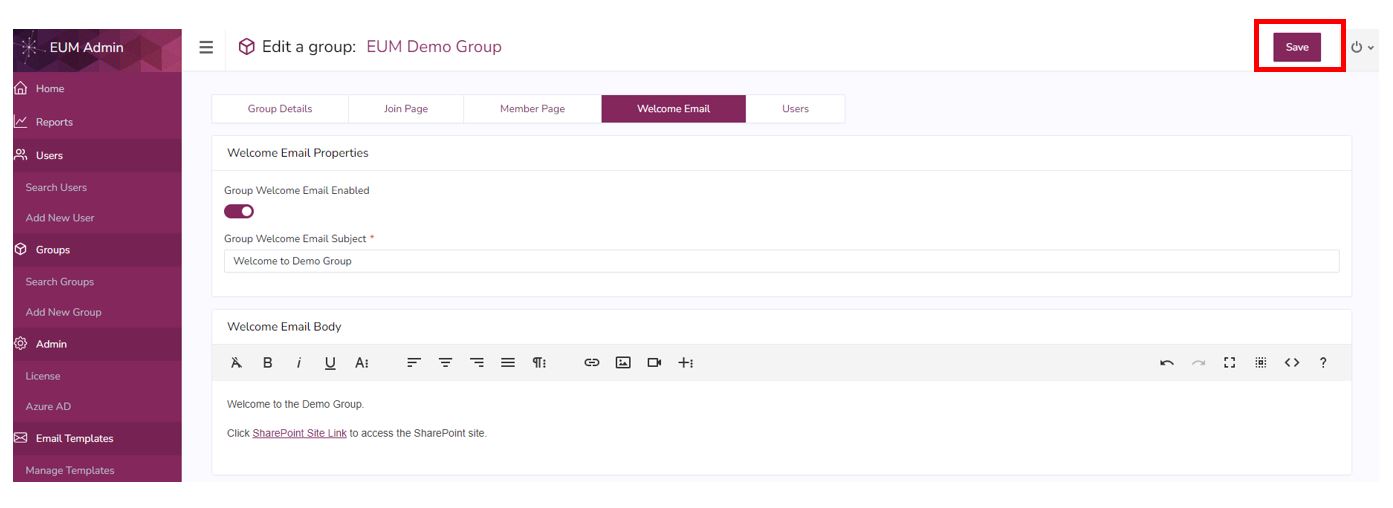
- Type in the Email Subject and Email Body and click Save
Note:
The Group Welcome Email can be written in Rich HTML formal. You can make use of the various buttons in the toolbar to do so. A few frequently used ones are highlighted here. 