Put in a new secret in Azure AD apps for EUM when existing secrets expire
|
Published
If your EUM is wired with Azure AD, then its using the two Azure AD Apps: EUM_GraphAPI and EUM_AAD. These Apps use secrets and, and these might expire depending on the secret expiry set while creating these apps. This article guides on how to create new secrets and add these to EUM.
EUM_GraphAPI
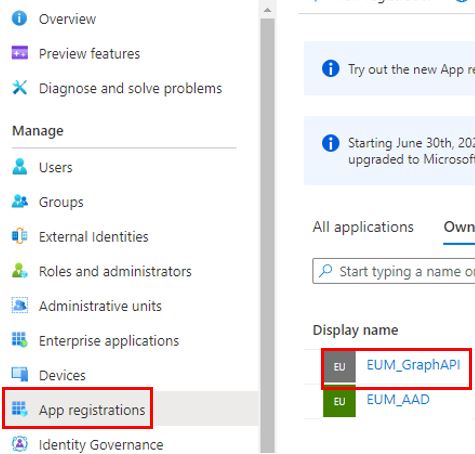
- Logon to Azure AD and navigate to App Registrations. Select "EUM_GraphAPI"
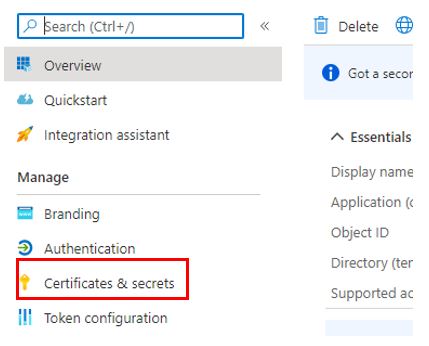
- Once in the App, click "Certificates and Secrets"
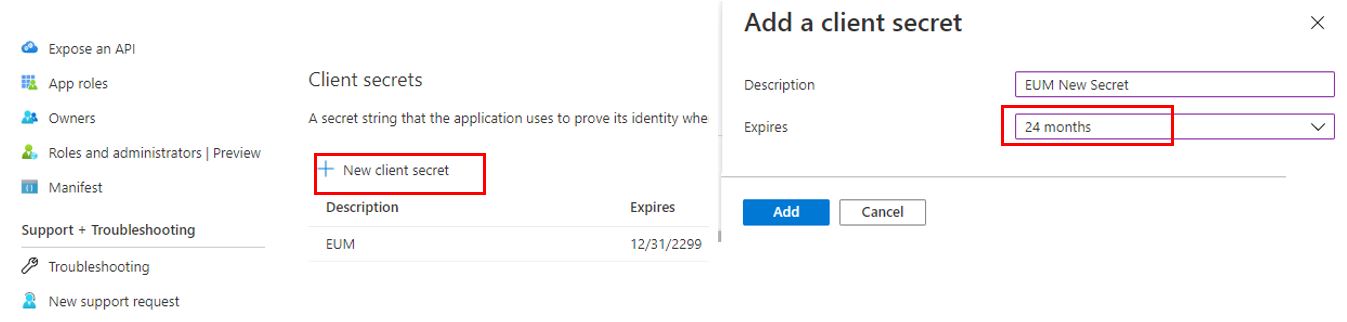
- Click "New client secret". Put in a good Description, and select an Expiry from the dropdown. We suggest you to select the maximum expiry.
- Click Add
- Copy the secret value

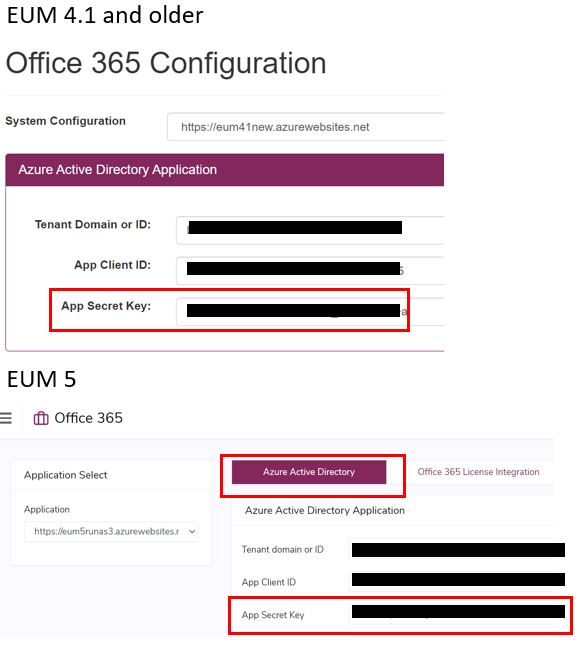
- Login to EUM LandingAdmin (for EUM 4.1 or older) or EUMAdmin (for EUM 5) and navigate to Office 365
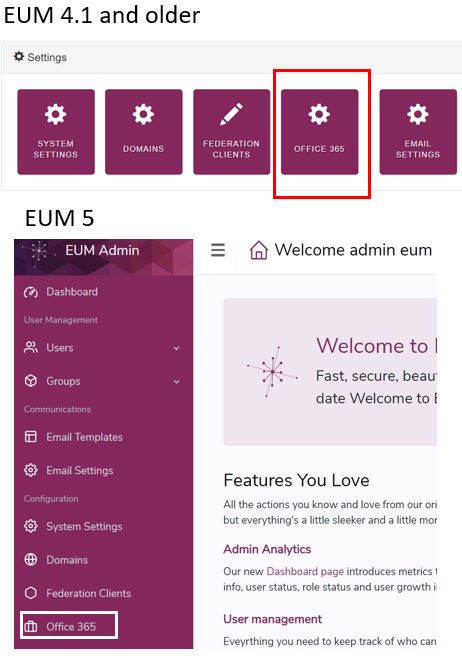
- Within Office 365 page, update the "App Secret Key" and click "Update". In EUM 5 this would be in the Azure Active Directory tab of the Office 365 page. Update the "App Secret Key" and click "Save" in EUM 5. The New Secret Key would be the value copied after creating the new secret.
EUM_AAD
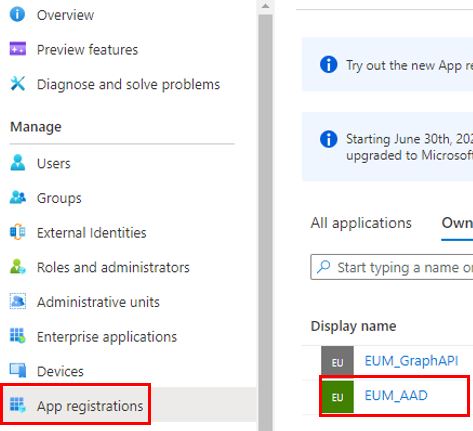
- Logon to Azure AD and navigate to App Registrations. Select "EUM_AAD"
- Once in the App, click "Certificates and Secrets"
- Click "New client secret". Put in a good Description, and select an Expiry from the dropdown. We suggest you to select the maximum expiry.
- Click Add
- Copy the secret value
- Login to EUM Database and run a query against the EUM Database. Replace the "new secret" with the value of the secret obtained in the above step.
UPDATE [dbo].[ExternalProvider] SET ClientSecret = 'new secret' WHERE Code = 'aad';