Portal Welcome Emails not Triggered
When a new Guest User is created using EUM, a Portal Welcome Email is triggered. If it is not getting triggered, then there a few places that can be checked.
- Is the Guest User successfully created?
- Is the Portal Welcome Email enabled?
- Is the Office 365 API Connection authenticated and still valid?
Is the Guest User Successfully created?
If the Guest User who did not receive the Portal Welcome Email is not successfully created, the Portal Welcome email will not be triggered.
- Please login to EUM Admin
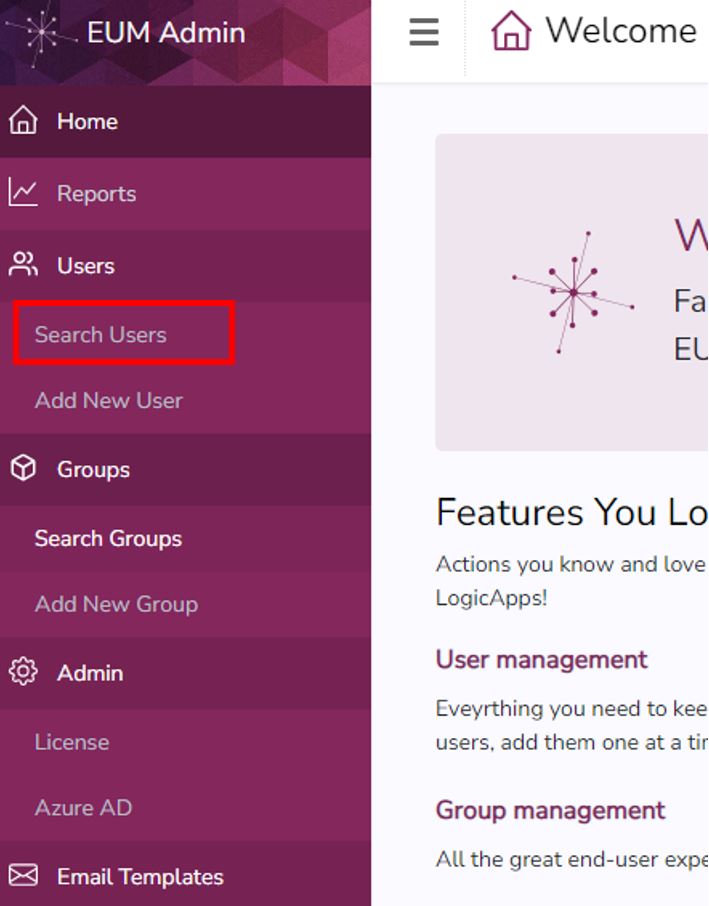
- Please click Search Users in the left hand menu
- In the Search User form, please put in the new user's email and click Search
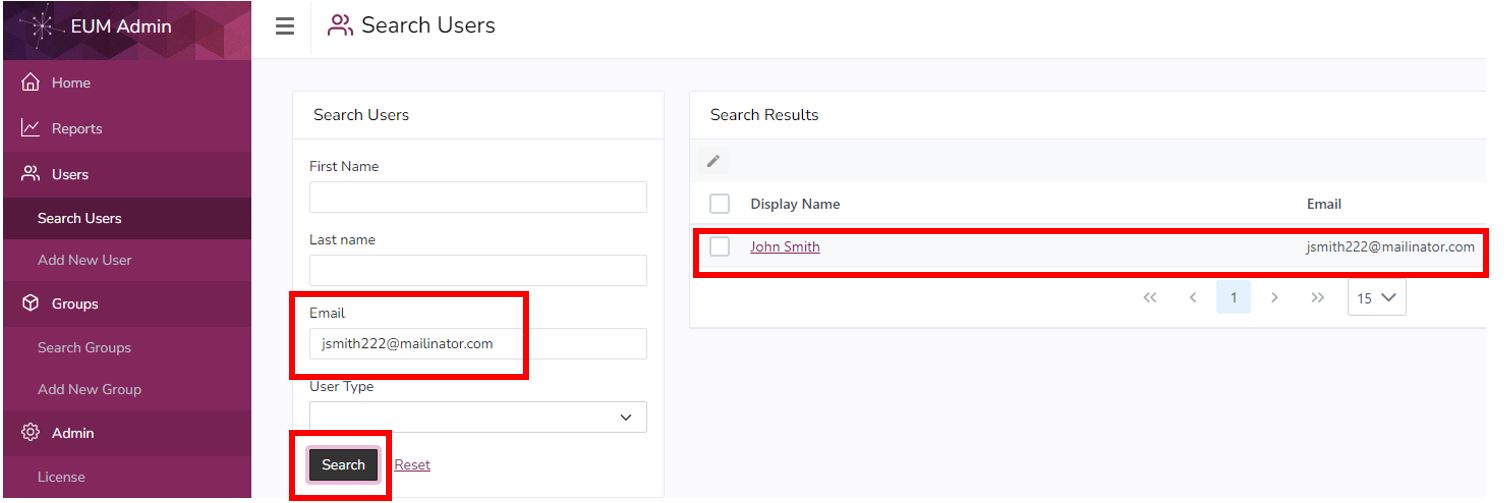
- If the Search produces result, the user is created successfully.
Is the Portal Welcome Email enabled?
Out of the box EUM has the Portal Welcome Email enabled. However, if for some reason someone has disabled the Portal Welcome Email, then the Portal Welcome Email will not be triggered even though a new Guest User is successfully created using EUM.
EUM 6.0.8460.2 and above
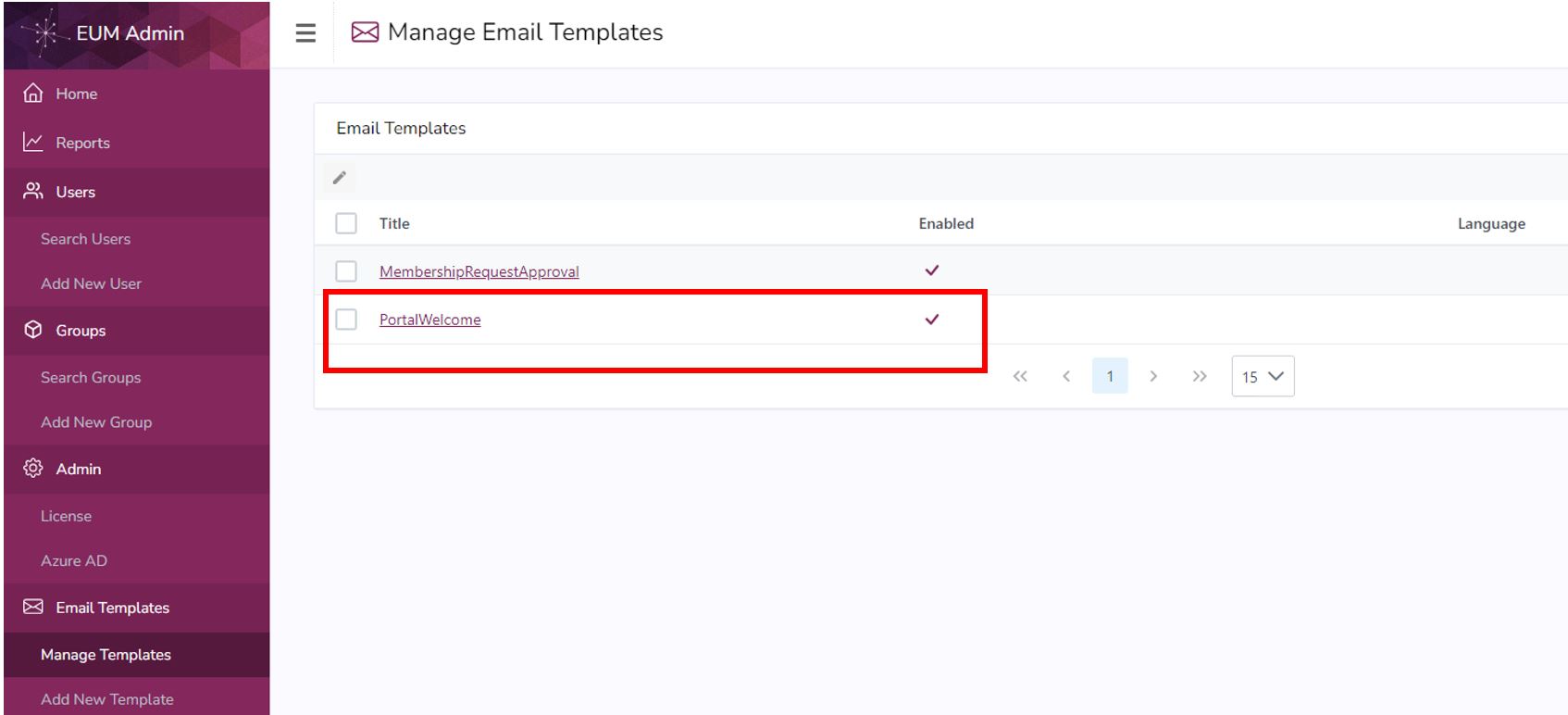
- Please login to EUM Admin and click the Manage Templates site in the left hand Menu.
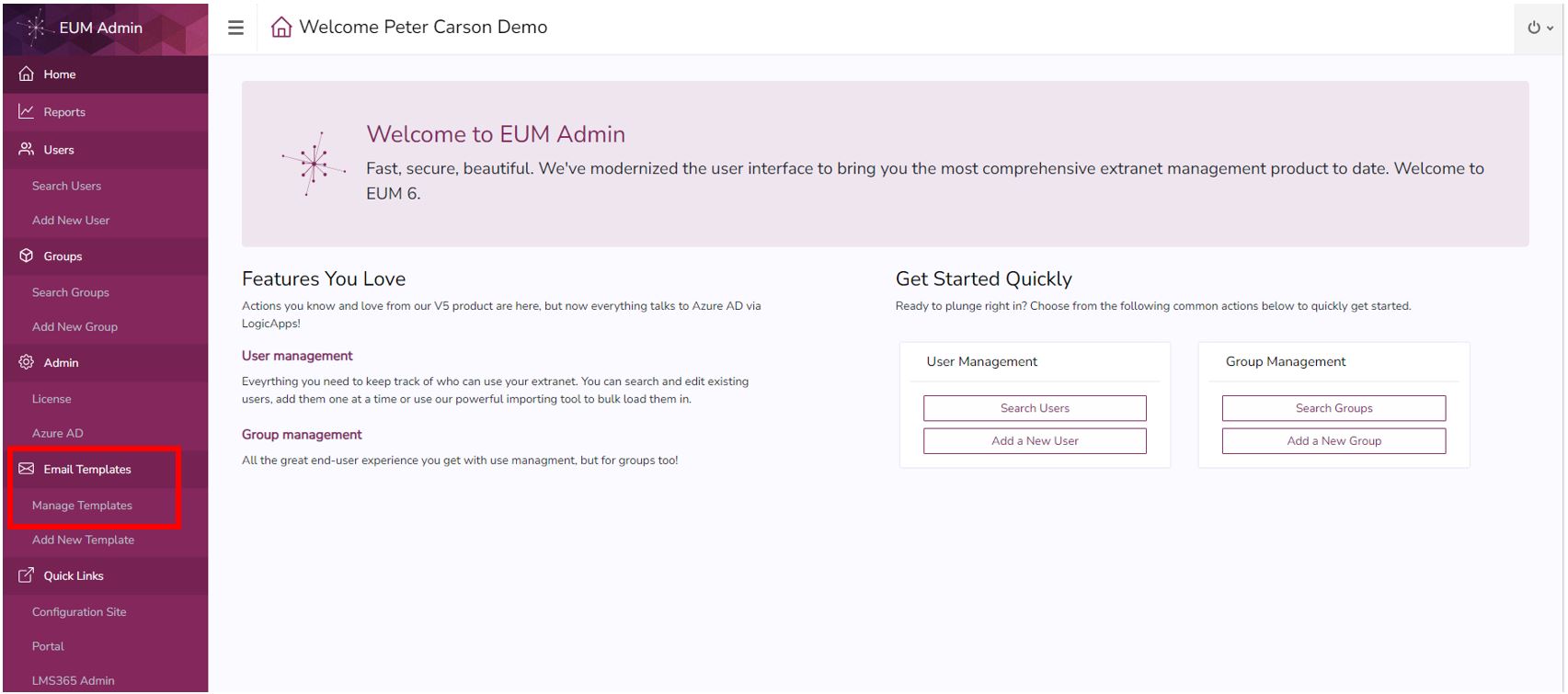
- Check if the PortalWelcome email is enabled
EUM 6.0.8433.1 and below
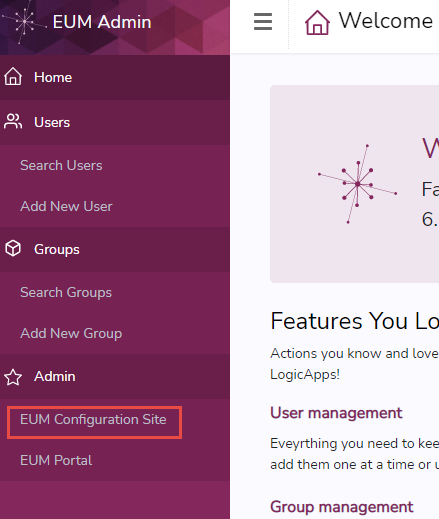
- Please login to EUM Admin and click the EUM Configuration site in the left hand Menu. This will redirect you to the EUM Config site.
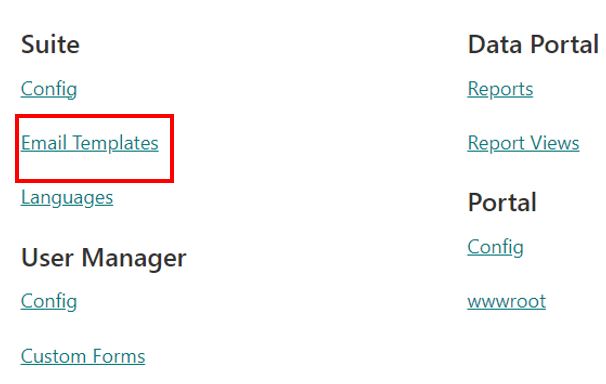
- Within the EUM Config site please navigate to the Email Templates under Suite
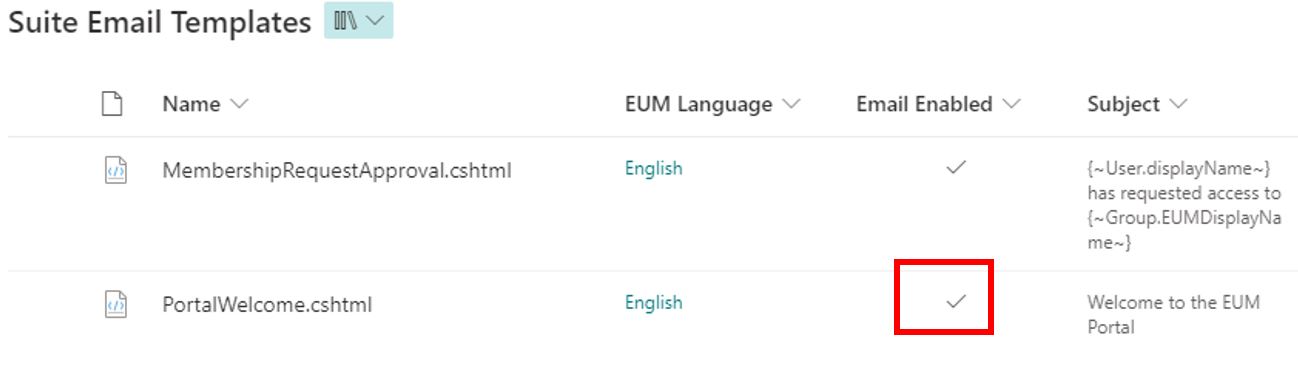
- Check if the PortalWelcome.cshtml is Enabled
Is the Office 365 API Connection authenticated and still valid?
What account would you like to send welcome emails from? This could be a Service Account in your Azure AD that has a O365 Email License. Please check if the EUM O365 API Connection is authenticated with that user. If your EUM is hosted by Envision IT, please email us at inquiry@extranetusermanager.com to know if the O365 API Connection is authenticated. If EUM is hosted in your Azure Tenant, please follow the below steps:
- Login to EUM Admin as a Global Admin or a EUM Resource Group Owner or Contributor
- In the left hand Menu click Azure AD
- Click Resource Group
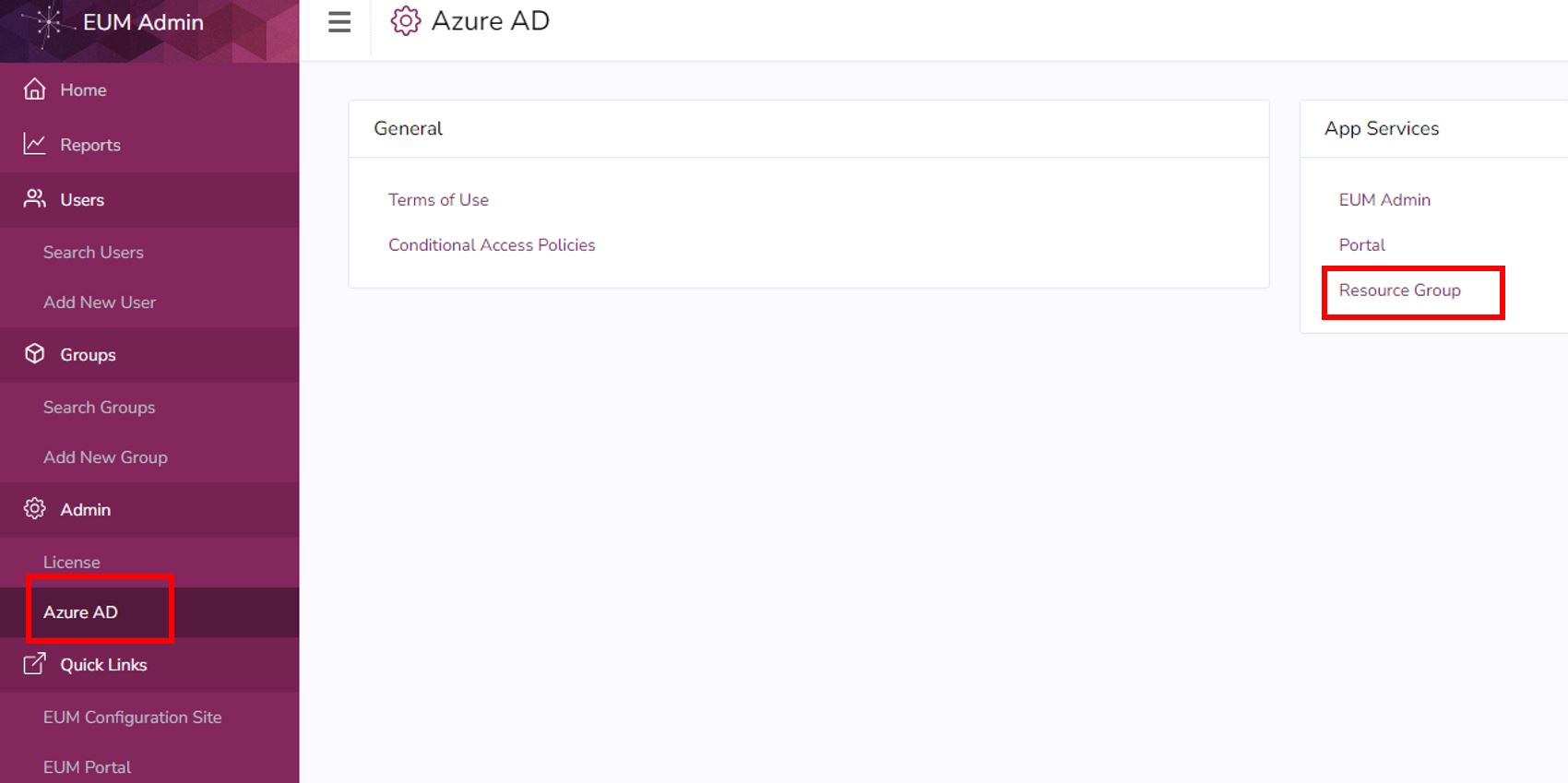
- This will redirect you to the EUM Resource Group within Azure Portal
- Find the office365 API Connection and click it
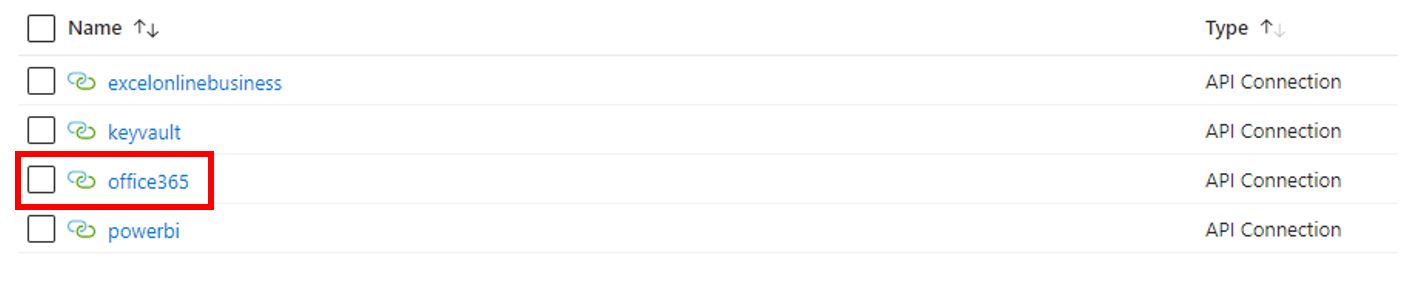
- If an Error is displayed, then either it was never authenticated, or the authentication is no longer valid. The API Connection is needed to be authenticated with the account you would like to send welcome emails from.
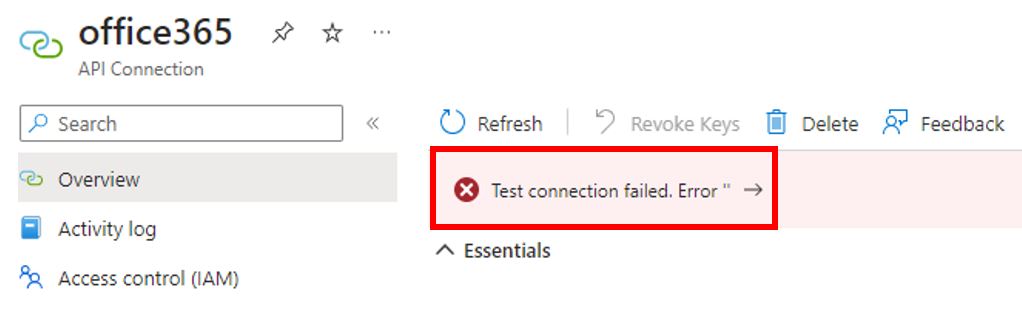
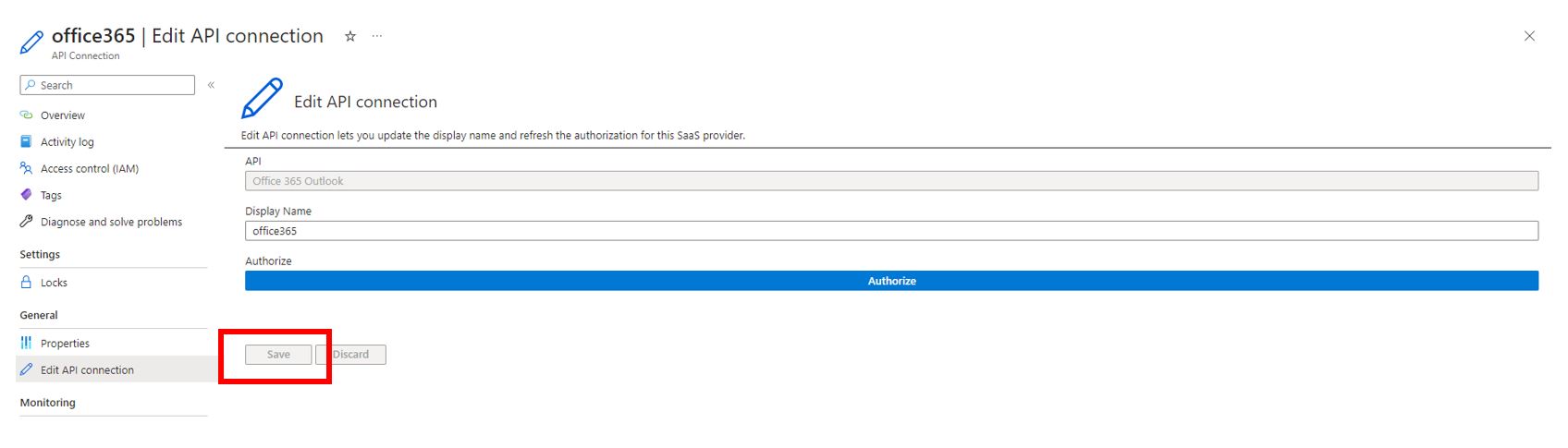
- If the error is seen, click "Edit API Connection" in the left hand menu
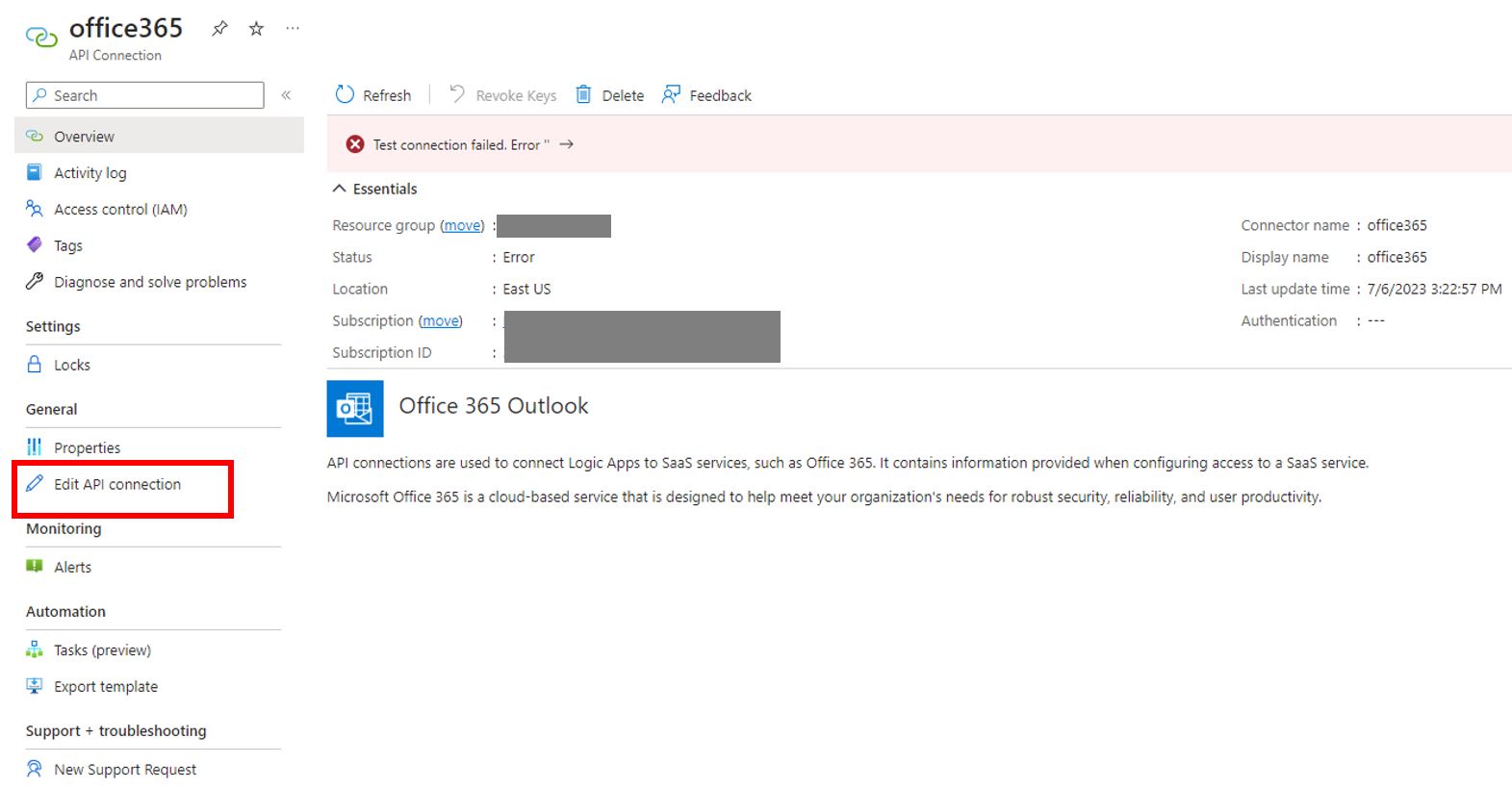
- Click "Authorize"
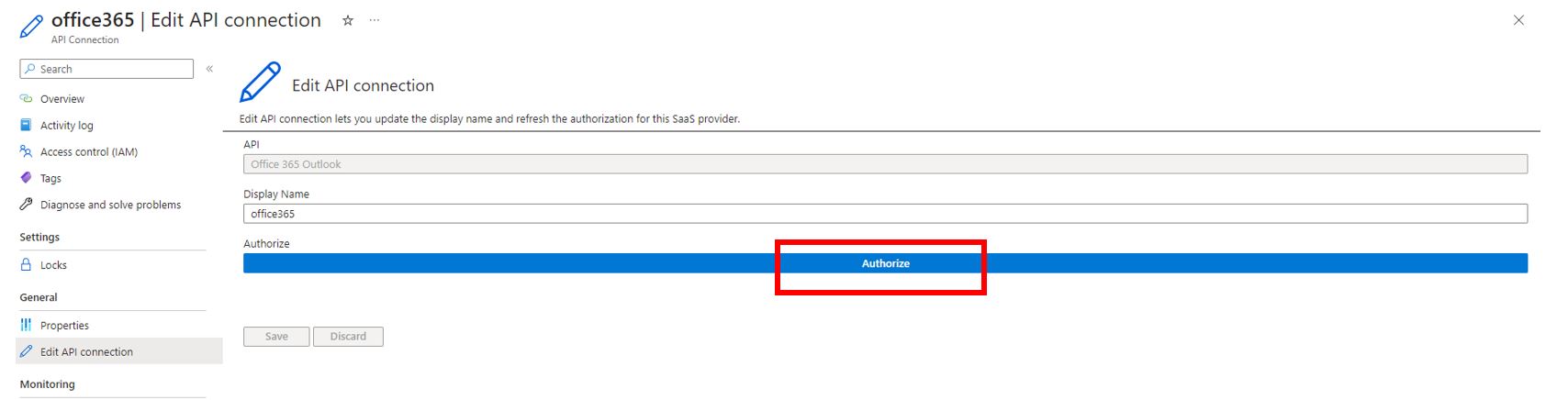
- This will open a Microsoft prompt to login. Use the credentials of the account you would like to send welcome emails from to login.
- Once authenticated, click Save