Moving EUM from one App Service to another App Service/Resource/Subscription/Tenant
|
Published
Pre-requisite:
EUM as App Service requires three Private Key Certificates (.pfx) to work:
- IdentityToken_EUM App Name
- IdSrv4DP_EUM App Name
- localhost_EUM App Name
These certificates along with the password to upload these must be available. Normally the password is the SQL server password. These certificates cannot be downloaded from the app service, so must have been stored somewhere when the initial EUM was installed.
When EUM is installed as App Service, a Trust folder is created in the unzipped EUM package in the machine which is used to install EUM. The certificates are normally stored in that folder.
Steps:
- In the Azure Portal, manually create a new App Service in the desired Resource/Subscription/Tenant
- Copy the old App Service's configuration to the new App Service
-
Application Settings:
-
Go to the Azure portal, navigate to the old app service, click Configuration. Stay in the Application Settings tab. Click Advance Edit. Copy the codes from the popup window. Click Cancel to close the popup.
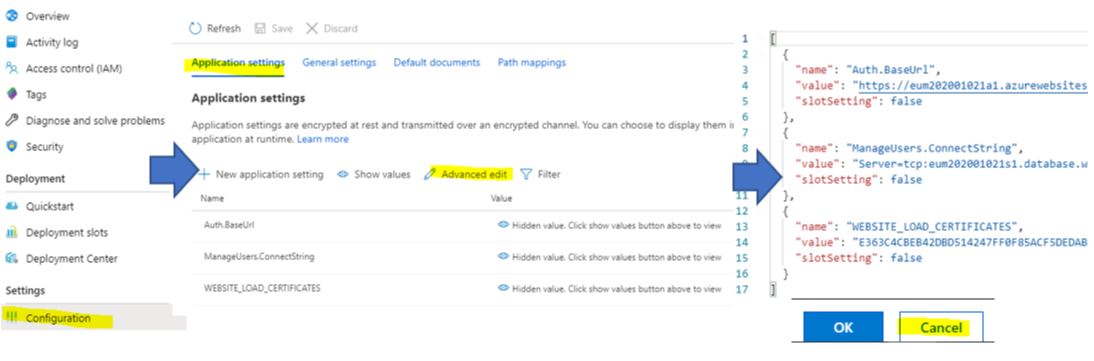
- Go to the Azure portal, navigate to the new app service, click Configuration. Stay in the Application Settings tab. Click Advance Edit. Paste the codes to the popup window. Click OK to close the popup, then click Save.
-
Go to the Azure portal, navigate to the old app service, click Configuration. Stay in the Application Settings tab. Click Advance Edit. Copy the codes from the popup window. Click Cancel to close the popup.
- Path Mappings: Copy the contents from the Path Mappings tab of the old app service to the new one
-
Application Settings:
- Move the SQL to the same resource group as the new App Service
-
Download wwwroot from the old app service. Go to the Azure Portal, navigate to the old app service, click Advanced Tools. Click Go. Select CMD. Click site. Use the download button beside wwwroot to download it.

- Upload the wwwroot to the same location of the new app service. Go to the Azure Portal, navigate to the new app service, click Advanced Tools. Click Go. Select CMD. Click site. Drag and drop the wwwroot folder from your machine to the page of Azure.
-
Upload the .pfx certificates of the old EUM. Go to the Azure portal, navigate to the new app service, click TLS/SSL settings, go to the Private Key Certificates (.pfx) tab. Click Upload Certificate. Browse to the .pfx certificates and enter the password. The password would be the SQL server's password for the old EUM. Click Upload.

- In the IdentityServer/IdentityServer.exe.config and Extranet_API_V4/web.config change the SQL connection string values to the new one
- Change the urls in all the applicable places of the new App Service
- Check if EUM is working
-
If EUM works fine, manually create a KeyVault, have the App Service access the KeyVault, and put in the SQL connection strings as KeyVault secrets:
- EUMManageUsers (this contains metadata along with connection string)
- ExtranetCS
- ManageUsersConnectString
- IdentityServerConfiguration
-
Replace the connection string values in the App Service (IdentityServer.exe.config and Extranet_API_V4/web.config) with AKV_key vault secret's path ("AKV_https://eumdev.vault.azure.net/secrets/ExtranetCS")