Managing User Details form in EUM Admin
In EUM 6.15.1350.1 and above, the User Details form in EUM Admin can be easily managed using the User Attributes Mapping list in EUM Config site. Using the User Attributes Mapping, the EUM Administrators can easily hide or unhide fields in the User Details page, and make them Required or Optional. One can also add a new item in the User Attributes Mapping to be displayed as a field in User Details page of EUM Admin.
To manage the User Details page of the EUM Admin, please login to the EUM Config site with a user having Admin privileges'. Please refer to the related FAQ for finding out the EUM Config site: Finding the EUM Config SharePoint site
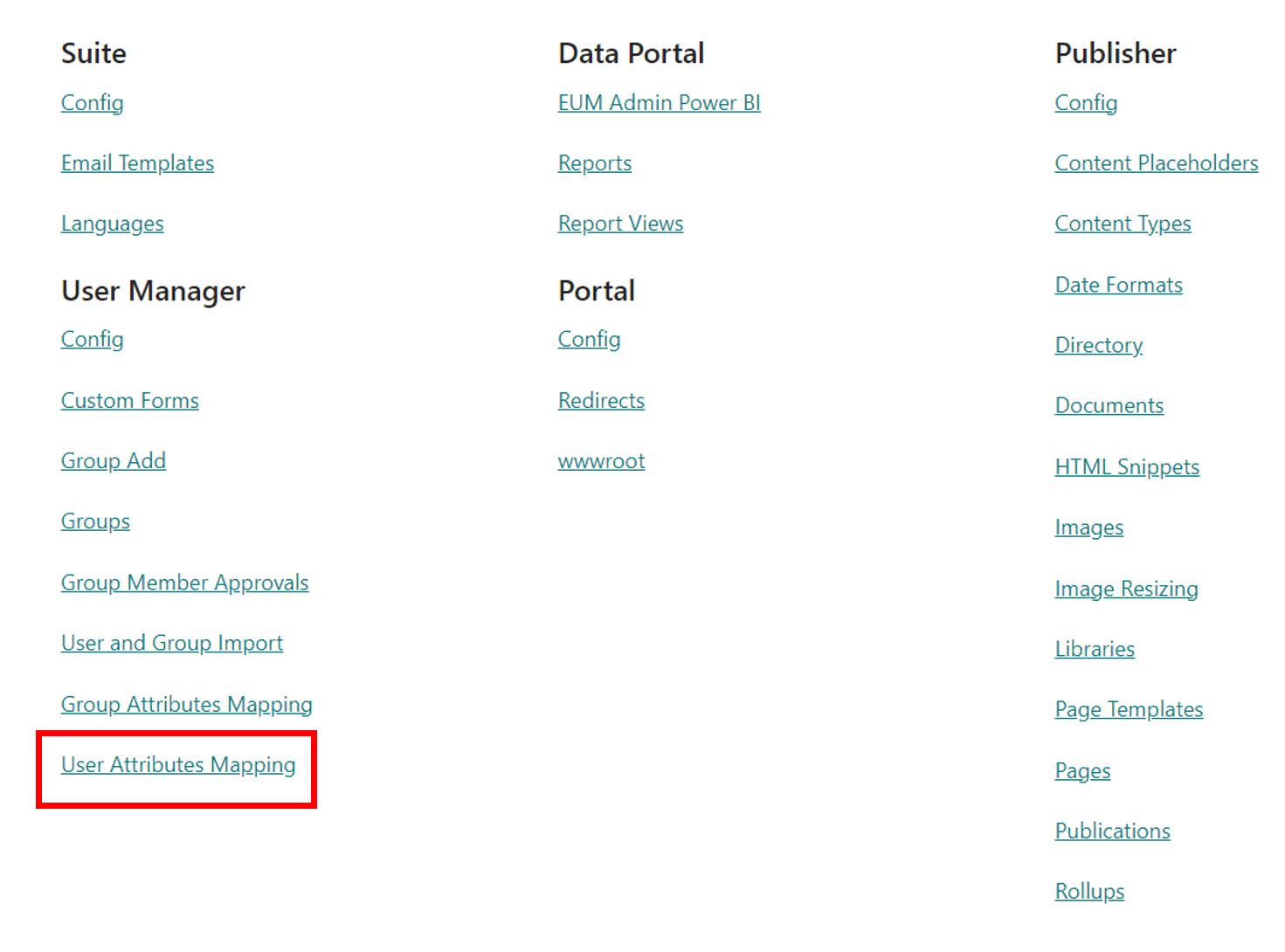
Within the EUM Config site, click the User Attributes Mapping under User Manager
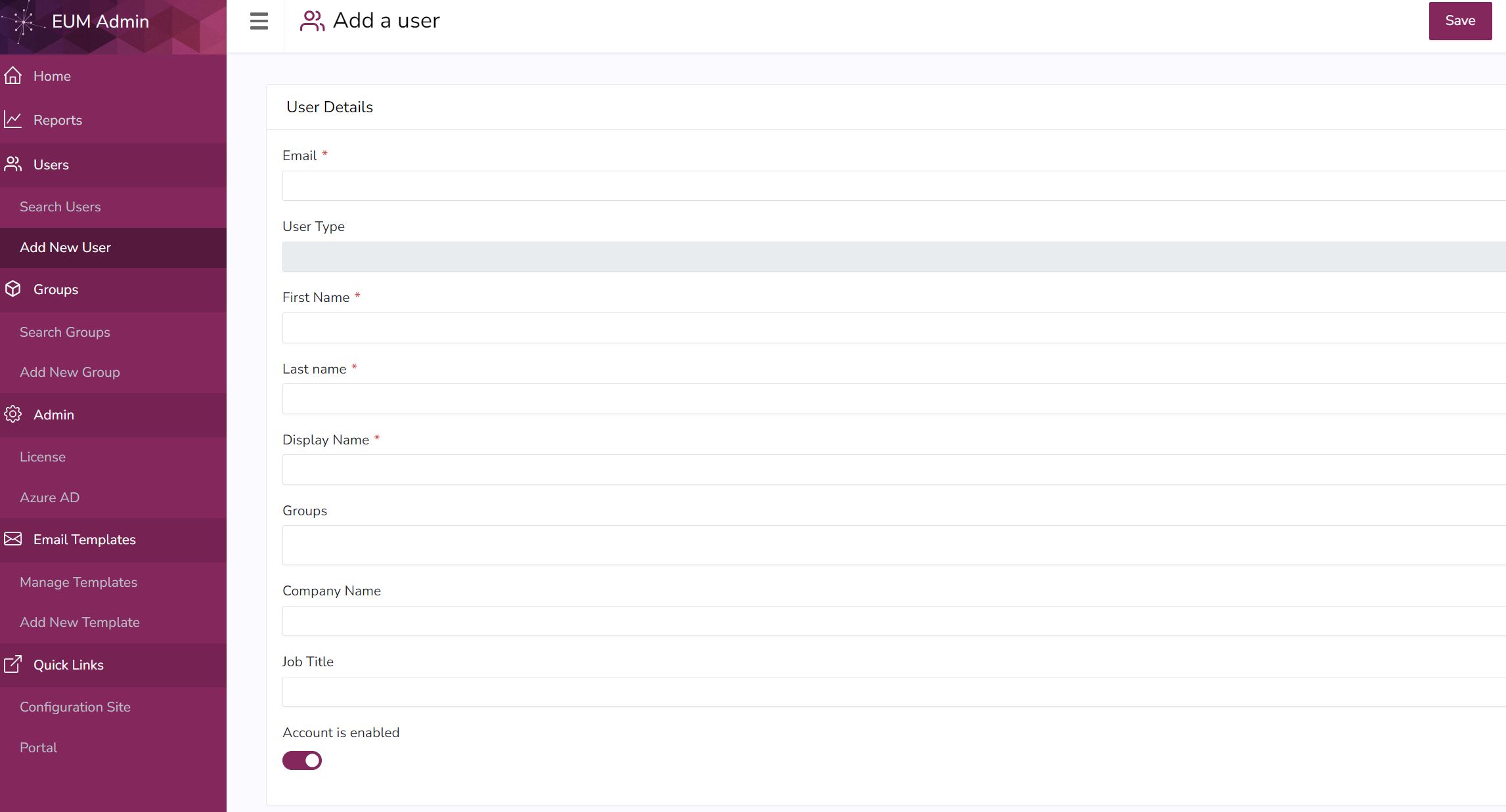
Out of the Box User Details Page
The Out of the Box EUM has Email, First and Last Name, Display Name, Account is Activated toggle, Groups, Company Name, and Job Title as the displayed fields in User Details page.
Email, First and Last Name, Display Name, and the Account is Activated toggle are Required fields for EUM to create a user. All other fields can be hidden, if not needed, with the exception of Groups, which is a Required field for Group Owners and Group Managers.
Unhide a Field
To unhide a field, please go to the EUM Config site and login as a user having at least Write access. Please refer to the related FAQ for finding out the EUM Config site: Finding the EUM Config SharePoint site.
- Click User Attributes Mapping to navigate to the User Attributes list
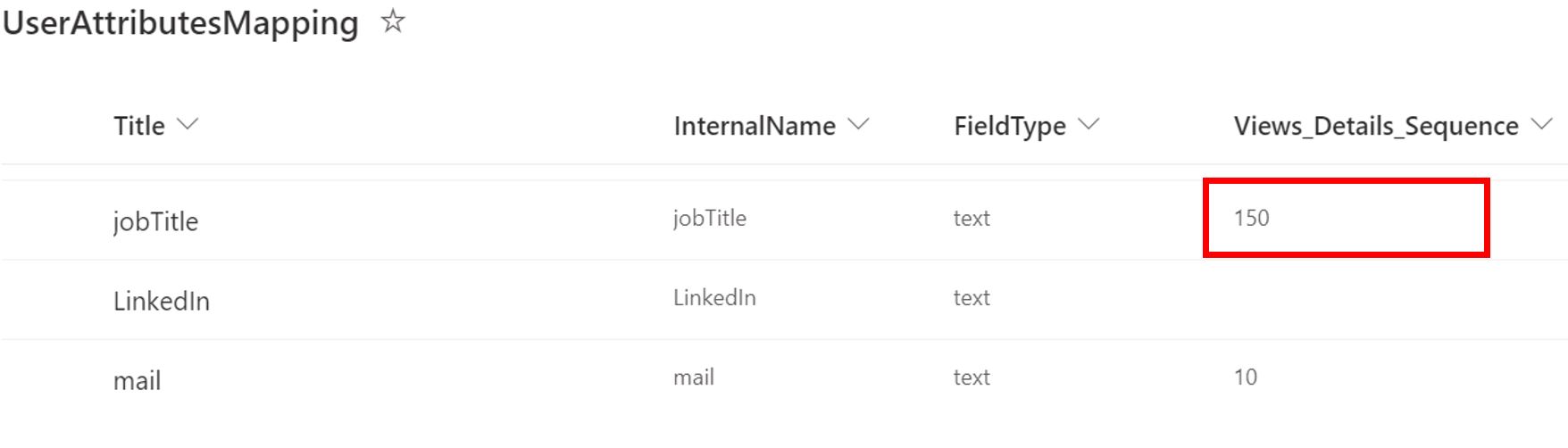
- Add a value according to the desired sequence of a field in the Views_Details_Sequence column for the field you want to unhide. For example, if you want to unhide the Job Title, and place it in the 15th sequence, please add the value 150 to the Views_Details_Sequence column for jobTitle.
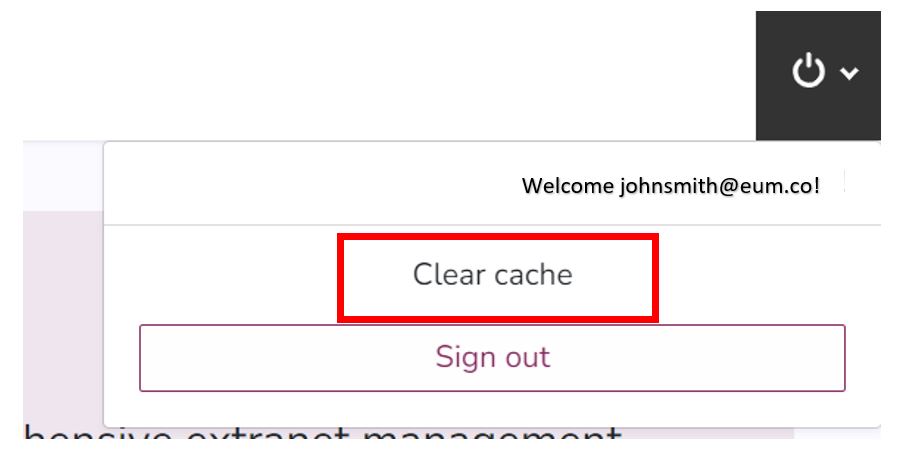
- Within EUM Admin click the Logout button in top left and select Clear cache
- Upon visiting the Add User or any existing user's User Details page, the target field will be displayed in the 15th position.
Change sequence of a field
To change the sequence of a field, please go to the EUM Config site and login as a user having at least Write access. Please refer to the related FAQ for finding out the EUM Config site: Finding the EUM Config SharePoint site.
- Click User Attributes Mapping to navigate to the User Attributes list
- Change the value of the Views_Details_Sequence column for the field you want to change sequence of. For example, if you want to move the Job Title from 15th to 20th position, and if 20th position is unoccupied now, change the value of the Views_Details_Sequence column for jobTitle from 150 to 200.
- Within EUM Admin click the Logout button in top left and select Clear cache
- Upon visiting the Add User or any existing user's User Details page, the target field will be in the 20th position.
Hide a field
To hide a field, please go to the EUM Config site and login as a user having at least Write access. Please refer to the related FAQ for finding out the EUM Config site: Finding the EUM Config SharePoint site.
- Click User Attributes Mapping to navigate to the User Attributes list
- Delete the value of the Views_Details_Sequence column for the field you want to hide. For example, if you want to hide the Job Title, please delete the value of the Views_Details_Sequence column for jobTitle.
- Within EUM Admin click the Logout button in top left and select Clear cache
- Upon visiting the Add User or any existing user's User Details page, the target field will be hidden.
Add a new field
To a new field, please go to the EUM Config site and login as a user having at least Write access. Please refer to the related FAQ for finding out the EUM Config site: Finding the EUM Config SharePoint site.
- Click User Attributes Mapping to navigate to the User Attributes list
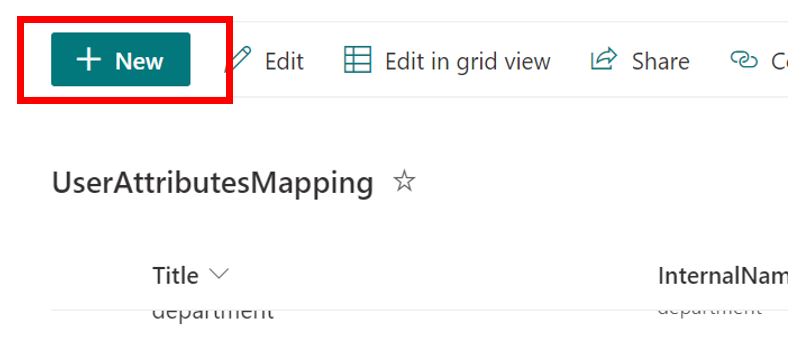
- Click +New to add a new row
- Put in values for
- Title
- InternalName
- FieldType - select one from the choices offered
- Views_Details_Sequence - this should be a unique number and dictates the position of the field in the User Details page. For example, if you want the new field to be the 20th item in the User Details page, please put in 200 as the value for Views_Details_Sequence
- DisplayName_en
- DislayName_fr
- DataSource_Type - should be AAD
- DataSource_Destination - should be OpenExtension if this new field is not displayed as a field in Azure AD Properties. Else this could be Attribute
- Check the appropriate fields to enable:
- Views_Details_Editable - if you want this field to be editable in the User Details page
- Views_Details_Required - if you want this as a "Required" field
- Leave all other fields blank
- Click anywhere outside the row to save the changes
- Within EUM Admin click the Logout button in top left and select Clear cache
- Upon visiting the Add User or any existing user's User Details page, the new field will be in the 20th position.
Related webinar: Dev 15 Release Webinar - User Attributes Mapping