Insert an Image in EUM Group Join Page or Member Page
|
Published
For an image in EUM Group Join Page or Member Page to load, it must be publicly available. There are a few ways this could be done:
- Use the image URL from an image available on a public website
- Use the image URL from an image published within EUM
Use the image URL from an image available on a public website
The logo on the Envision IT website is a publicly available image and has a URL.
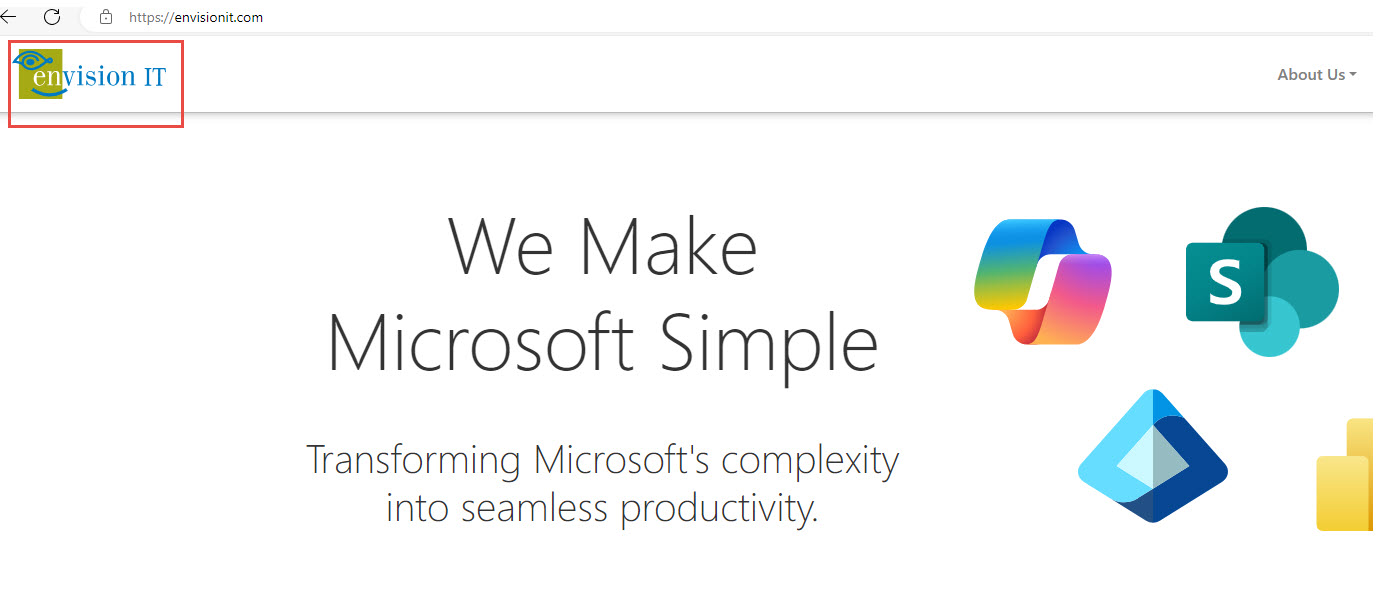
If this logo is to be used on the EUM Group Join or Member page, the following needs to be done:
- Copy the image URL from the website. In this case it is https://envisionit.com/envisionit/img/EIT-Logo.svg.
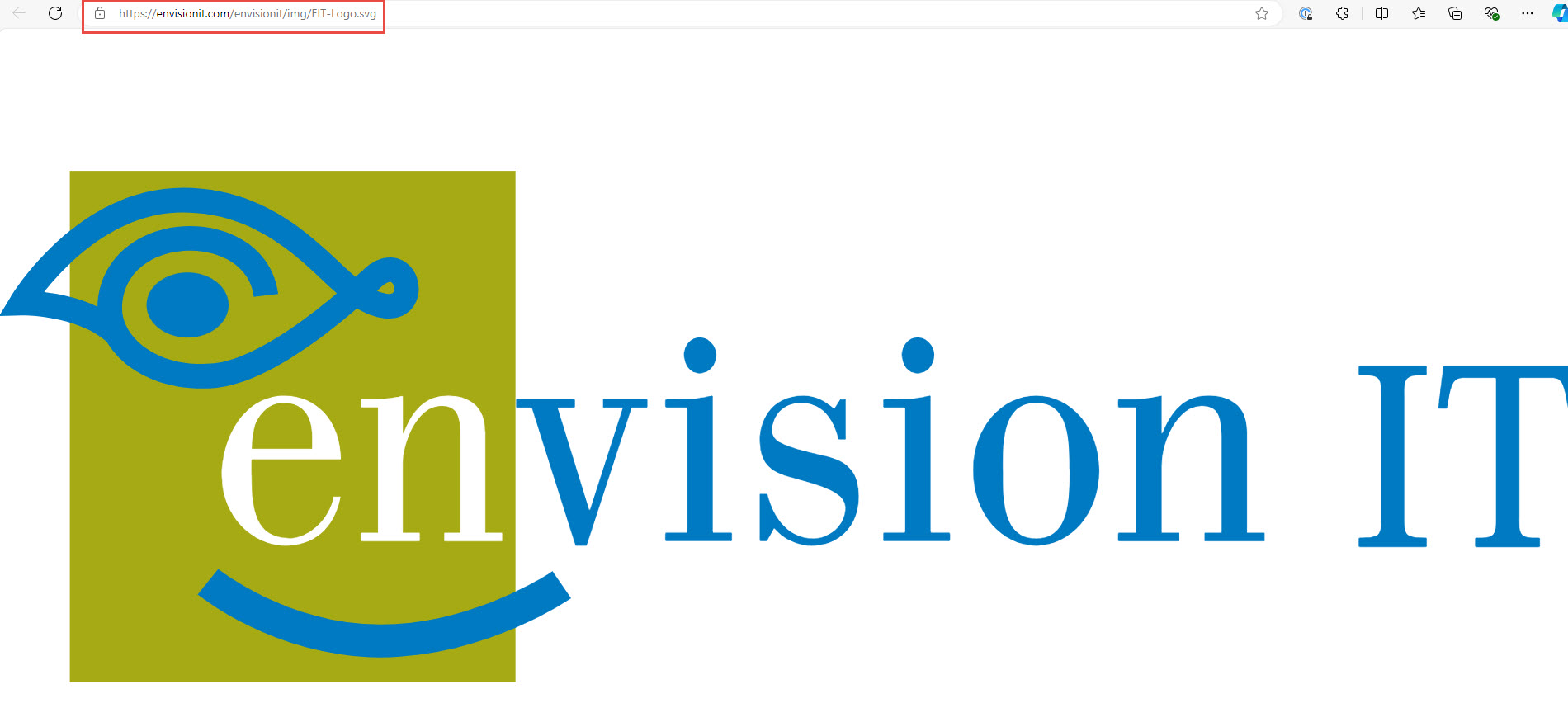
- Login to EUM Admin and navigate to the Join Page tab or the Member Page tab of the Group in which the image is to be inserted.
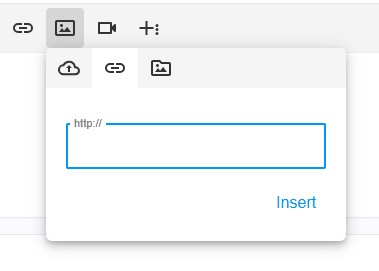
- Click the Insert Image button in the Editor toolbar of the Join Page Content section.

- Paste the URL for the image in the form that comes up, and click Insert. Save the changes.

Use the image URL from an image published within EUM
For an image that has to be used in the EUM Portal or Group Welcome Email, the following needs to be done:
- Upload the image to the EUM Config Site in the Document Library Publisher Images.
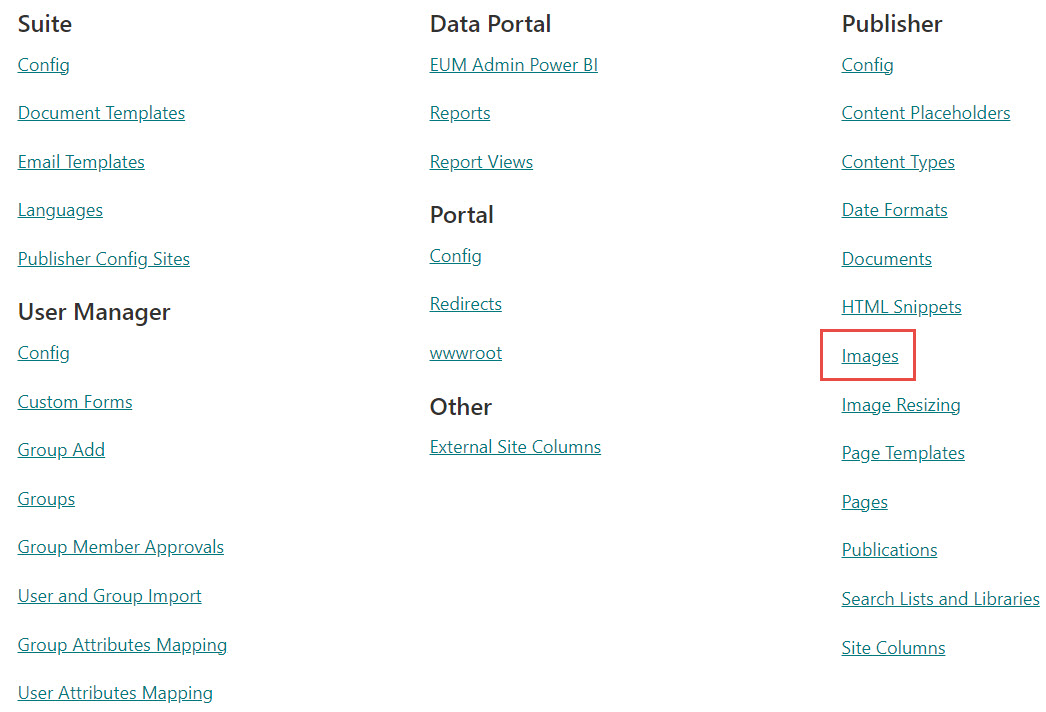
- After this image is published, click the Published link to open the image in a browser. Please note that it might take up to 15 minutes for the publishing process to start.

- Copy the image URL from the browser. In this case it is https://envisionit.com/envisionit/img/EIT-Logo.svg.
- Login to EUM Admin and navigate to the Join Page tab or the Member Page tab of the Group in which the image is to be inserted.
- Click the Insert Image button in the Editor toolbar of the Join Page Content section.
- Paste the URL for the image in the form that comes up, and click Insert. Save the changes.