How to download Logs for EUM installed as App Service
|
Published
The following steps would help to download the logs for EUM if EUM is installed as an App Service:
- Go to portal.azure.com
- Navigate to the EUM App Service
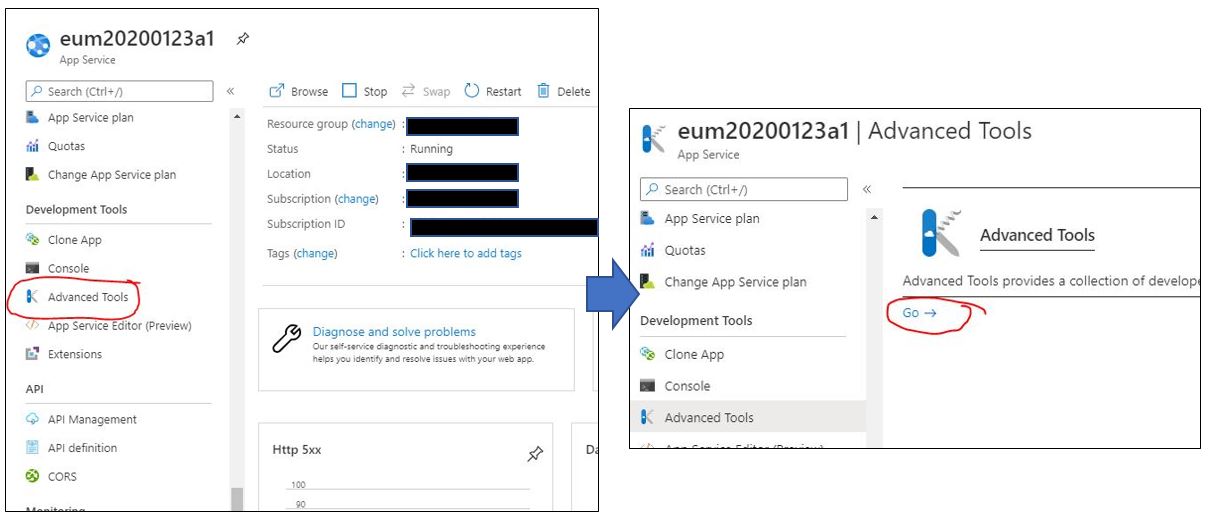
- On the left pane, go to Advanced Tools – Go
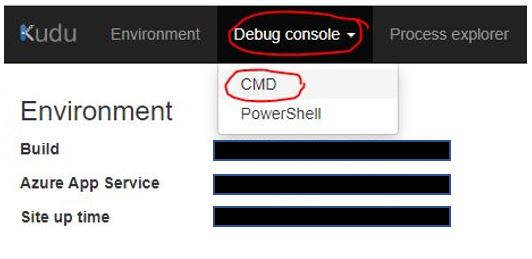
- In Kudo, go to Debug Console > CMD
- If all the log files are required, these can be downloaded from here by clicking the Download button beside the LogFiles
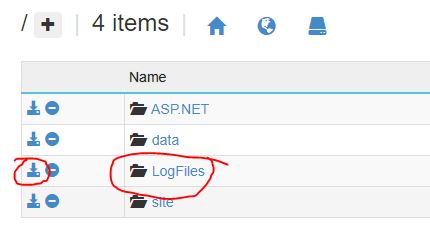
- However, if a specific log file need to be downloaded, then click LogFiles to dig in further
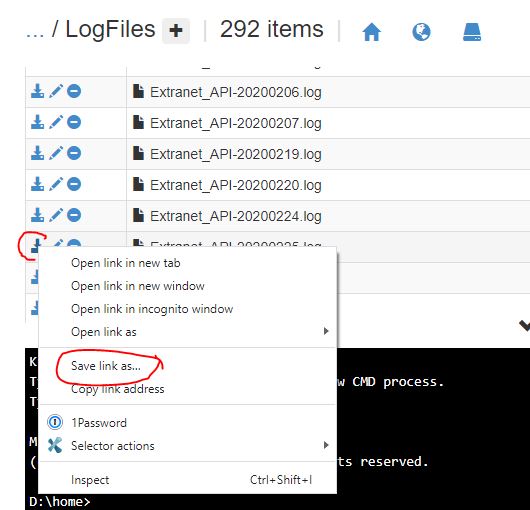
- Upon scrolling to the required file, right click the Download button and click Save link as... then save the file in the required folder
Showing error on maximum number of items that can be viewed in the LogFiles? Refer our related article.