How a Group Owner Can Add a User
Warning: the new users will receive a Welcome Email for them to set their password, so it is best to notify the users prior to adding them.
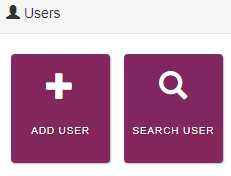
Sign in to Landing Admin as a Group Owner and click Add User to load the User Details page.
On the User Details page, select the user Status, put in at least the required info, which is First Name, Last Name, and Email. If MFA is activated, the MFA type.
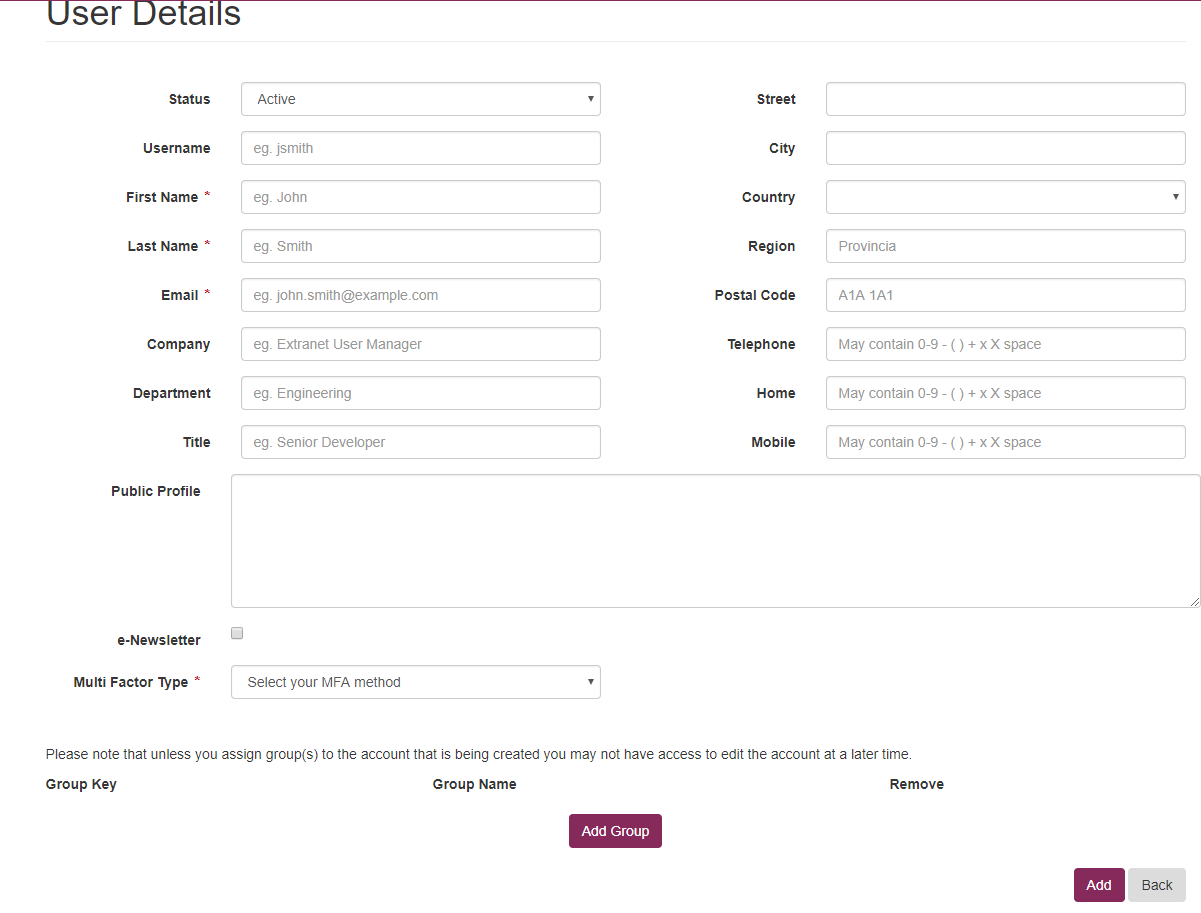
Click Add Group to open a pop-up window, and search for Groups there.
Warning: if the Group Owner misses adding a Group to the new user, then the new user might vanish from the user's list of the Group Owner. In that case, the EUM Admin who has Edit Configuration User rights must be contacted.
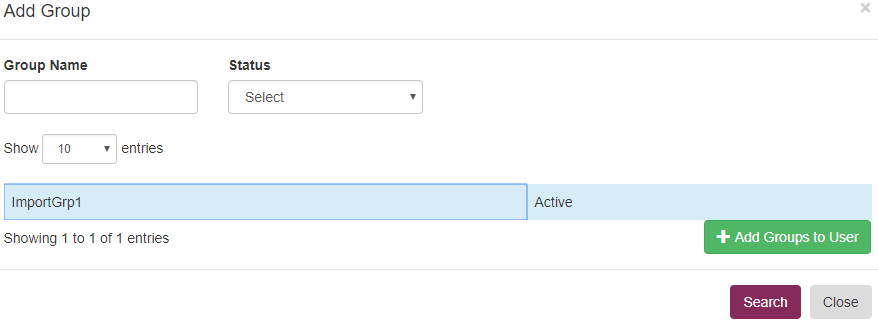
Select the Groups the new user needs to be added to. Then click Add Groups to User. The Group added turns green. Close the pop-up window.
Verify that the Group is added to the new user. Once done, click Add.
A success message will be displayed showing that the New User was added.