EUM V6 integration with Stripe
|
Published
Integrating EUM V6 with Stripe is really easy. This article will guide you through the integration process, and also see what the end users will expect.
Stripe Integration
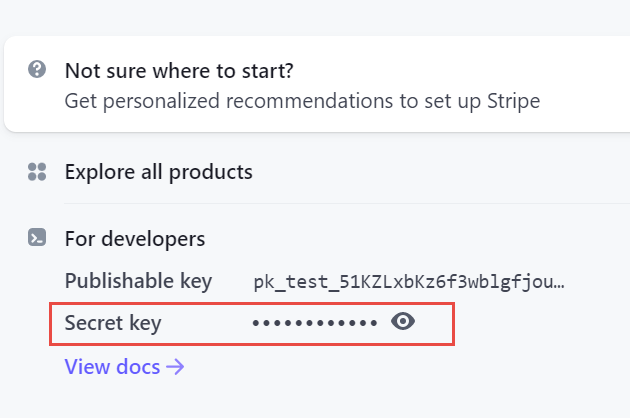
- Register with Stripe, and copy the Secret Key
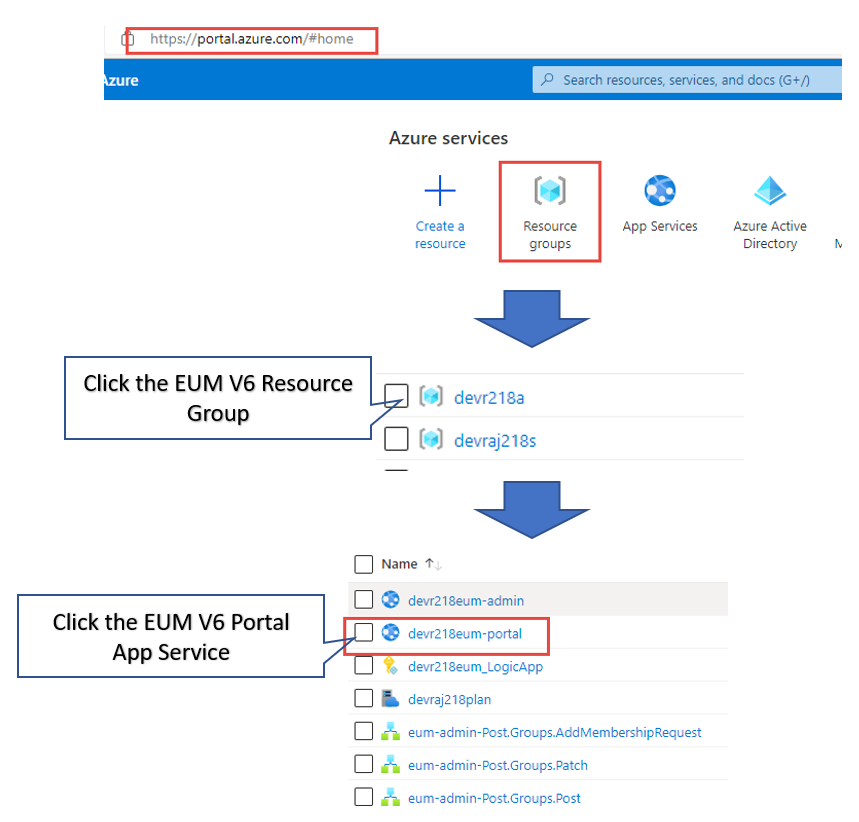
- Login to https://portal.azure.com and navigate to the EUM V6 Resource Group, and then to the EUM V6 Portal App Service
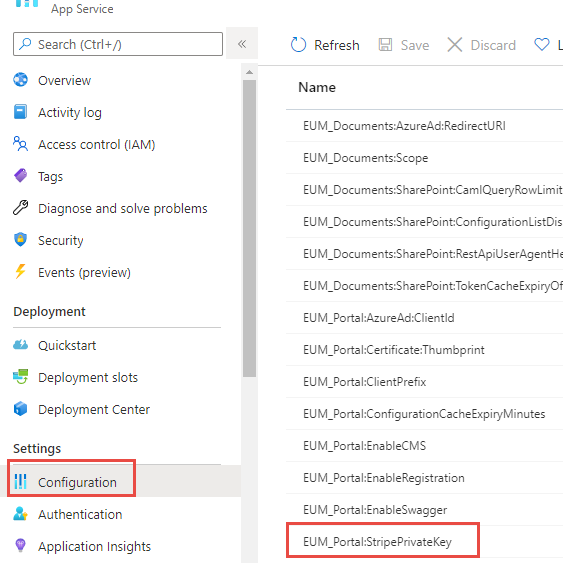
- In the left hand menu click Configuration (under Settings), and then click EUM_Portal:StripePrivateKey to edit it
- Put in the secret copied in Step 1, and click OK
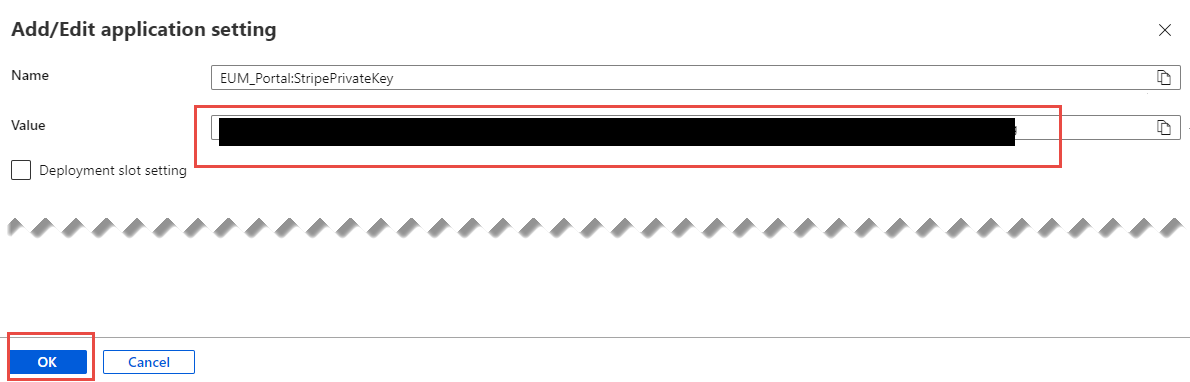
- Click Save

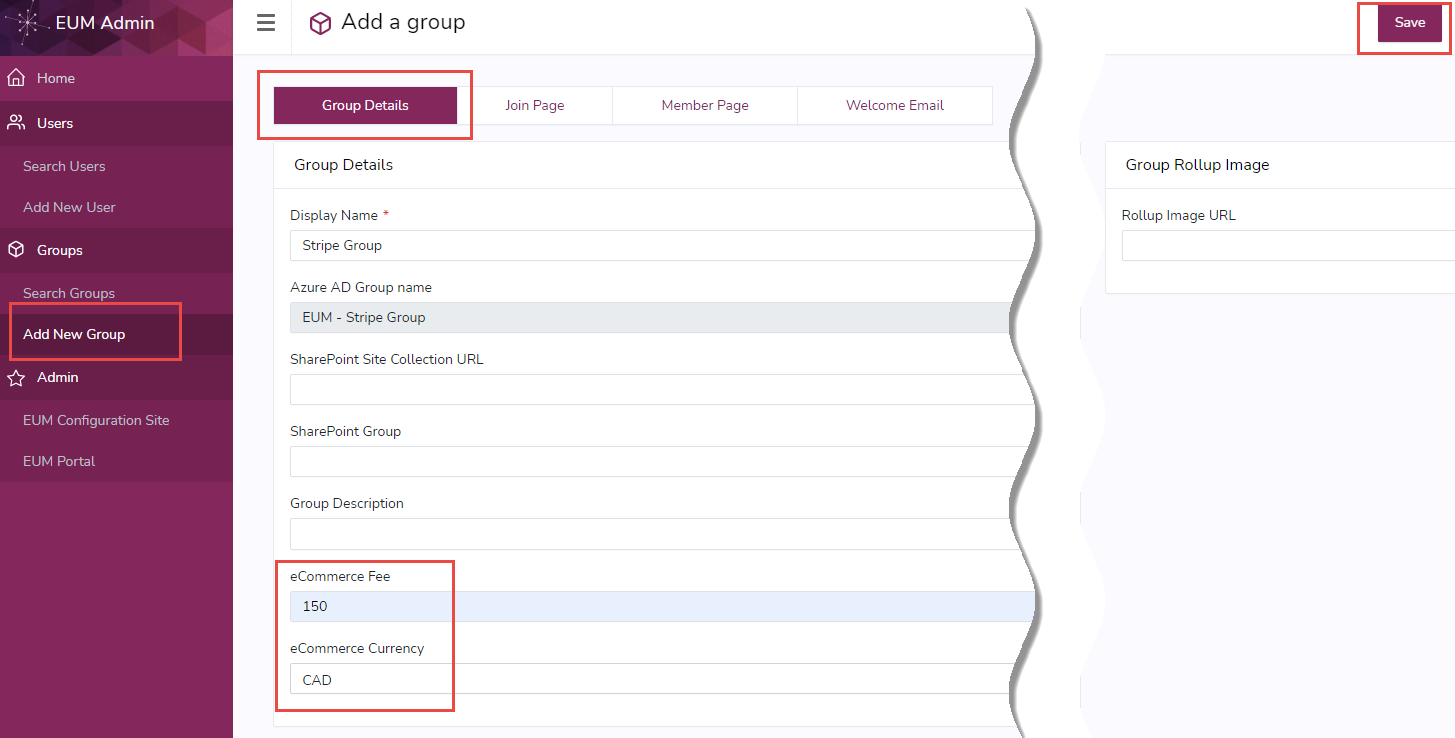
- Browse to EUM Admin with a Global/User/Group admin account, and create a Public Group
- In the Group Details tab put in eCommerce Fee and eCommerce Currency and click Save
- In the Join Page tab select Registration Type as "Public", Join Page Generation as "Auto-generated URL" unless you want to have the Join page in some other place, and put in a Join button in the Join Page Body, and click Save.
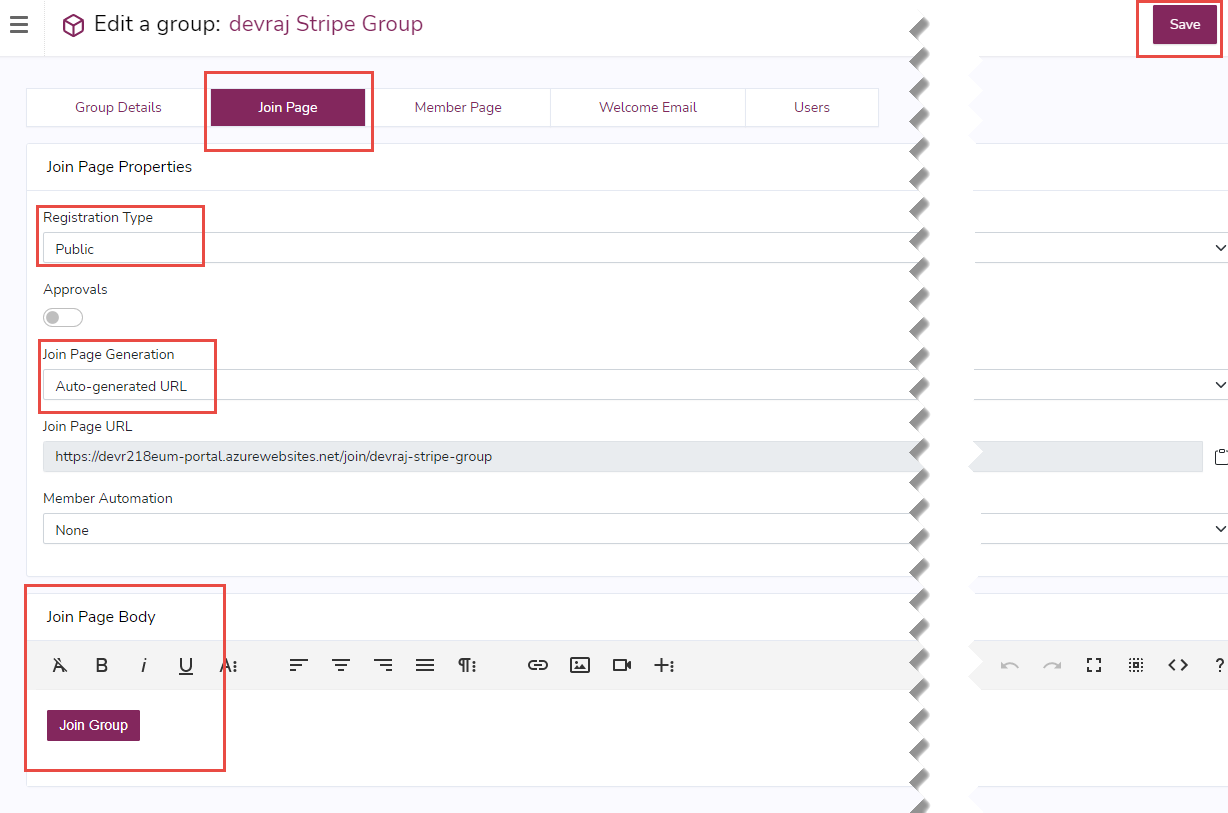
Note: Visit the article on how to add a Join button: Group Join button for EUM V6 - Wait for a few minutes for the group to show up in the EUM Portal Public Groups area
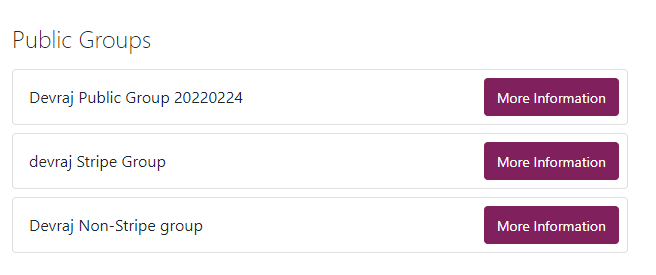
End User's expectation after Stripe Integration
- Register/Login to EUM Portal
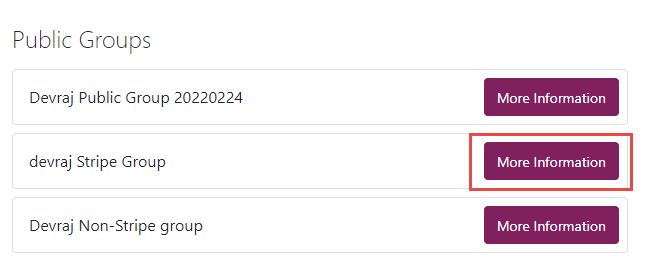
- Click the More Information button for the Public group integrated with Stripe
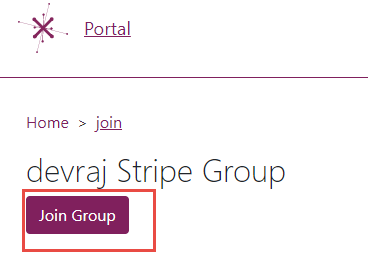
- Click the Join Group button
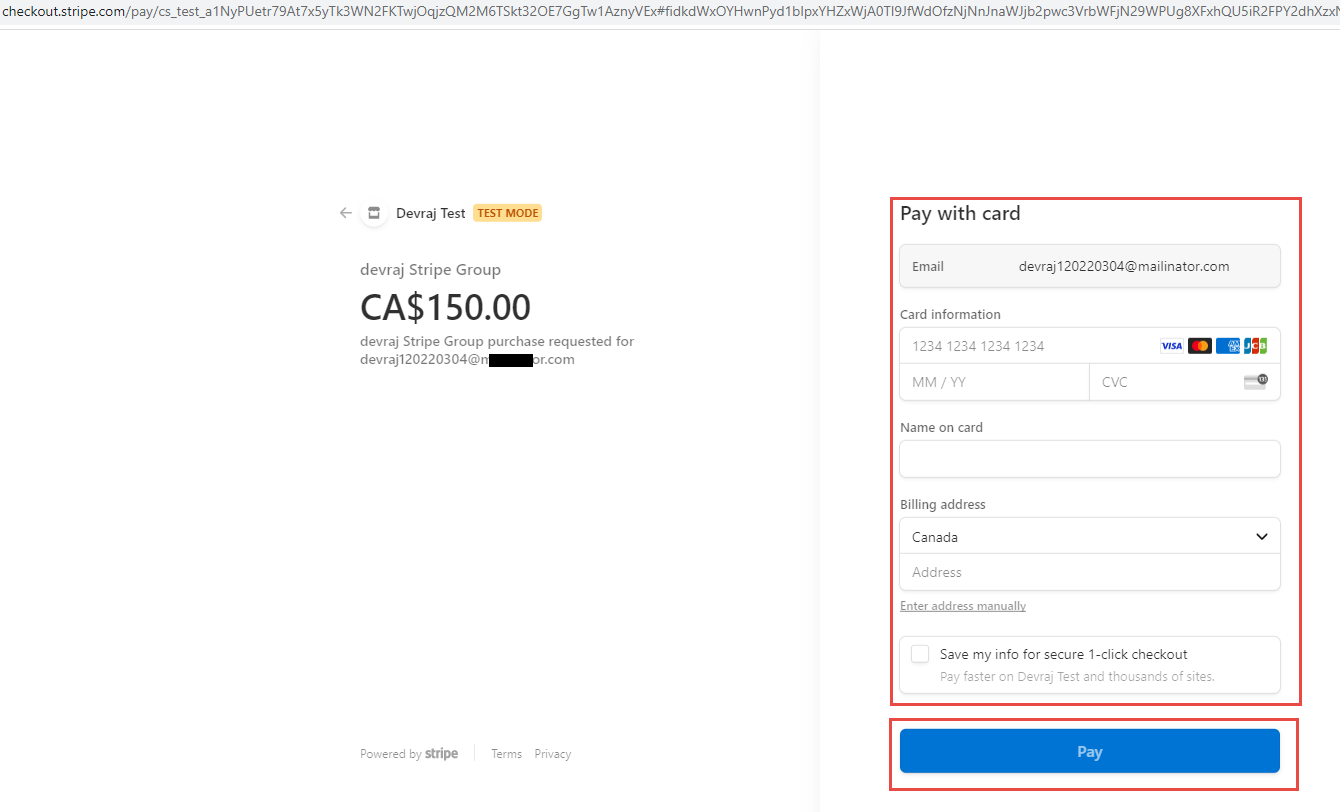
- This will take the user to the Stripe page. The user will fill up the form and click "Pay"
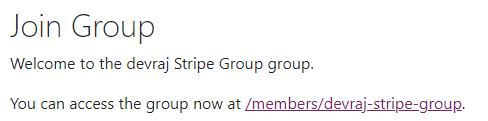
- The user will complete joining the group