Enable Portal Welcome Email in EUM V7
|
Published
Out of the box EUM has the Portal Welcome Email enabled. However, if for some reason someone has disabled the Portal Welcome Email, then the Portal Welcome Email will not be triggered even though a new Guest User is successfully created using EUM. The Portal Welcome Email can be enabled by someone having access to EUM Admin, or Owner access to the EUM Configuration site.
EUM 6.0.8460.2 and above
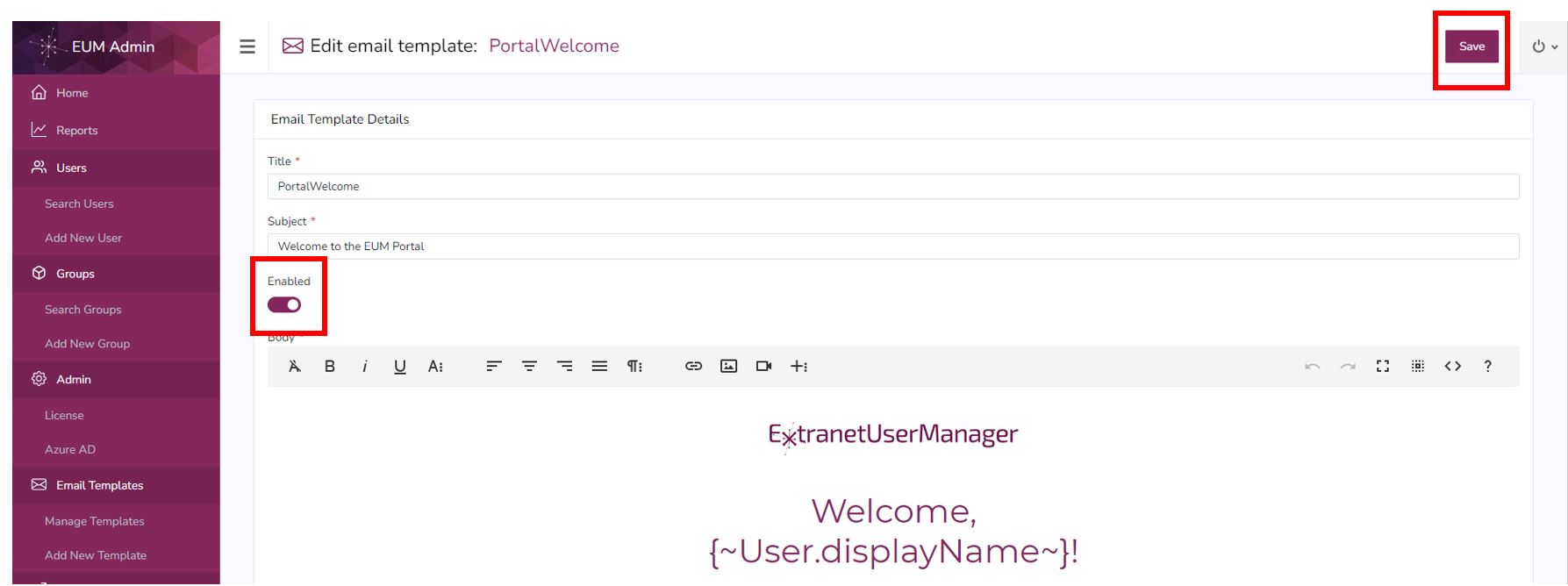
- Please login to EUM Admin and click the Manage Templates site in the left hand Menu.
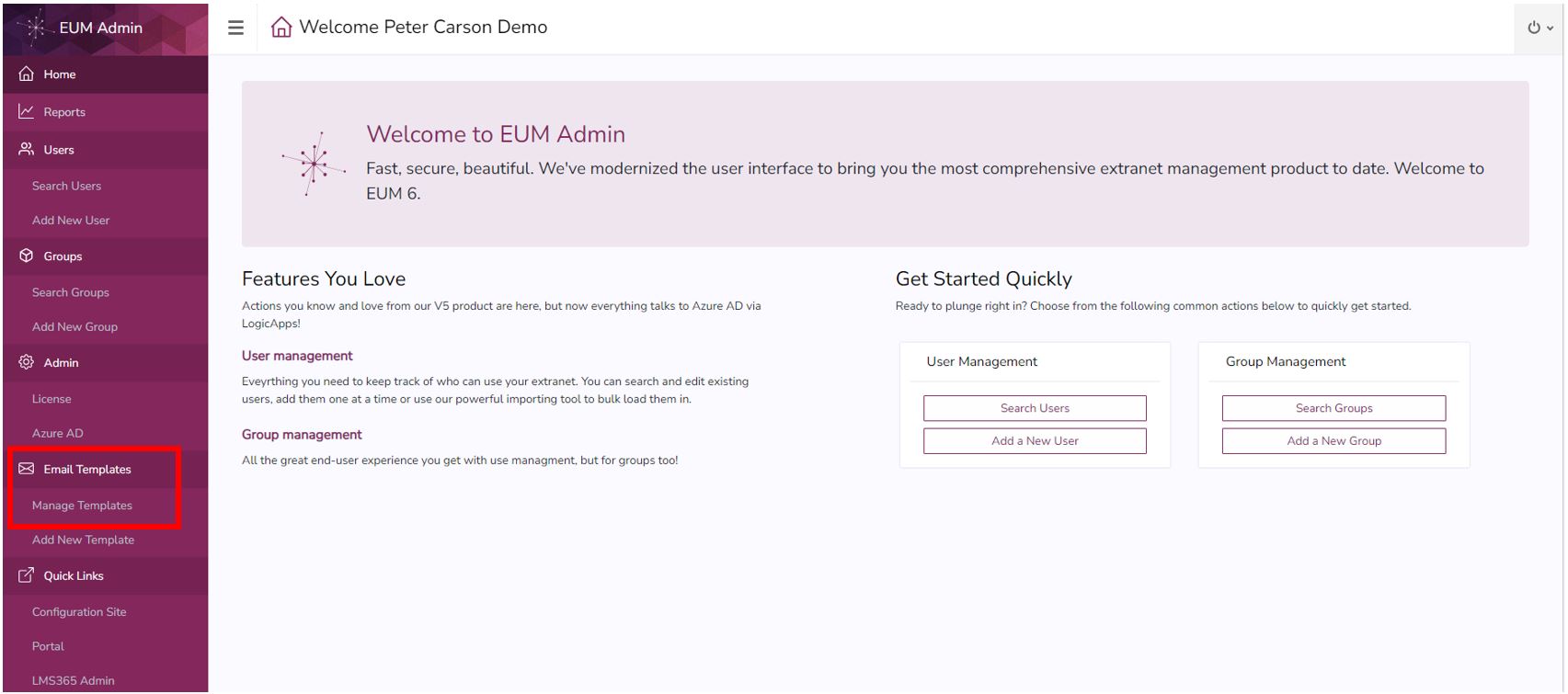
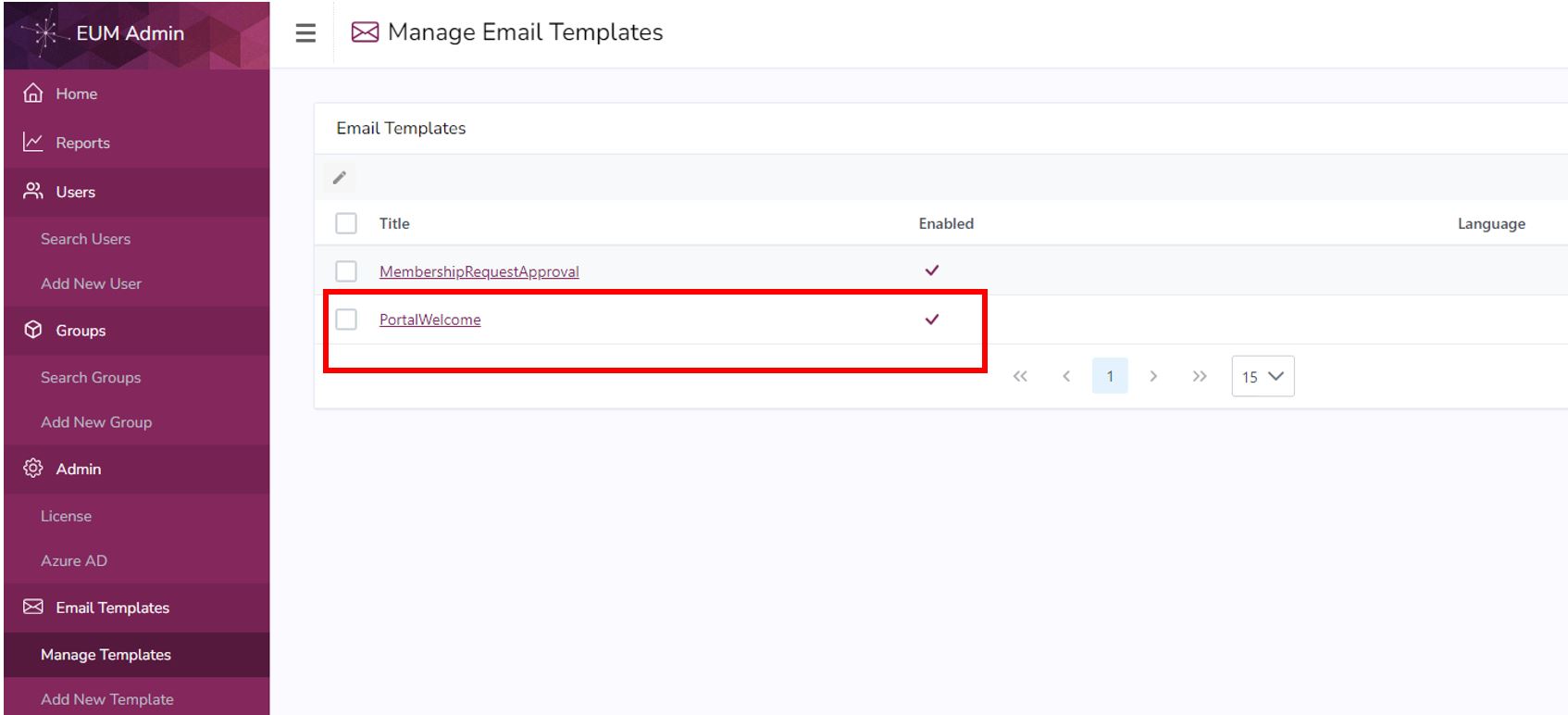
- Check if the PortalWelcome email is enabled
- If not enabled, select the PortalWelcome email and click Edit
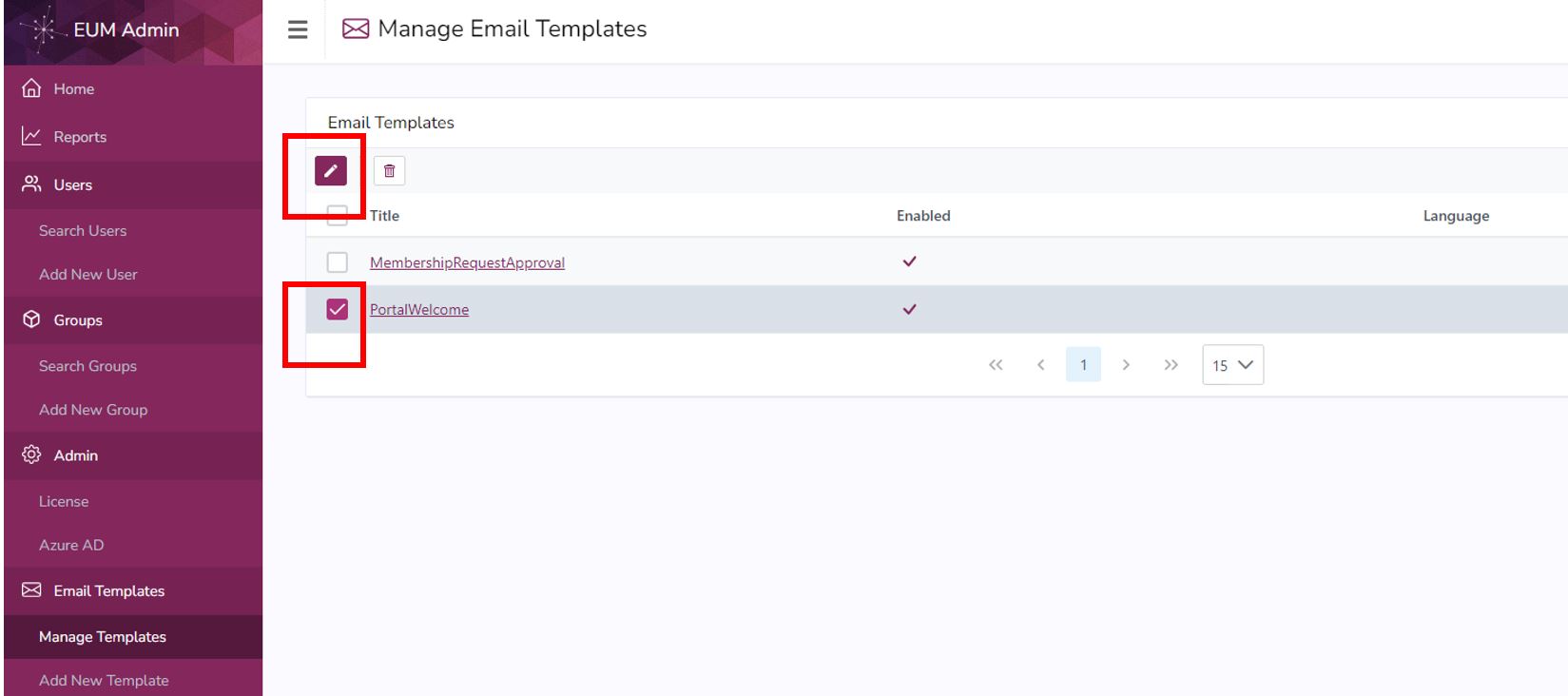
- Enable the email and click Save
EUM 6.0.8433.1 and below
- Login to EUM Admin and click the link to the EUM Config site
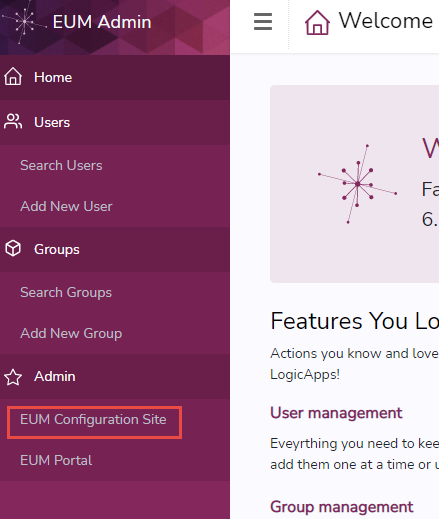
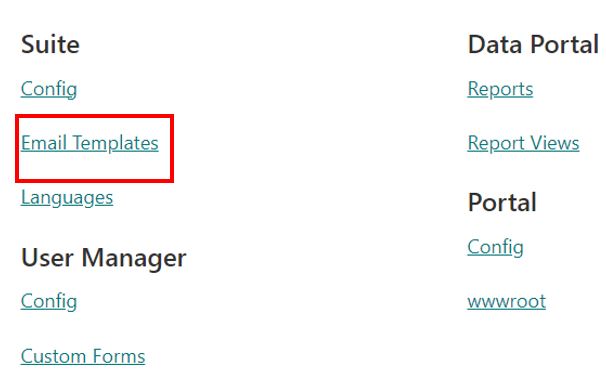
- Once in the EUM Configuration site, click "Email Templates" under Suite
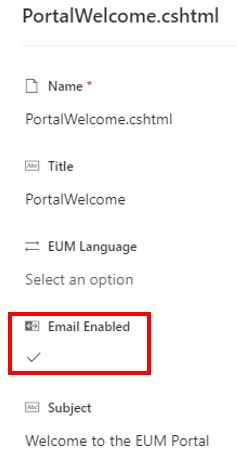
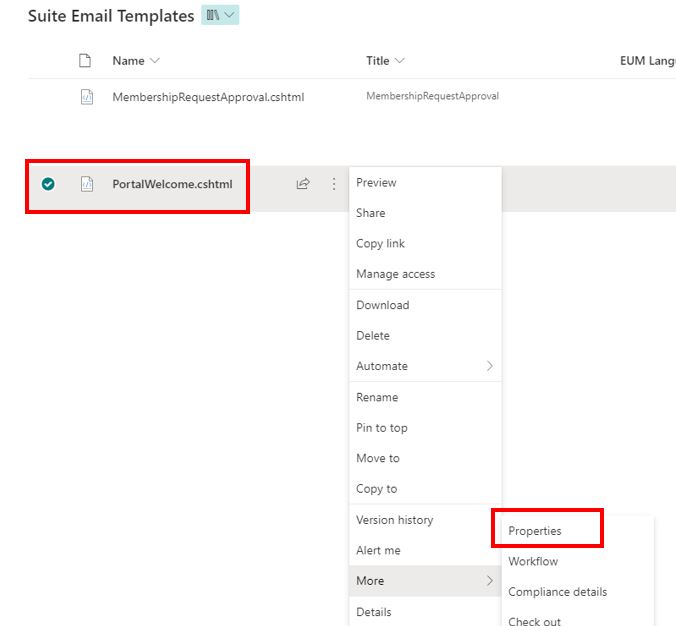
- Select PortalWelcome.cshtml, click the three dots beside it, expand More, and go to Properties
- Click the checkbox to enable the "Email Enabled" field. Click anywhere outside to save it.