Disable an Account using EUM Admin
|
Published
Imagine a situation where you would want to temporarily block/disable the access of a user to your tenant without deleting that account. That way, the user will still be member of the necessary groups, but would not be able to access anything till you unblock/enable the account again.
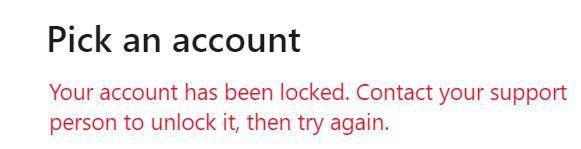
Someone with the account disabled will see a "account is locked" message upon logging in
To Disable a Guest User Account, please follow the below steps:
- Login to EUM Admin as any of the following: Global Admin, User Admin, Group Admin, EUM Administrator, EUM Manager, Group Owner, Group Membership Manager
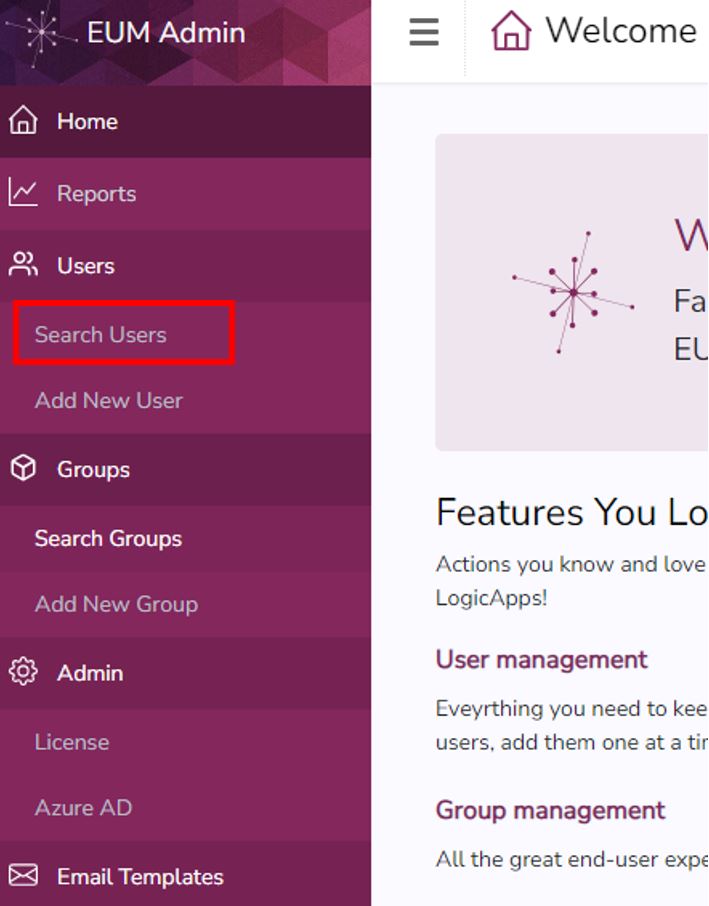
- Navigate to the Search User page
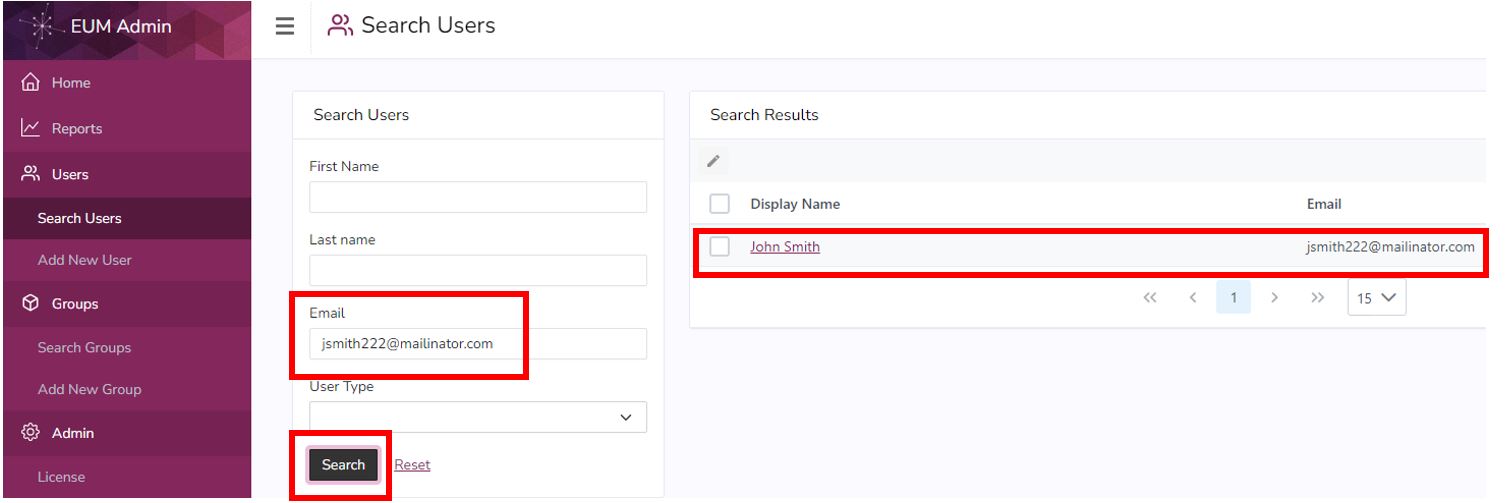
- Search for the user to be deactivated. Click the user once it appears in the Search Results to go to the User Details page for that user
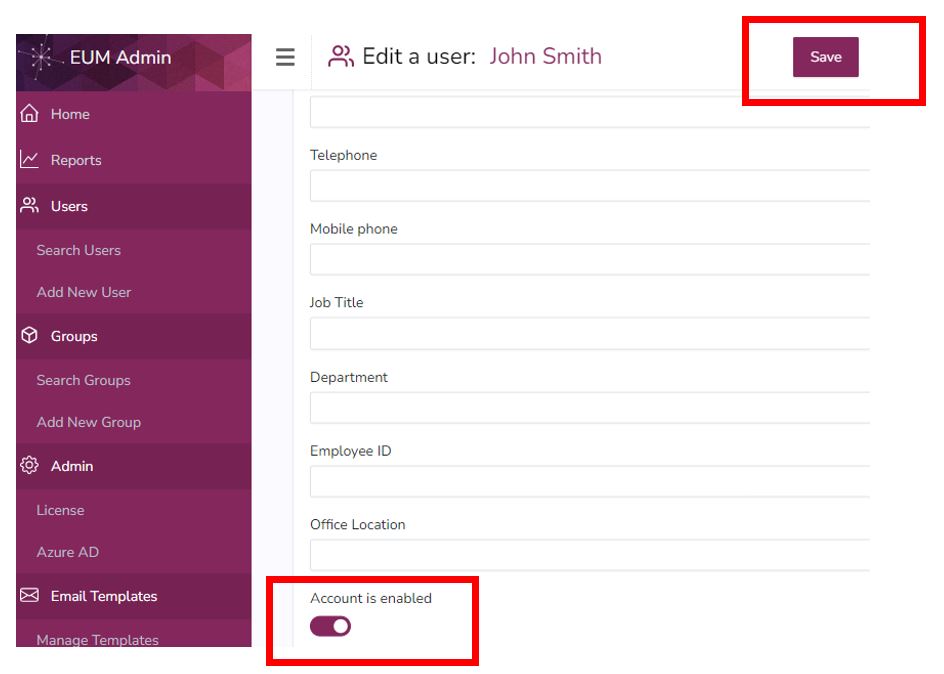
- Within the User Details page turn the "Account is enabled" toggle OFF and click SAVE