Customize Logic App to include User Display Name in Group Welcome E-Mail
|
Published
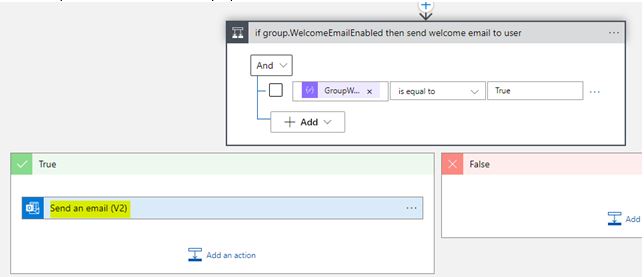
To customize the logic app workflow to include Usernames in Group Welcome Emails, please follow the below steps:
- Clone the “eum-admin-Post.Users.AddMemberOf” Logic App to create another one called “ABC- eum-admin-Post.Users.AddMemberOf”. This will ensure that any upgrades do not overwrite the customizations. The pre-fix "ABC" here should be replaced by your company's name.
- In the “ABC- eum-admin-Post.Users.AddMemberOf” Logic App, click “Edit”

- Click to expand the last step

- Click to expand the “Send an email (V2) action
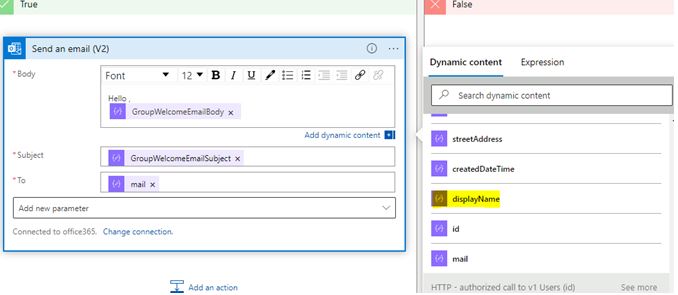
- Click before the GroupWelcomeEmailBody JSON in the Body area, so you could enter, for example Hello
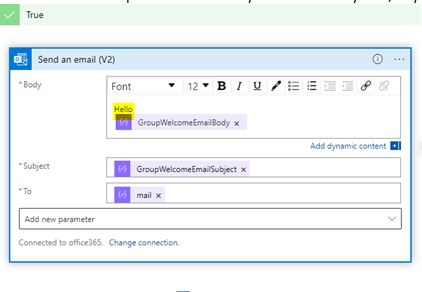
- Put the cursor after “Hello” so that the DisplayName JSON can be entered after that
- Click the Parse JSON – user from the suggestion
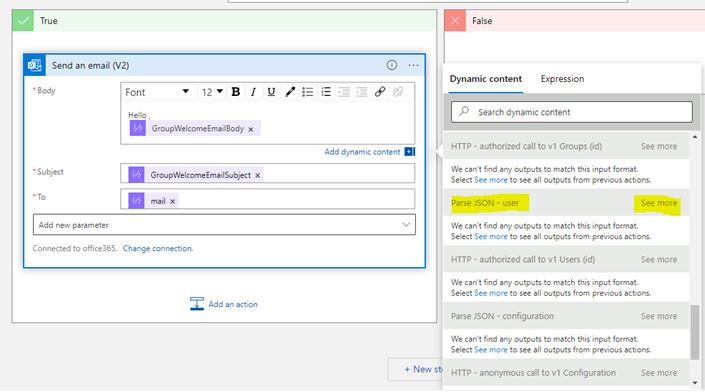
- Click to select displayName
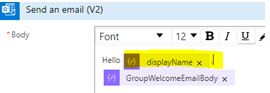
- It will be added beside Hello
- Click Save
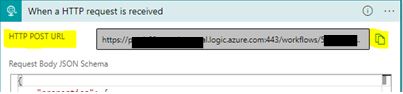
- Click to Expand the first item in the Logic App – “When a HTTP request is received”

- Copy the “HTTP Post URL”
- Go to the EUM Configuration SharePoint Site
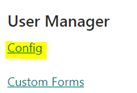
- Click “Config” under “User Manager”
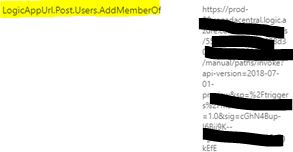
- Lookout for “LogicAppUrl.Post.Users.AddMemberOf” list item, and click it
- Replace the Value with the one copied in Step 12
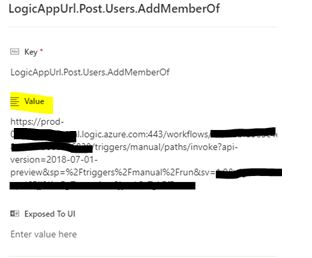
- Click anywhere outside to save the changes
- In EUM Admin, if the Mail Body is set like this
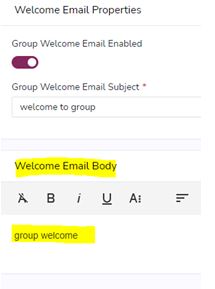
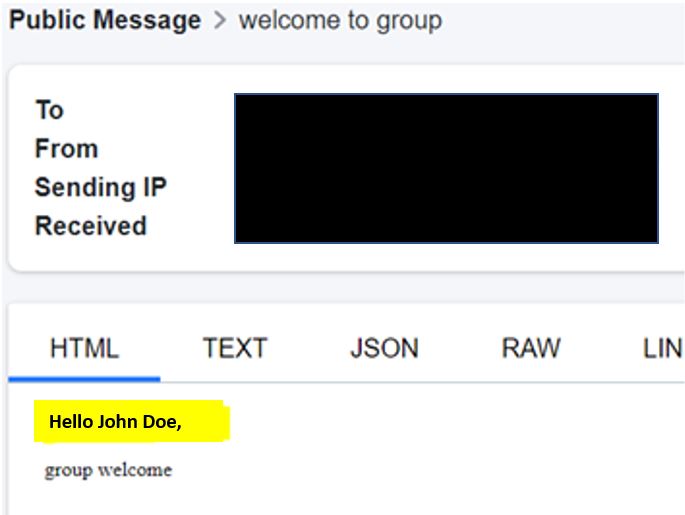
Then the email received will have Hello <displayname> added to the top