Create EUM Group in EUM V6 Admin
|
Published
Signing in to EUM Admin either as a Global Admin, EUM Manager, or Group Creator, you can create an EUM Group, which in turn creates a Security Group in Azure AD. The EUM Group can be tied to Portal pages, SharePoint sites, and LMS Courses/Course Catalogs/Training Plans to allow guest users secured access to these target materials.
In this article we will explain how to create an Invitation Only Group where the users can be added only through EUM Admin.
- Sign in to EUM Admin.
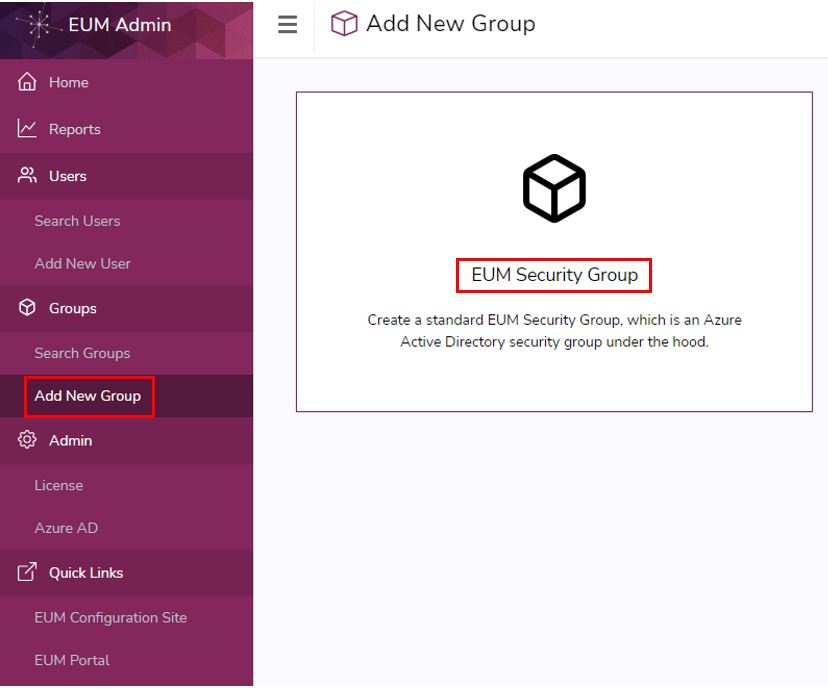
- Click Add New Group.
- Click EUM Security Group.
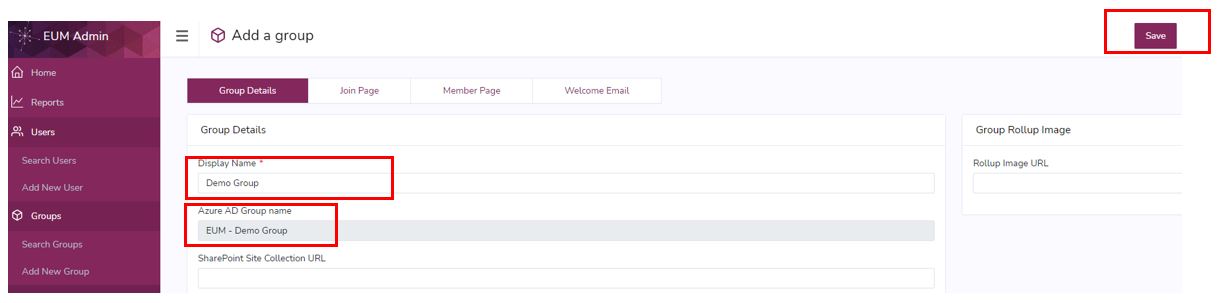
- On the Group Details page put in Display Name.
- Notice that the Azure AD Group Name is automatically populated. In out-of-the-box EUM, the Azure AD Group Name has this prefix: "EUM - " before the EUM Group Display Name. This is to easily identify EUM Groups when viewed in Azure AD.
- Click Save.
- If this Group is to be used to give its members access to a SharePoint site, then related steps are to be followed.
- If this Group is to be used to give its members access to LMS Courses/Course Catalogs/Training Plans, then related steps are to be followed.