Create an Email Template
|
Published
EUM can send various notification emails to its users, and the templates of these emails can be created and edited by logging into the EUM Admin as a EUM Manager or Global Admin. There are a few email templates that come out if the box, while others can be created.
The email templates that come out of the box are:
- Portal Welcome E-Mail: If enabled, when a new guest user gets created by EUM, this email is sent to that user. This email needs to be altered to suit the branding and content needs.
- Membership Request Approval E-Mail: If a Group has an approval process enabled, then this email is sent to the Group Owner/Manager to notify of new approval requests.
- Group Welcome E-Mail: If enabled, when a user is given membership of a group which is configured to send the Group Welcome Email from this template, this email is sent to that user. This email needs to be altered to suit the branding and content needs.
Apart from the email templates that come pre-installed, new Email Templates can be created and used for custom notifications.
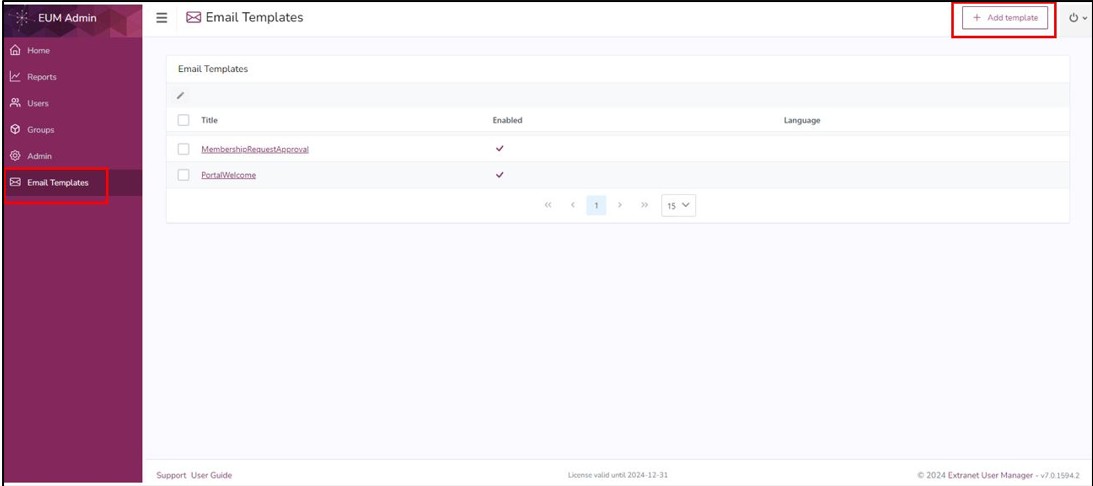
- Login to EUM Admin as a EUM Manager or Azure AD Global Admin
- In the left-hand menu click “Add New Template”
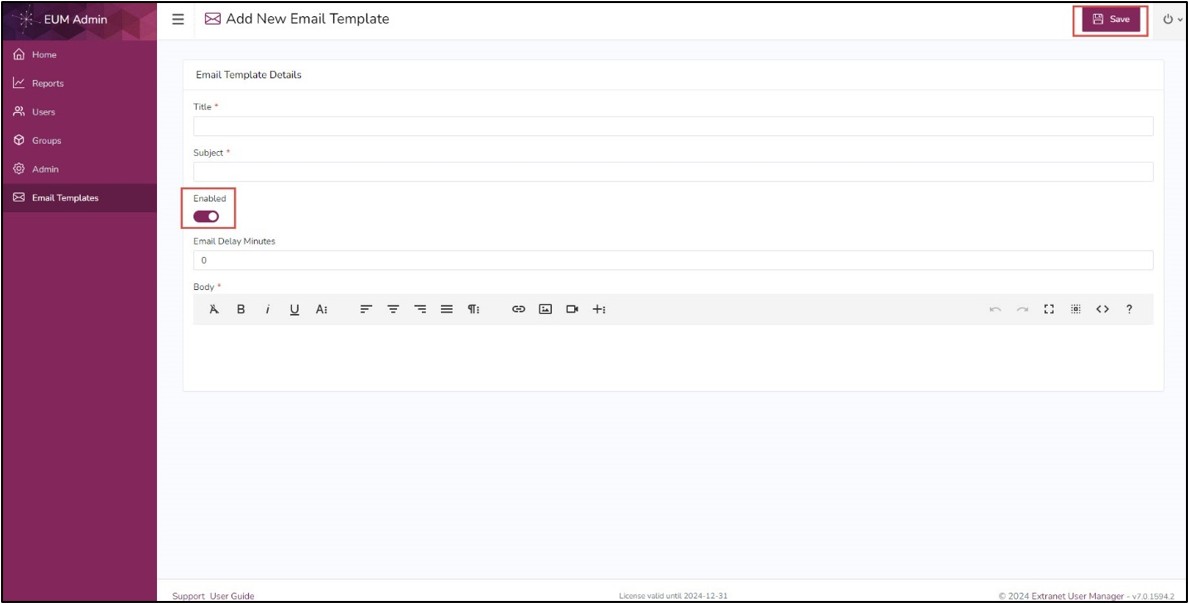
- Fill in the Title, Subject, and Body
- If HTML code is to be used for the Email Template, the <> button to the right can be used to toggle between Code View and Normal View
- Click Enable to enable the email
- Click Save when ready