Create a Private EUM Group
|
Published
A Private EUM Group is not available in the EUM Portal publicly for the users to self discover and join. Instead, the Group Owner/Manager/Administrator can share the link of the Group privately to targeted users so they can join the group.
- Create a EUM Security Group to start with
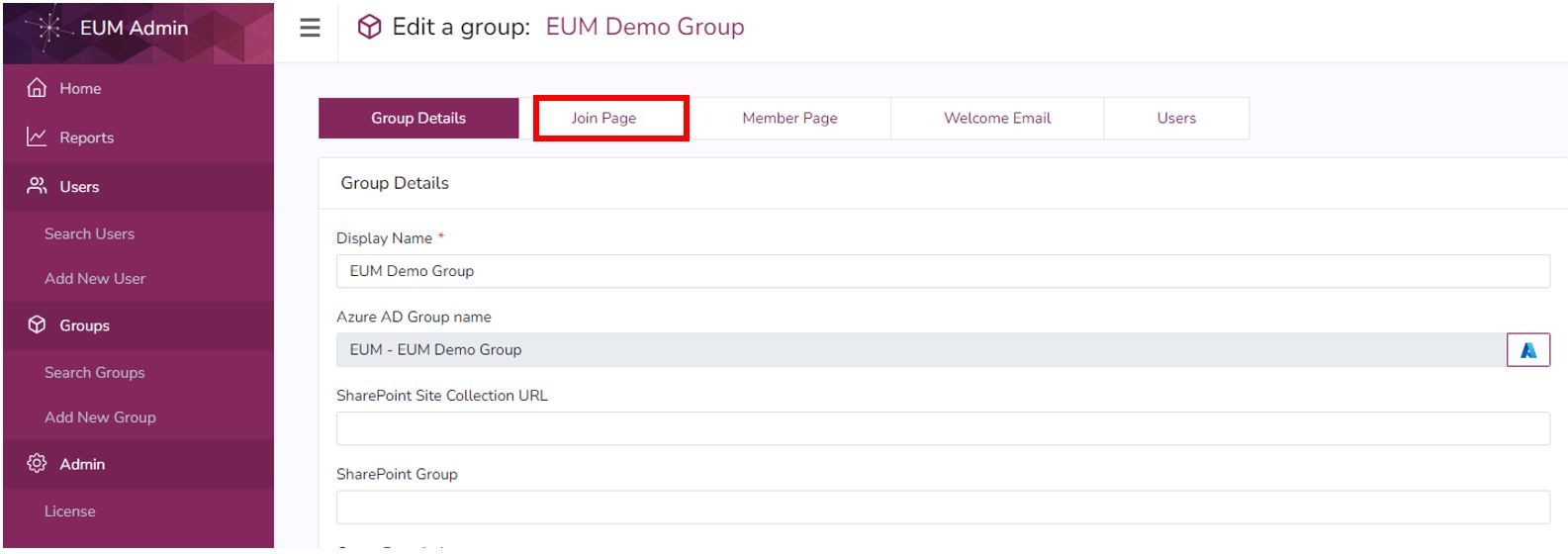
- Once the Group is created, click the Join Page tab in the Group Details page
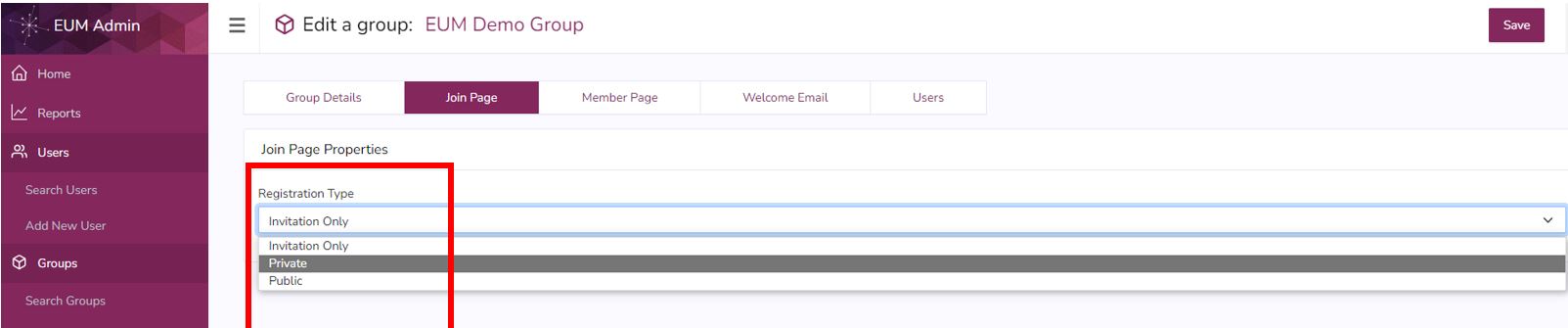
- Change the value for the Registration Type field to "Private"
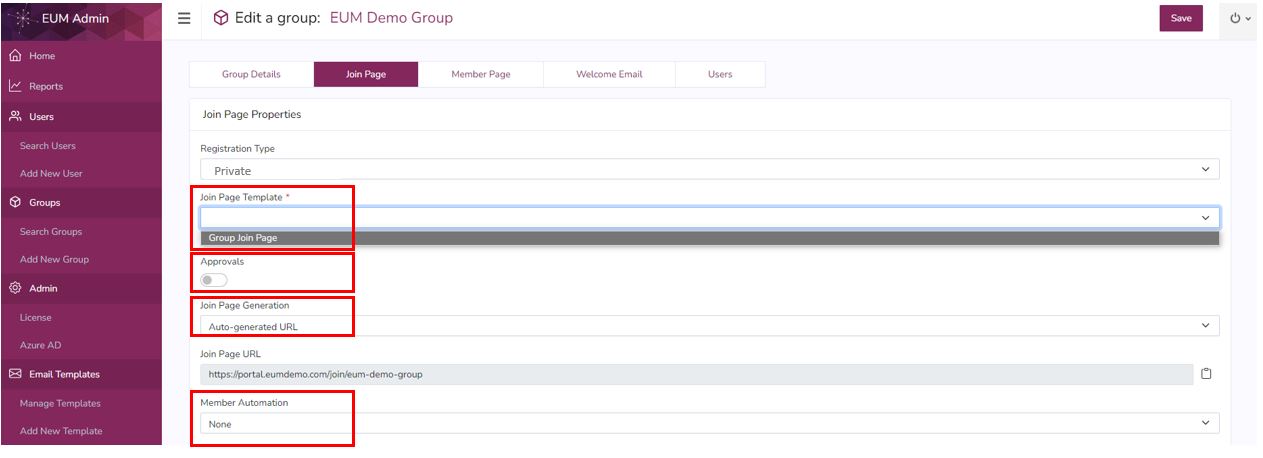
- Select the applicable Join Page Template. Out of the box EUM has only "Group Join Page" template to select.
- Leave the Approvals toggle off, unless you want the users to go though an approval process to join the group.
- Leave the Join Page Generation as Auto Generated URL, unless you want to have a custom URL
- Leave the Member Page Automation as None, as the Approvals toggle was left Off.
- Type in contents in the Join Page Body field. This is the page the users will see and will use for joining the group. Add a Join Page button.
- Leave all other fields with the default values
- Click Save
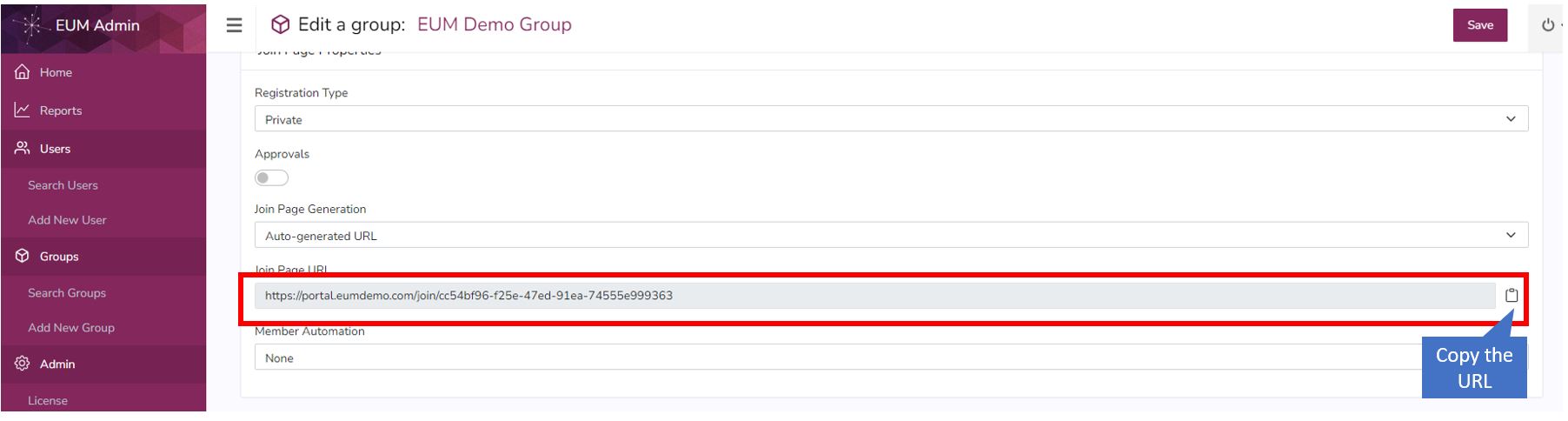
- Share the Join Page URL with the users you want to invite to the group
Note:
The Join Page Body field can contain Rich HTML contents. You can make use of the various buttons in the toolbar to do so. A few frequently used ones are highlighted here. 