Create a EUM Group connected to LMS365 Course Catalog
|
Published
In EUM version 6.14.1276.2 and above, EUM Group can be created and connected to Learn365 Course Catalog, Training Plan, or Course all within one form. Please follow the below steps to create a EUM Group connected to Learn365:
- Login to EUM Admin as EUM Group Creator or EUM Manager or Azure AD User Admin or Group Admin or Global Admin.
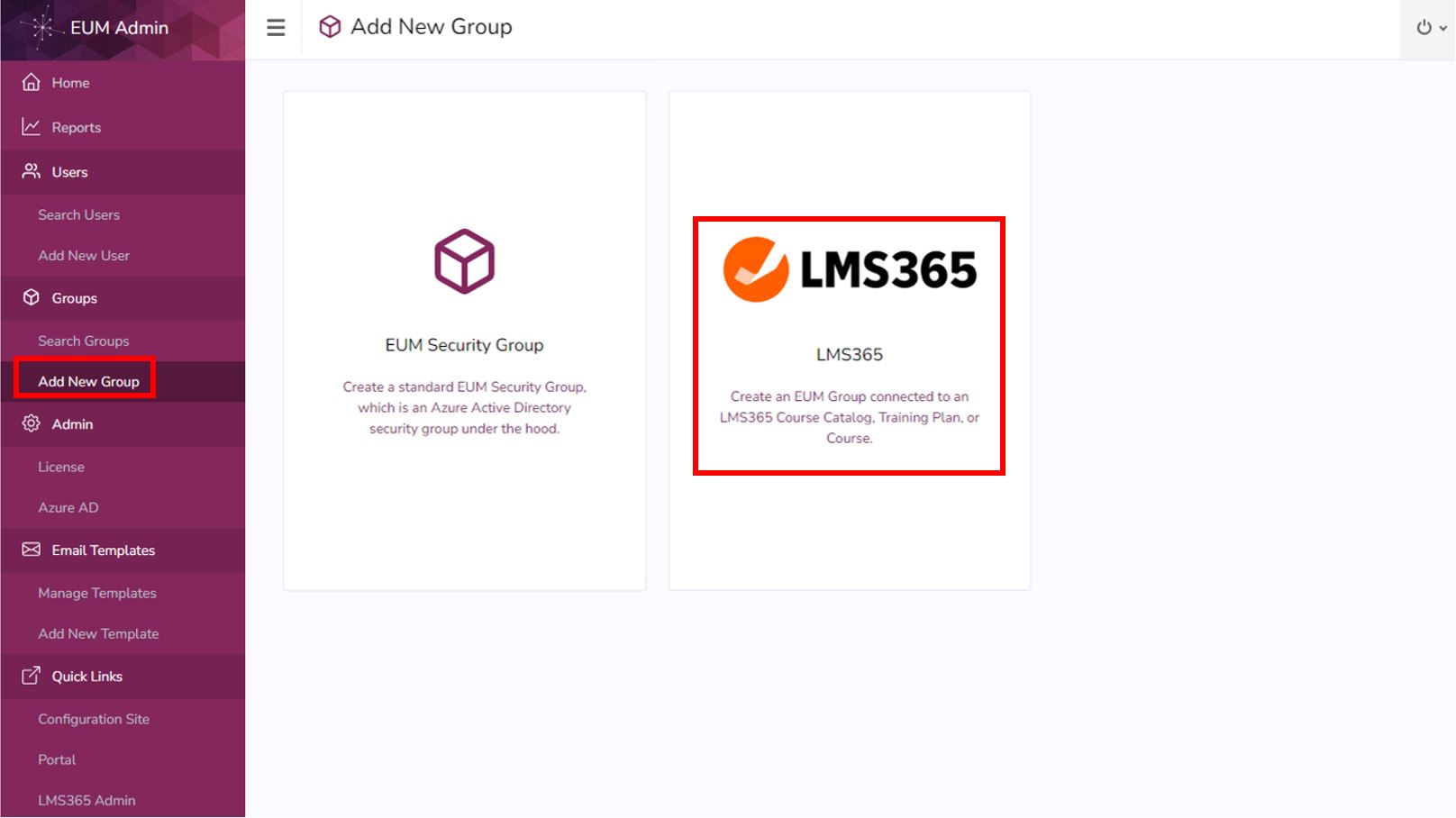
- In the left hand menu click Add New Group.
- Click on the LMS365 tile.
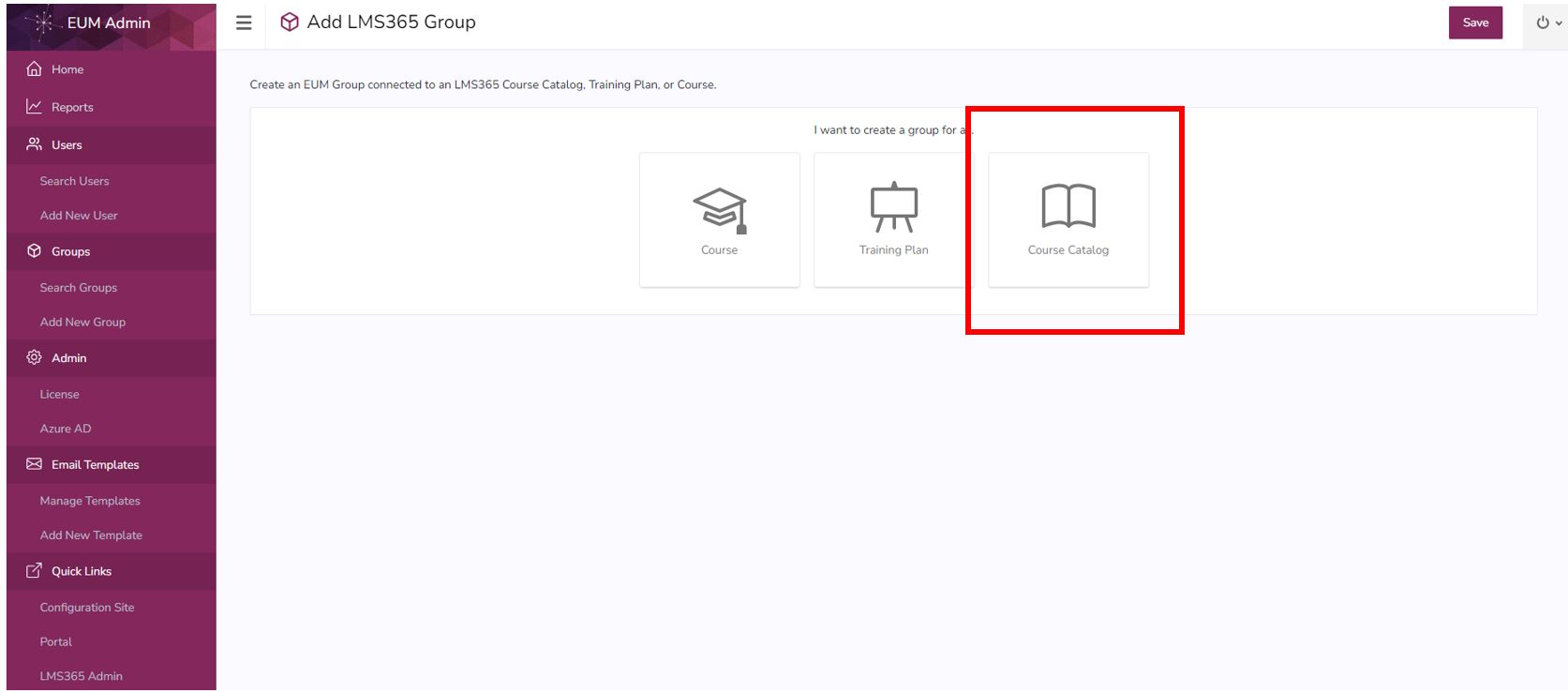
- Depending upon what this group needs to be connected to, either select Course, Training Plan, or Course Catalog. In this example we will take the path of connecting the group with a Course Catalog, so select Course Catalog.
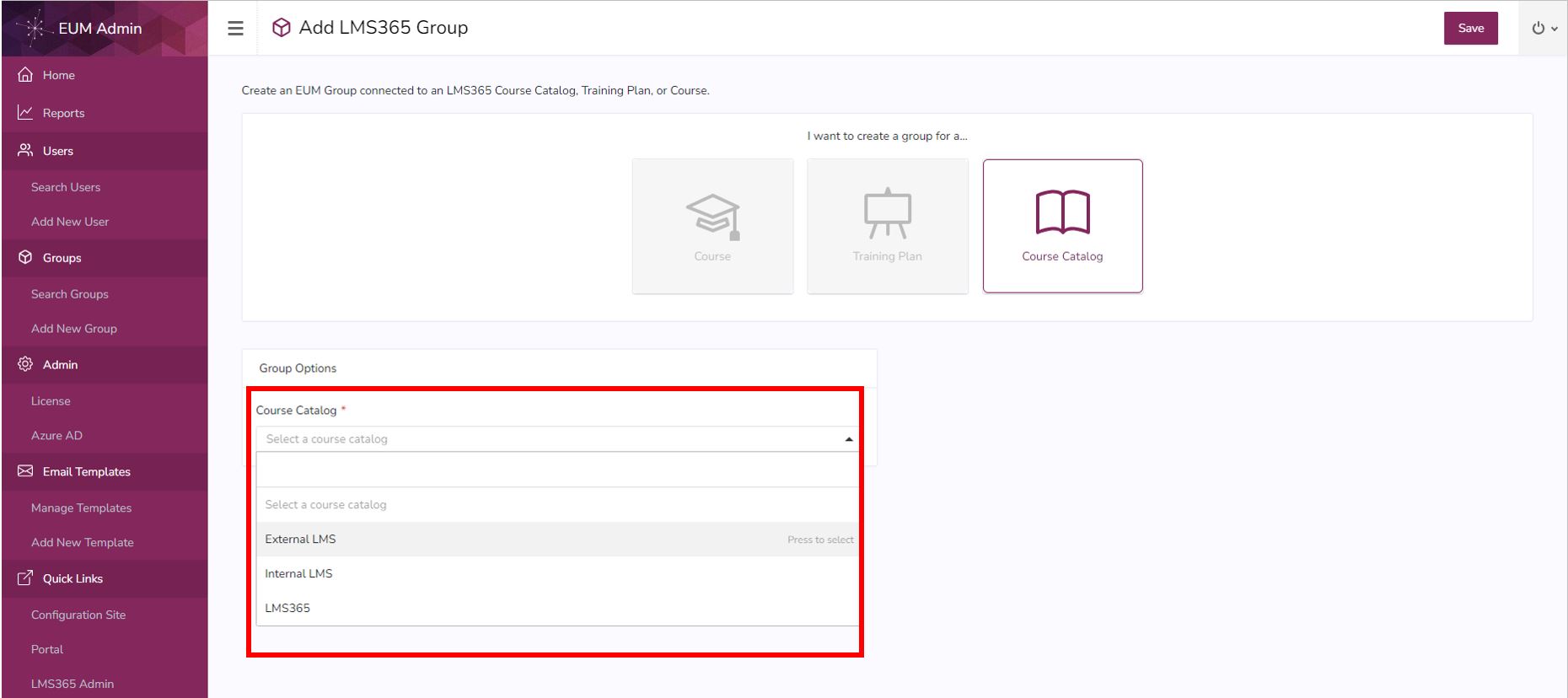
- This will populate a dropdown list of Course Catalogs to select from. Please select the appropriate Course Catalog.
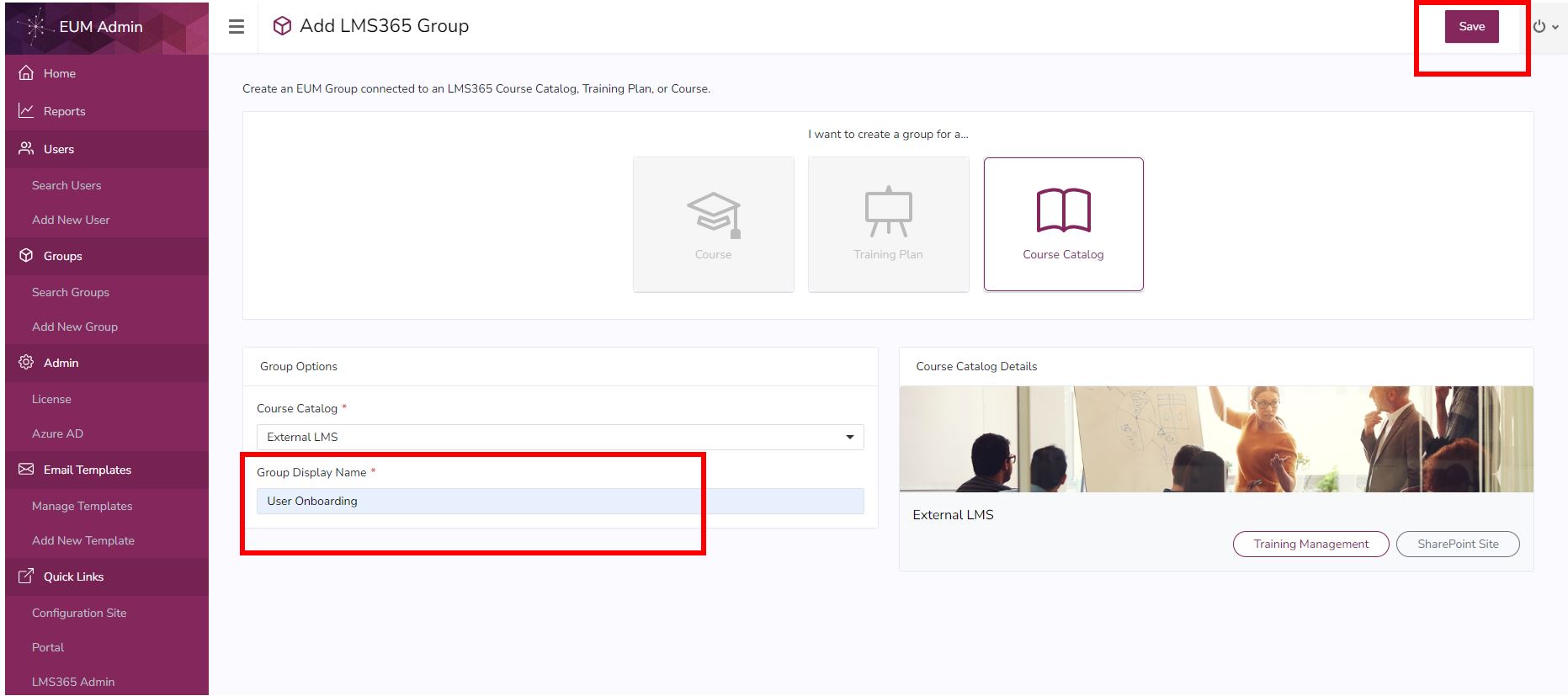
- This will display you the Course Catalog Details so you know that the correct Course Catalog is selected
- Enter the Group Display Name, and click Save
Learn365 Admin (Optional)
- Login to LMS Admin
- Navigate to the Training Plan
- Select the Training Plan to be integrated with EUM
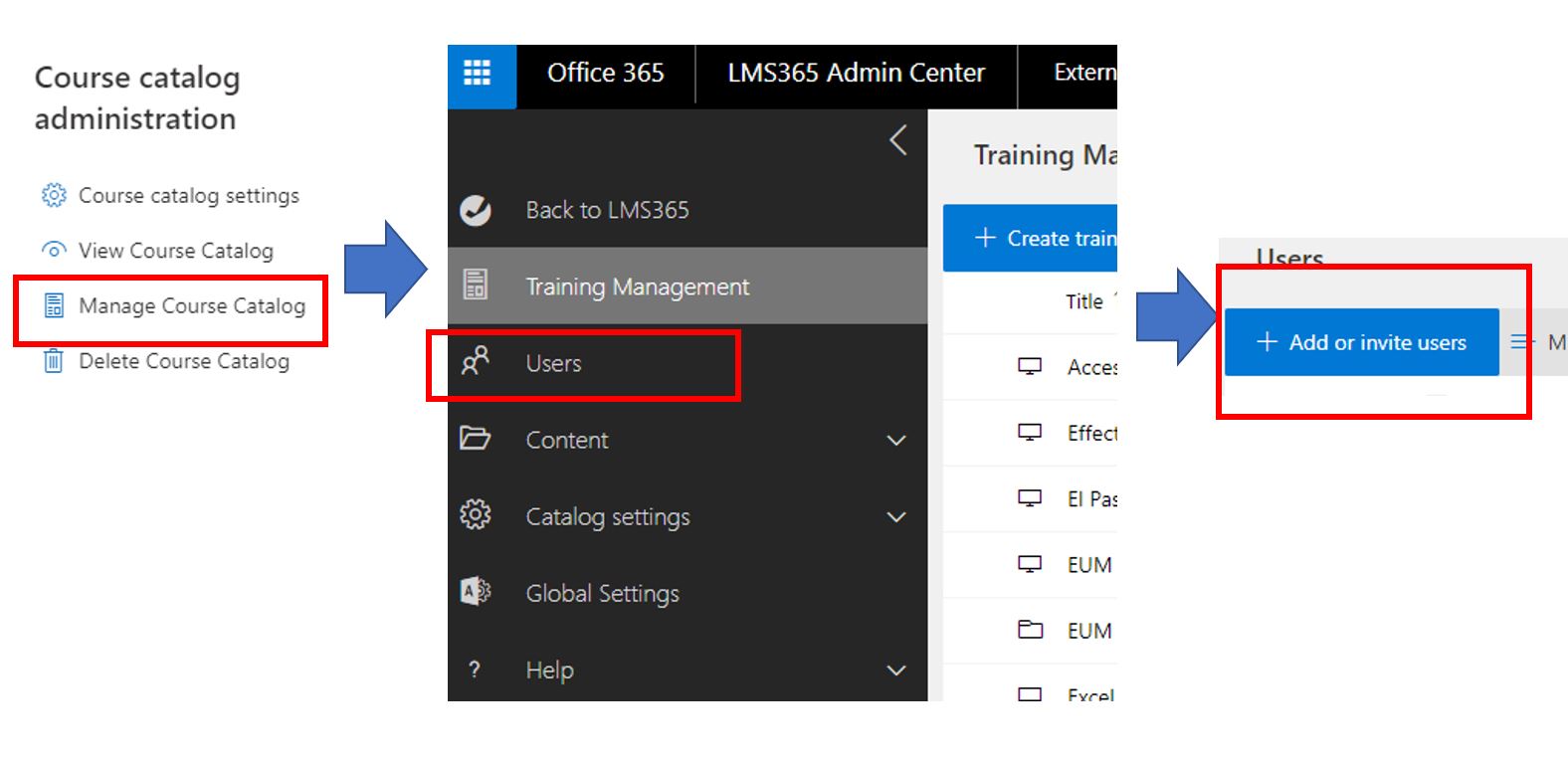
- Click Manage Course Catalog
- Click Enroll Learners or Enroll Groups as your current Learn365 version may suggest
- Type in EUM in the right hand search box. That will bring up a list of EUM Groups
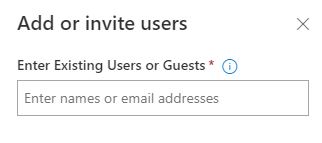
- Select the appropriate one to add