Create a EUM Group connected to LMS365 Course
|
Published
In EUM version 6.14.1276.2 and above, EUM Group can be created and connected to Learn365 Course Catalog, Training Plan, or Course all within one form. Please follow the below steps to create a EUM Group connected to Learn365:
- Login to EUM Admin as EUM Group Creator or EUM Manager or Azure AD User Admin or Group Admin or Global Admin.
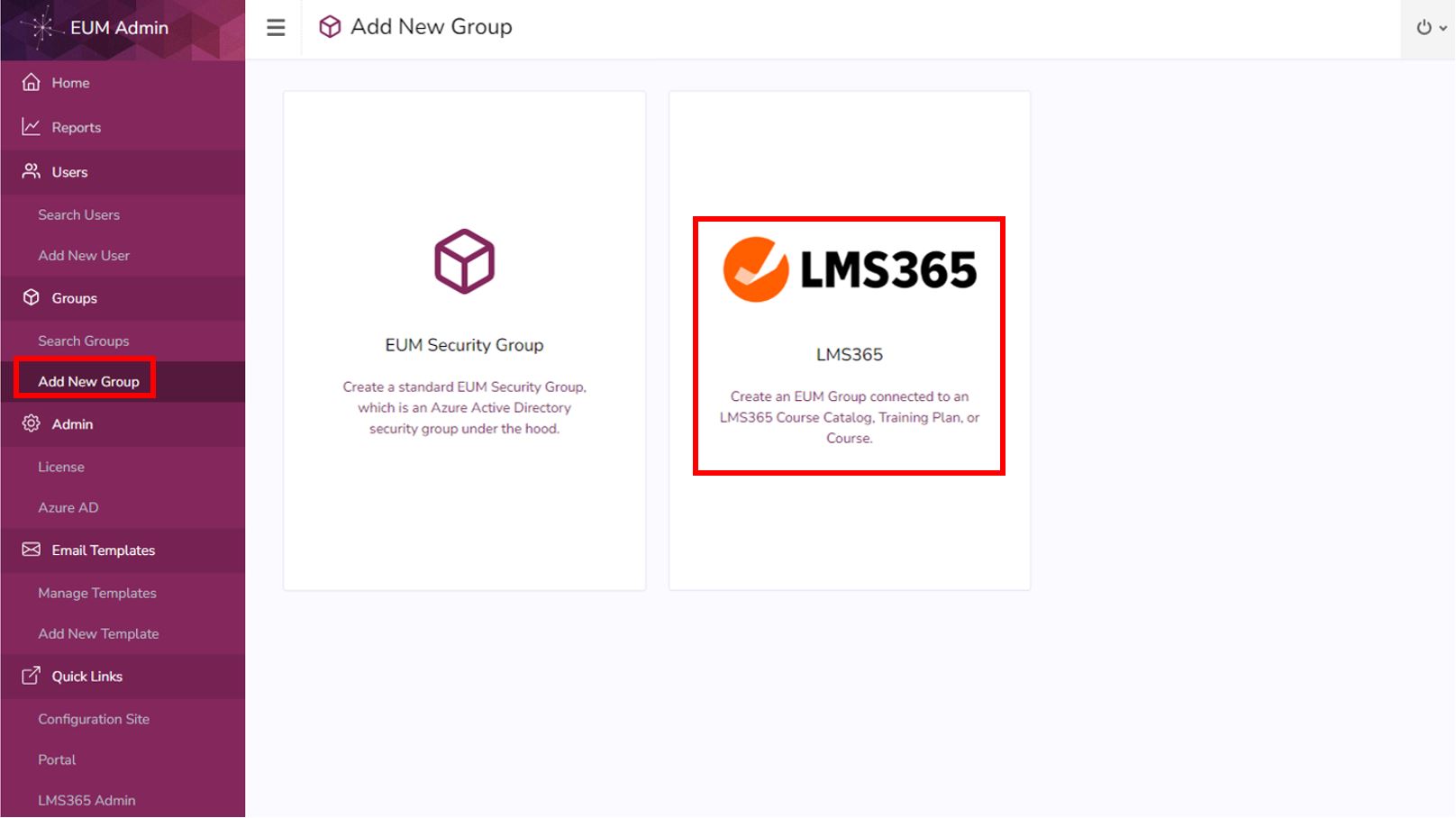
- In the left hand menu click Add New Group.
- Click on the LMS365 tile.
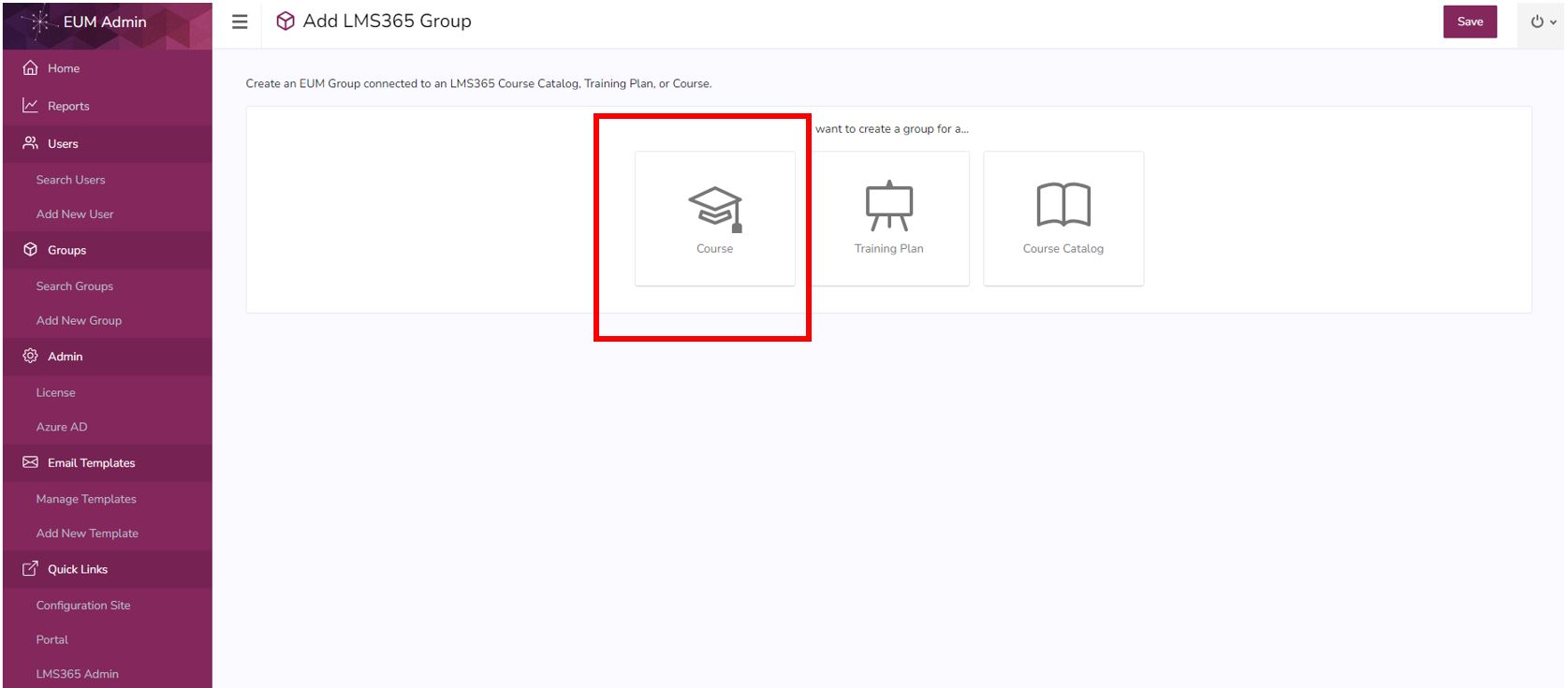
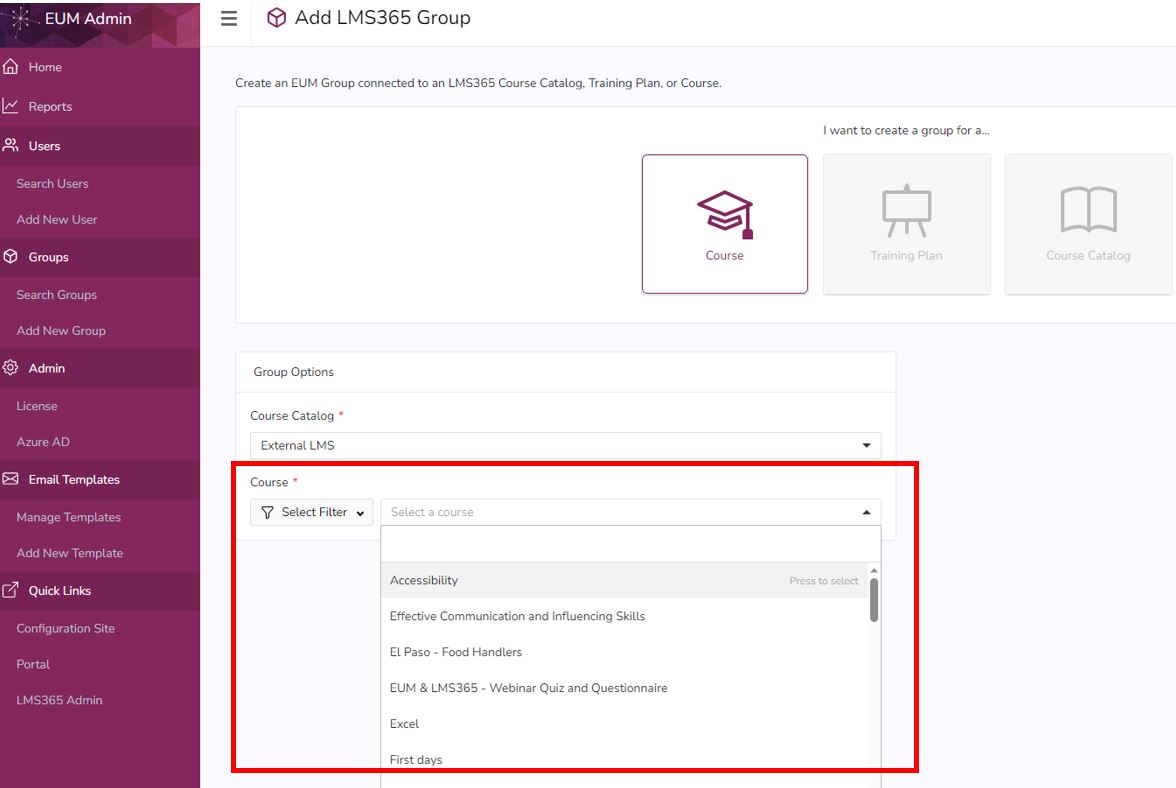
- Depending upon what this group needs to be connected to, either select Course, Training Plan, or Course Catalog. In this example we will take the path of connecting the group with a Course, so select Course.
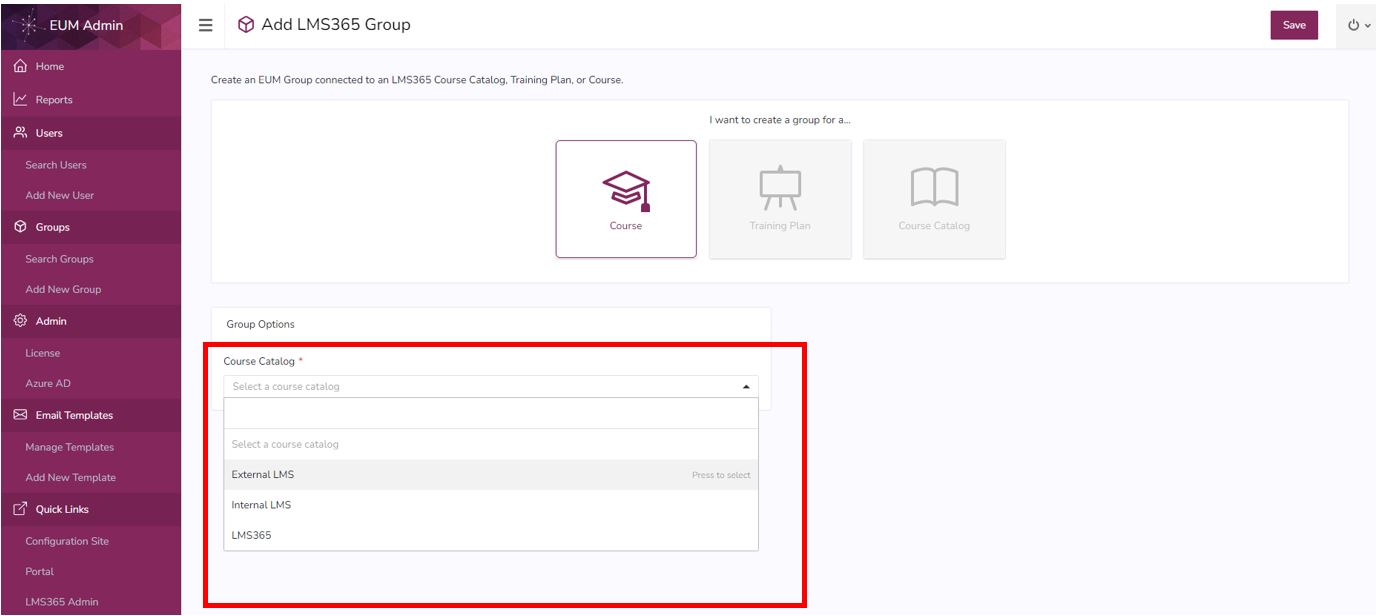
- This will populate a dropdown list of Course Catalogs to select from. Please select the appropriate Course Catalog, which the Course is a part of.
- This will populate a dropdown to select the Couse from. You can limit the dropdown items by selecting Published or Unpublished courses in the filter beside the Course dropdown.
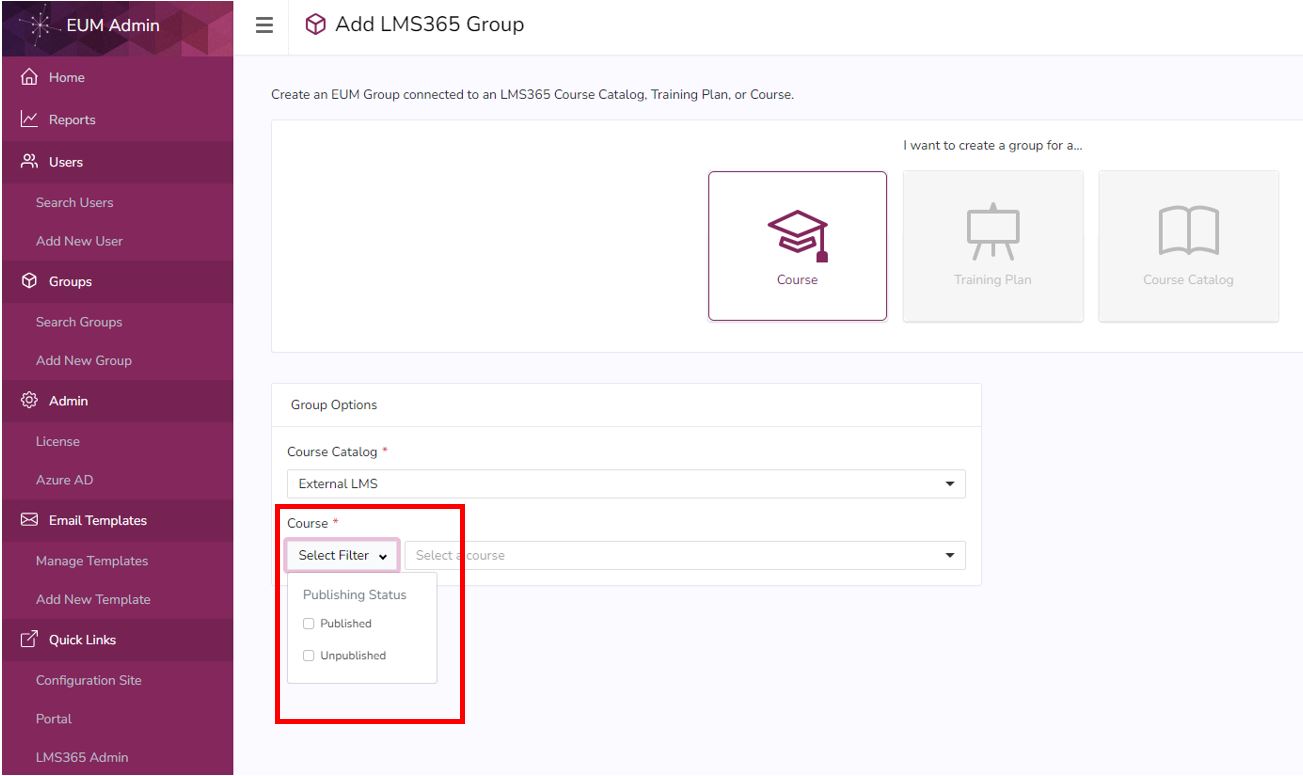
- After filter is applied, select the Course this group needs to be connected to from the Course dropdown.
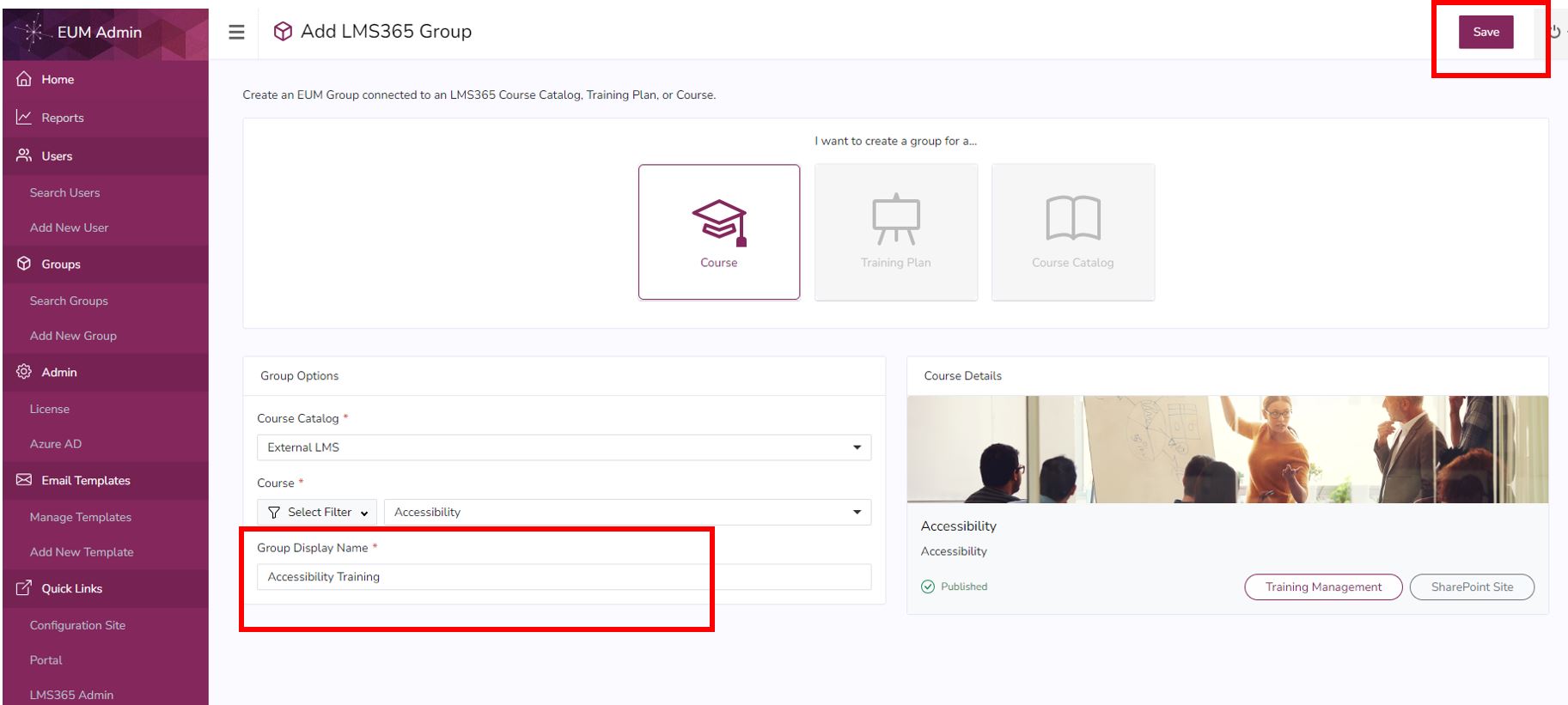
- This will display you the Course Details so you know that the correct Course is selected
- Enter the Group Display Name, and click Save
Learn365 Admin (Optional)
- Login to LMS Admin
- Navigate to the Training Plan
- Select the Course to be integrated with EUM
- Click Manage People in the right hand menu
- Click Enroll Learners or Enroll Groups as your current Learn365 version may suggest.
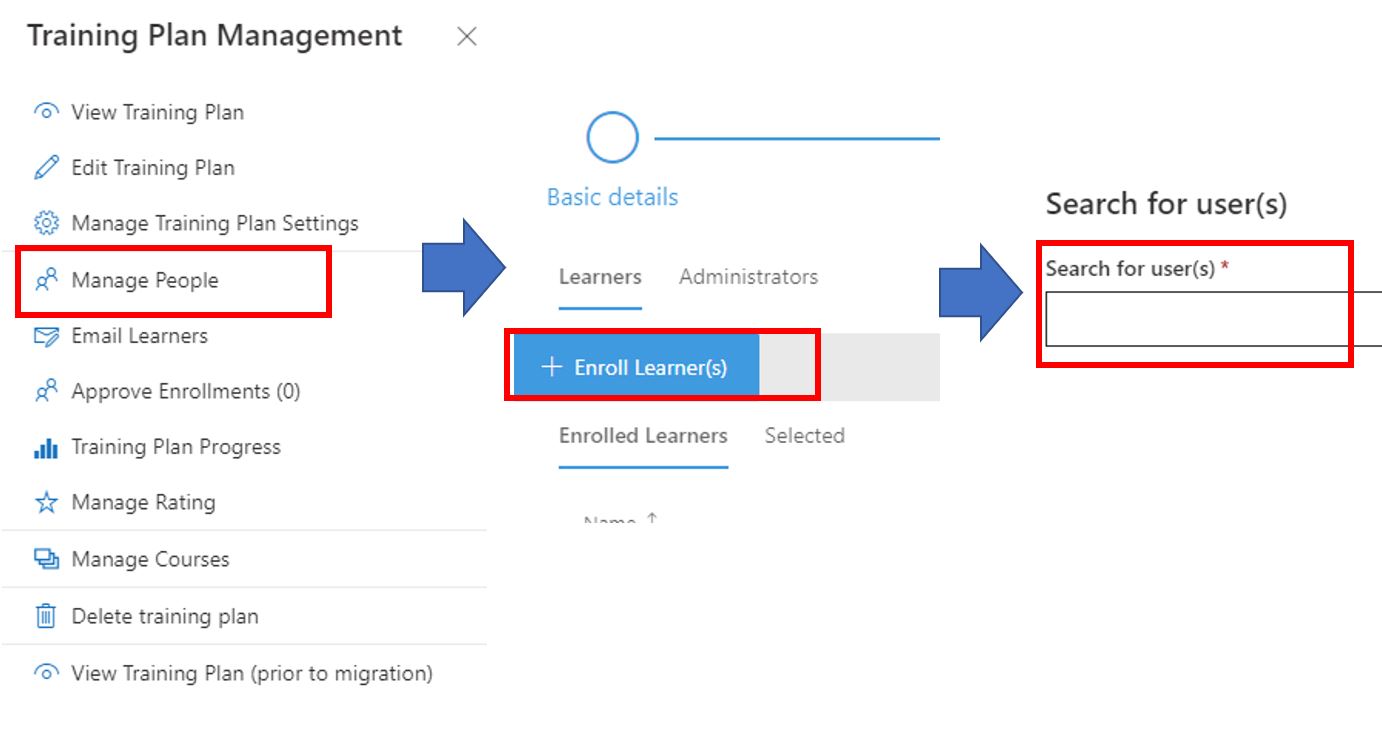
- Type in EUM in the right hand search box. That will bring up a list of EUM Groups
- Select the appropriate one to add this group.