Convert EUM Security Groups to EUM Learn365 Groups
|
Published
If your EUM is upgraded from v6 to v7, and you have EUM groups connected to Learn365, you can convert these EUM Security Groups to EUM LMS Groups in a few steps:
- Get the required information from Learn365.
- Put the details in EUM Config.
- Add the EUM Group as a learner in Learn365 Course/Course Catalog/Training Plan.
Get the Required Information from Learn365
- Navigate to LMS API Endpoint. The URL for the API Endpoint would differ according to the region. Please find the correct one here: Learn365 API.
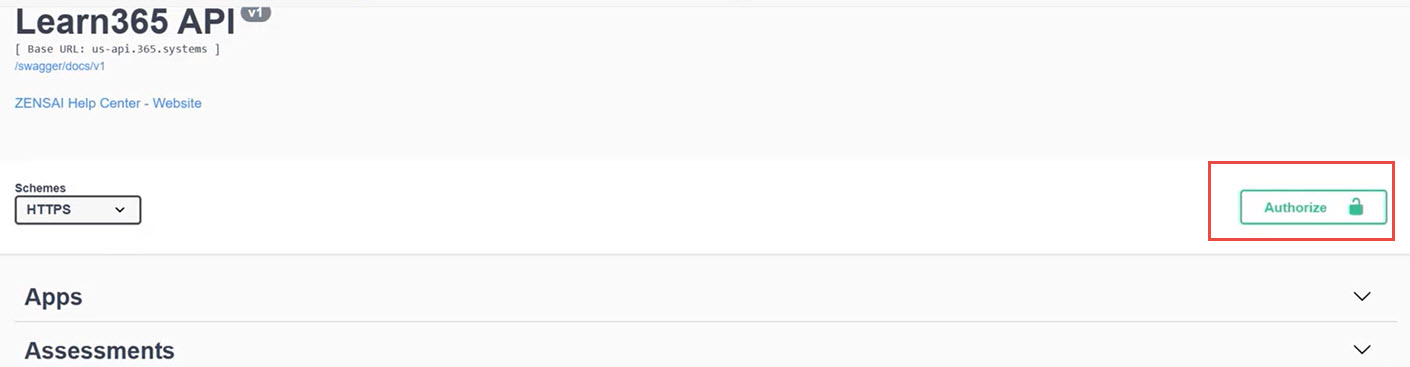
- Click the Authorize button and follow instructions from How to authorize with an API key in the Learn365 API and Postman – Help Center to authorize.
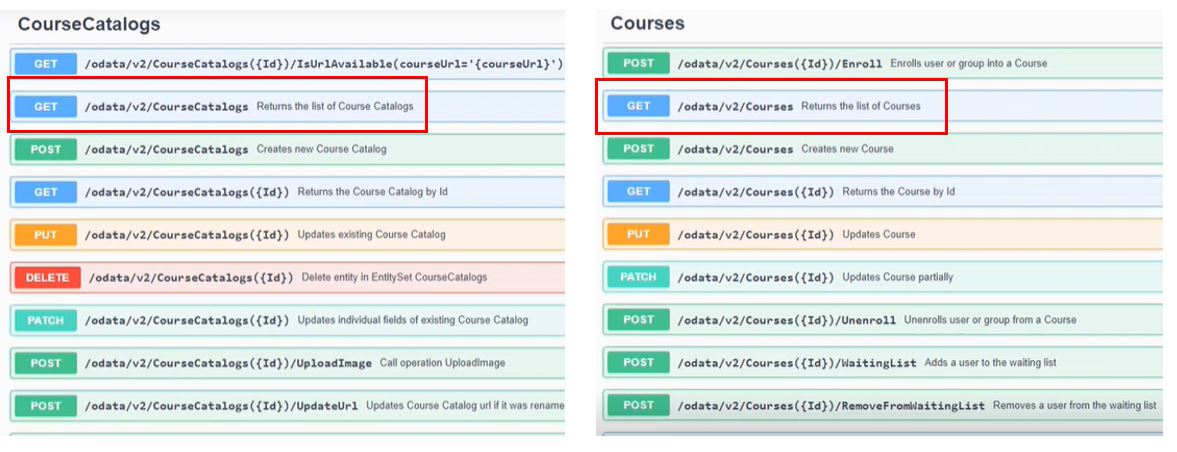
- If you want to connect EUM to LMS Course Catalogs, select the Get for Course Catalogs of the Swagger. If you want to connect to LMS Course, select the Get for Course. If you want to connect to LMS Training Plan, select Get Course.
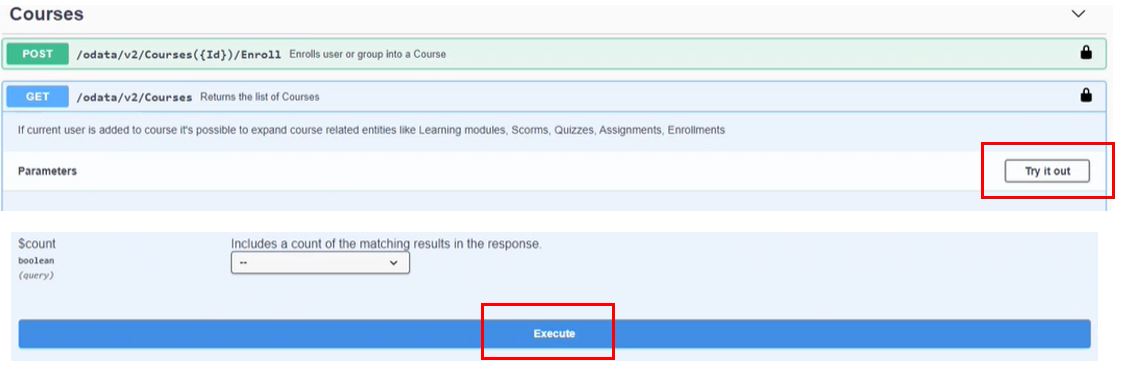
- Click Try it Out and then Execute.
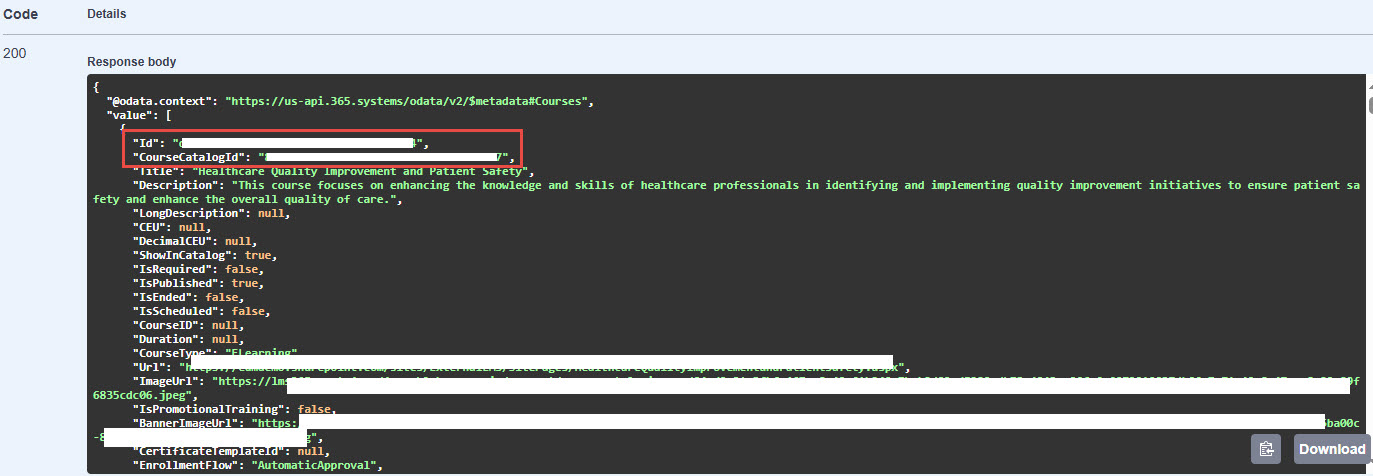
- This would display a list of all the Courses/Course Catalogs. Copy the ID, Catalog ID, and the Title of the relevant course/course catalog that is to be tied up to the EUM Group.
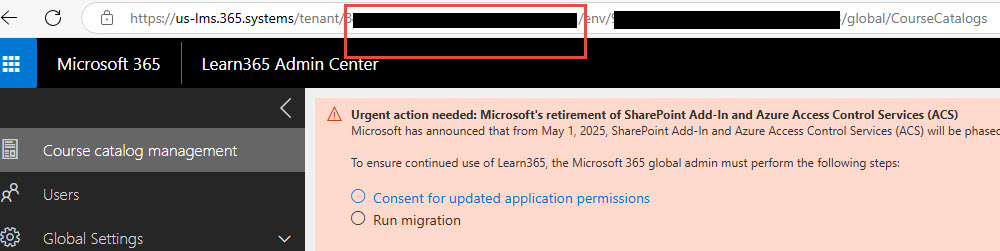
- Login to the Learn365 Admin and grab the Tenant ID from the URL. This would be the GUID between tenant/ and /env.
Put the Details in EUM Config
- Login to EUM Admin as a Global Admin or EUM Administrator or EUM Manager.
- Navigate to the EUM Config Site.
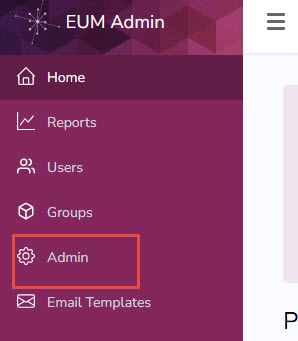
- Click Admin in the left-hand menu.
- Click Configuration Site.

- Click Admin in the left-hand menu.
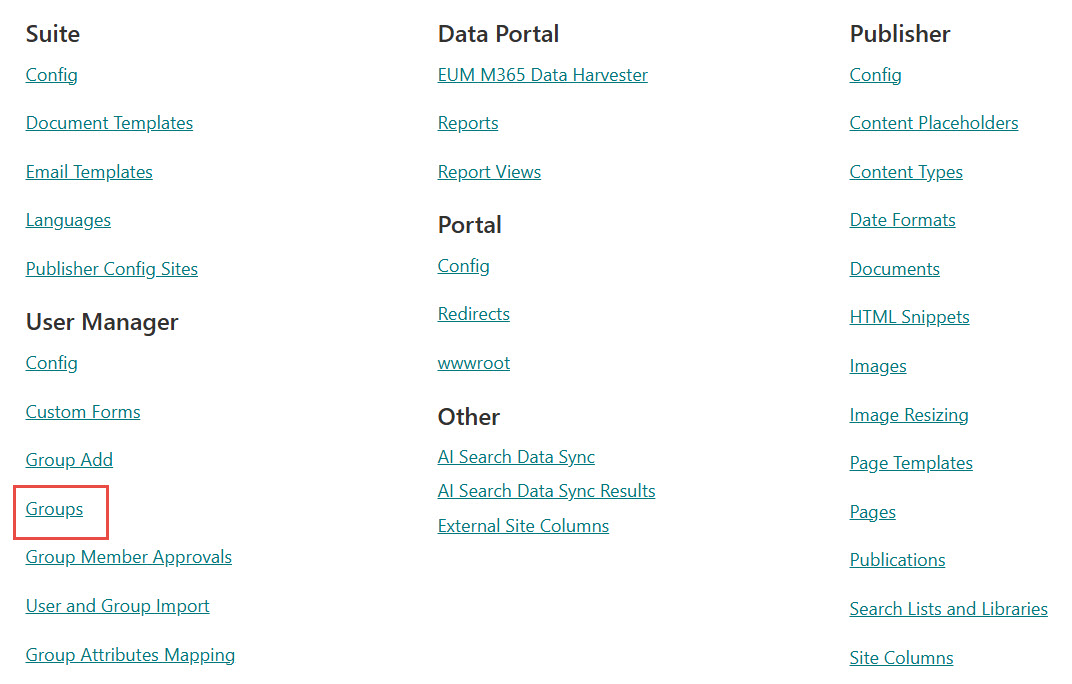
- Navigate to Groups under User Manager.
- Find the group you want to edit.
- Follow the instructions below for Course/Course Catalog/Training Plan.
For Group to be Connected with LMS Course
-
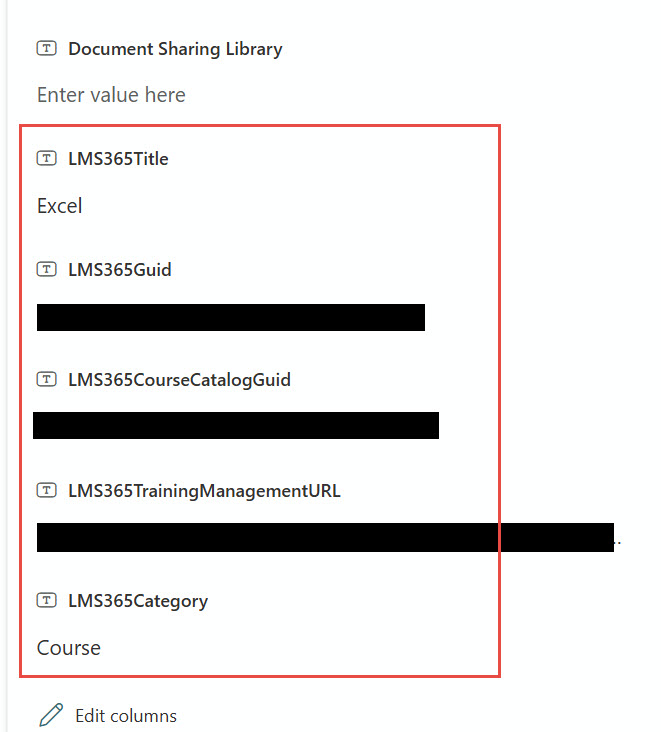
Edit the group to have the following entries:
- LMS365Category: Course.
- LMS365Title: Course Title you gathered earlier.
- LMS365Guid: Course ID you gathered earlier.
- LMS365CourseCatalogGuid: Course Catalog ID you gathered earlier.
- LMS365TrainingManagementURL: Put in this URL by replacing the IDs with the ones you gathered earlier.
-
https://us-lms.365.systems/tenant/<Tenant ID>/catalog/<Catalog ID>/Training?action=editCourse&courseId=<Course ID>
-
- Click anywhere outside the entry fields to save.
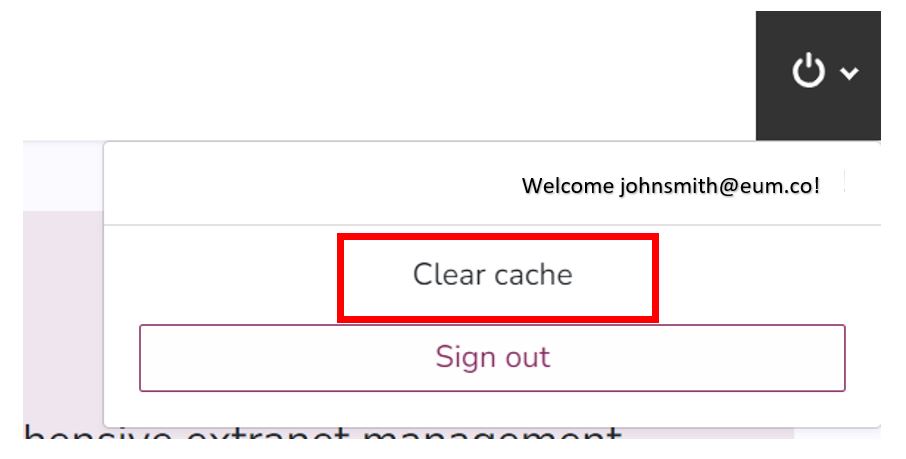
- Navigate to EUM Admin and expand the sign out button and select Clear Cache.
For Group to be Connected with LMS Course Catalog
-
Edit the group to have the following entries:
- LMS365Category: Course Catalog.
- LMS365Title: Course Title you gathered earlier.
- LMS365Guid: Course Catalog ID you gathered earlier.
- LMS365CourseCatalogGuid: Course Catalog ID you gathered earlier.
-
LMS365TrainingManagementURL: Put in this URL by replacing the IDs with the ones you gathered earlier.
-
https://us-lms.365.systems/tenant/<Tenant ID>/catalog/<Catalog ID>
-
- Click anywhere outside the entry fields to save.
- Navigate to EUM Admin and expand the sign out button and select Clear Cache.
For Group to be Connected with LMS Training Plan
-
Edit the group to have the following entries:
- LMS365Category: Training Plan.
- LMS365Title: Course Title you gathered earlier.
- LMS365Guid: Course ID you gathered earlier.
- LMS365CourseCatalogGuid: Course Catalog ID you gathered earlier.
-
LMS365TrainingManagementURL: Put in this URL by replacing the IDs with the ones you gathered earlier.
-
https://us-lms.365.systems/tenant/<Tenant ID>/catalog/<Catalog ID>/Training?action=editCourse&courseId=<Course ID>
-
- Click anywhere outside the entry fields to save.
- Navigate to EUM Admin and expand the sign out button and select Clear Cache.
Add the EUM Group as a Learner in Learn365 Course/Course Catalog/Training Plan
- Login to LMS Admin.
- Navigate to the Course Catalog/Training Plan/Course as needed.
- Select the Course Catalog/Training Plan/Course to be integrated with EUM.
For Course Catalog
- Click Manage Course Catalog.
- Click Users in the left-hand menu.
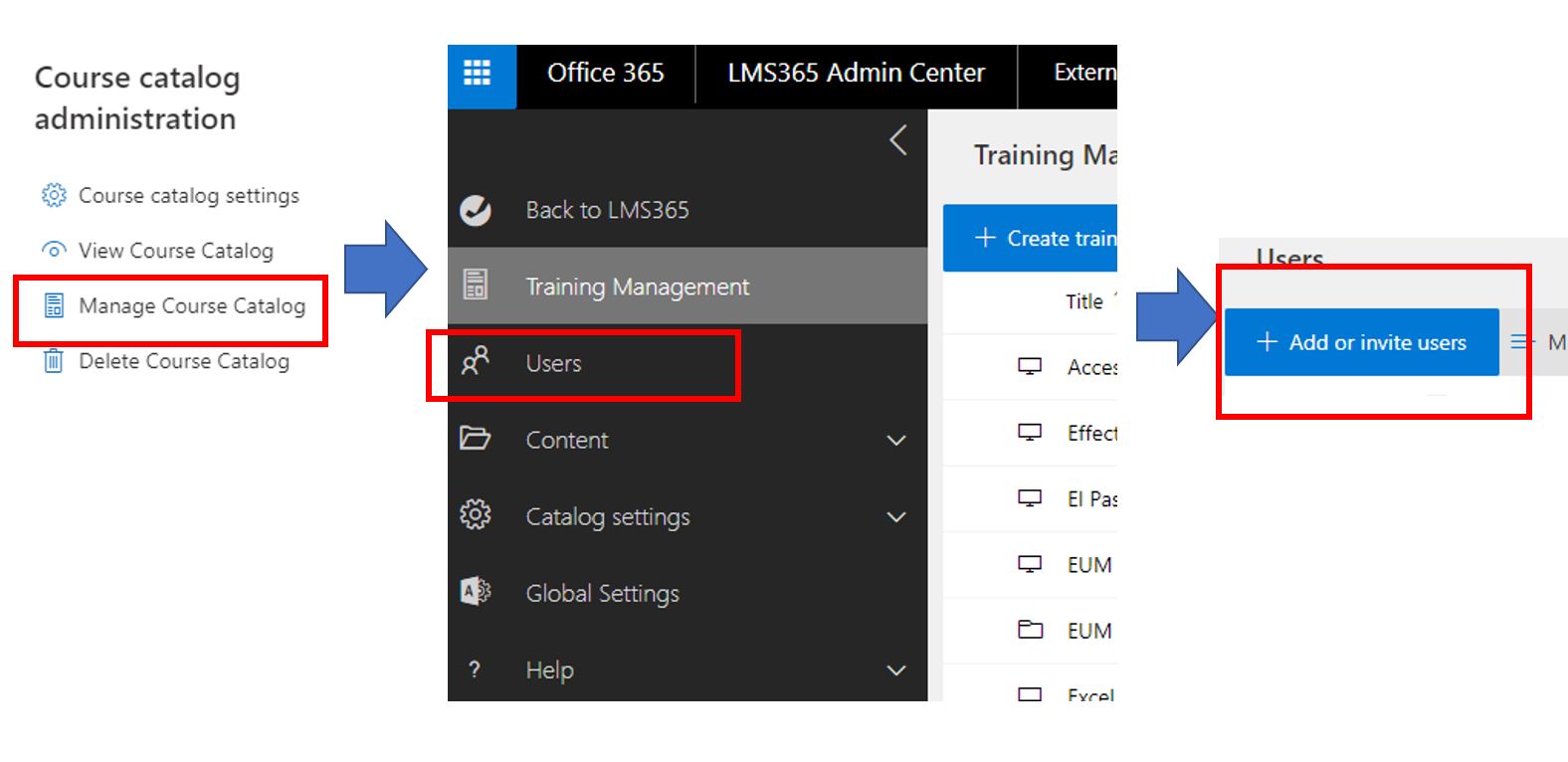
- Type in EUM in the right-hand search box. That will bring up a list of EUM Groups.
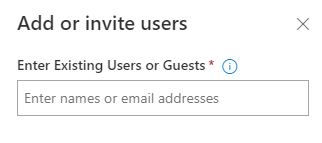
- Select the appropriate one.
For Training Plan
- Click Manage People in the right-hand menu.
- Click Enroll Learners.
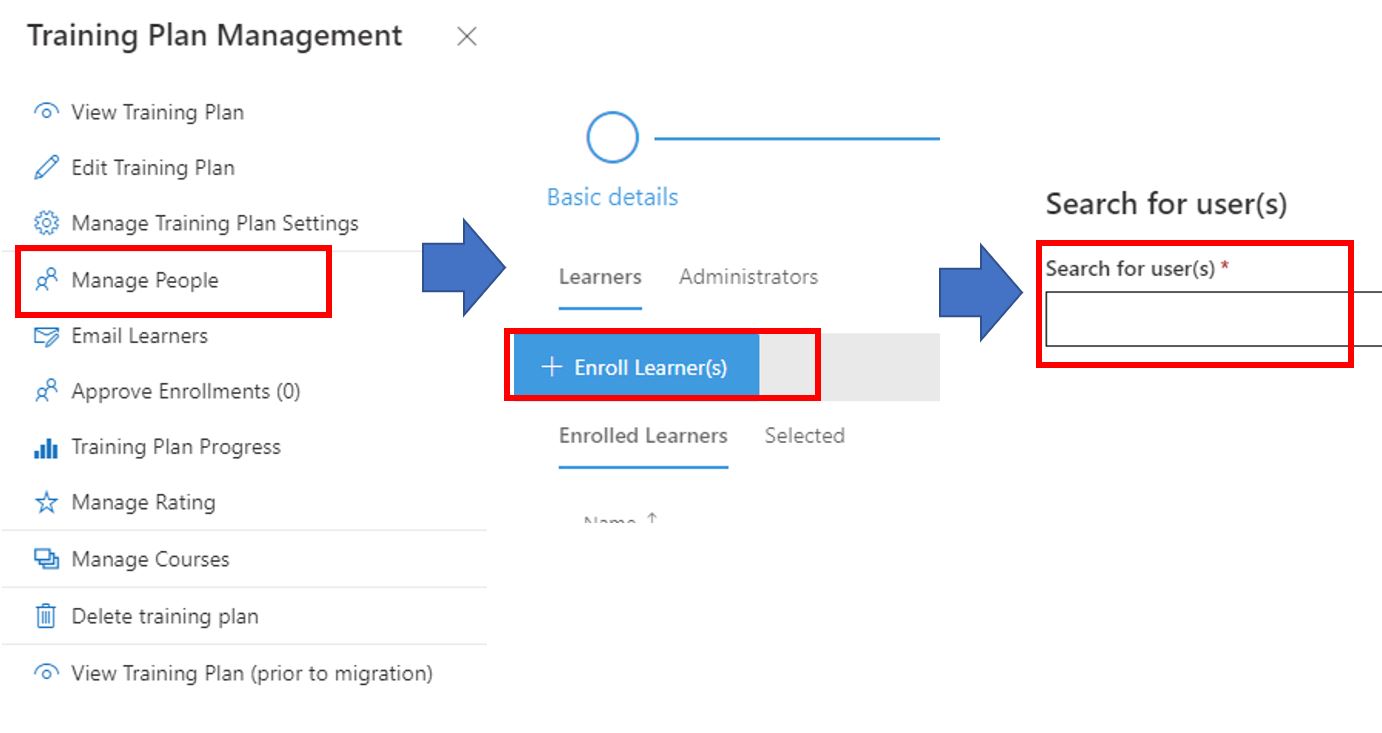
- Type in EUM in the right-hand search box. That will bring up a list of EUM Groups.
- Select the appropriate one.
For Course
- Click Manage People in the right-hand menu.
- Click Enroll Learners.
- Type in EUM in the right-hand search box. That will bring up a list of EUM Groups.
- Select the appropriate one.