Connect EUM Group to SharePoint Site in EUM V6 and V7
|
Published
If you want to use an EUM Group to give its members secure and controlled access to a SharePoint site, please follow the steps below:
- Sign in to EUM Admin and create an EUM Group with a name relevant to the SharePoint Site you will tie the group to. Refer to the related FAQ Article at the bottom of the page.
- In the Group Details tab of the Group created, fill in the SharePoint Site Collection URL with the URL of the SharePoint site you want the Group Members to have access to. (Please note: do not put in a SharePoint page; it must only be the SharePoint site)
- If you want the members to have Read access only to the SharePoint site, put them in the SharePoint site Visitors group in the SharePoint Group field.
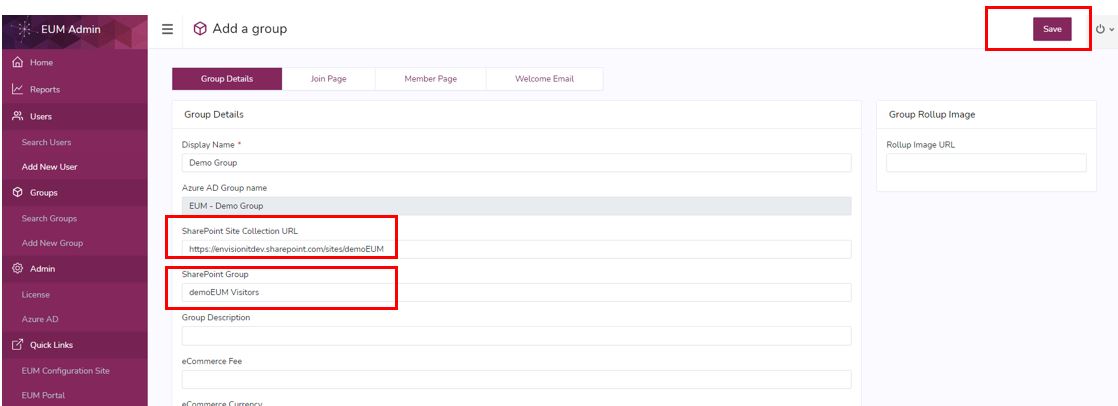
- Click Save.
- Sign in to the SharePoint site.
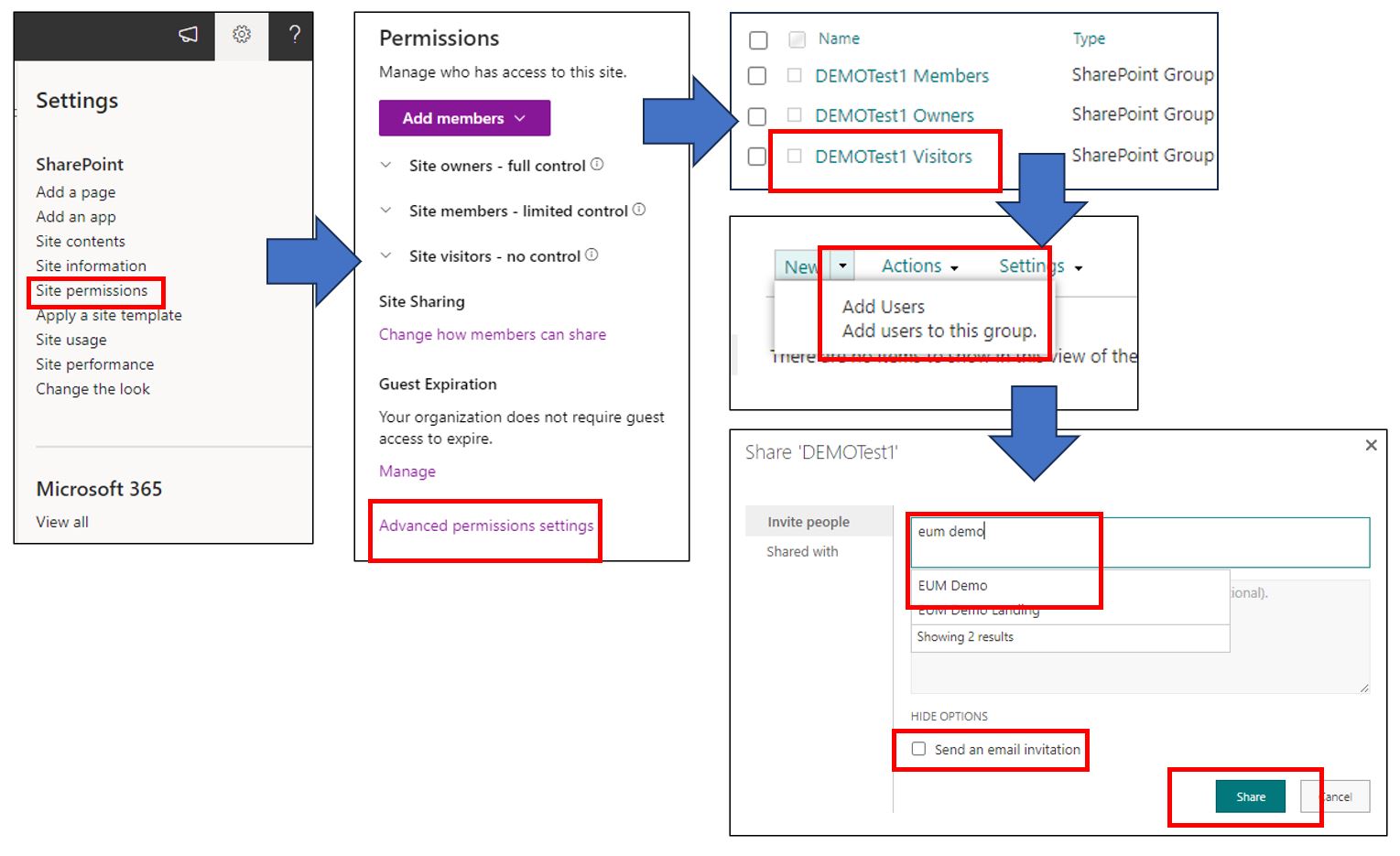
- Click to expand the top right gear icon, and click Site Permissions from the Settings Menu.
- Click Advanced permissions settings.
- Click to go to the SharePoint site Visitors group, or any other SharePoint Group that was added to EUM.
- Click Actions and select Add Users to this group.
- In the form, search for the EUM Group and select it, uncheck the Send an email invitation checkbox, and click Save.