Connect EUM Group to LMS in EUM V6
|
Published
Note: This article is valid only for EUM V6
Pre-Requisite:
- LMS Add-On piece deployed and configured.
- EUM Group created using EUM Admin with a name relevant to the Course Catalog/Training Plan/Course
Connect EUM Group to LMS:
If you want to use a EUM Group to give its members secured and controlled access to LMS Course/Training Plan/Course Catalog, please follow the below steps in two places:
EUM Config site in SharePoint
- Visit https://api.365.systems/ and select the API Endpoint for your region
- Visit the /documents/swaggerui3/#/CourseCatalogs site for your region. Example, for Central US it would be https://us-api.365.systems/documentation/swaggerui3/#/CourseCatalogs
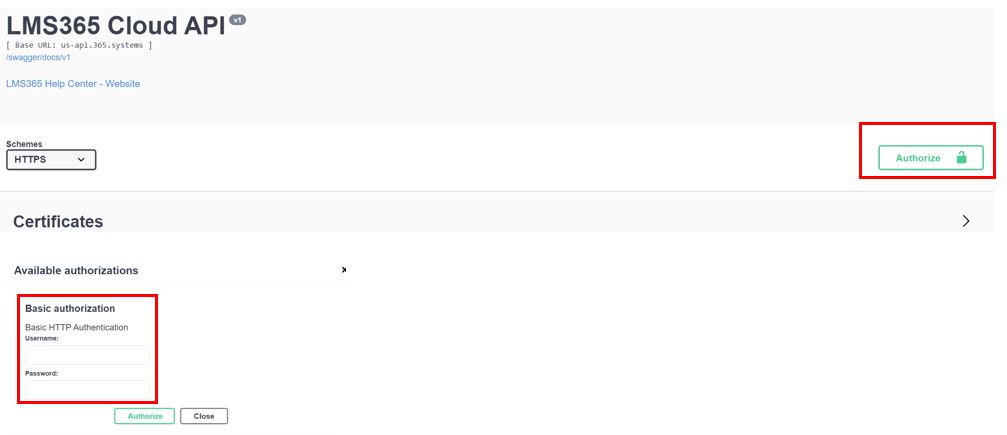
- Click Authorize and do so with your API Key (Please refer LMS365 article)
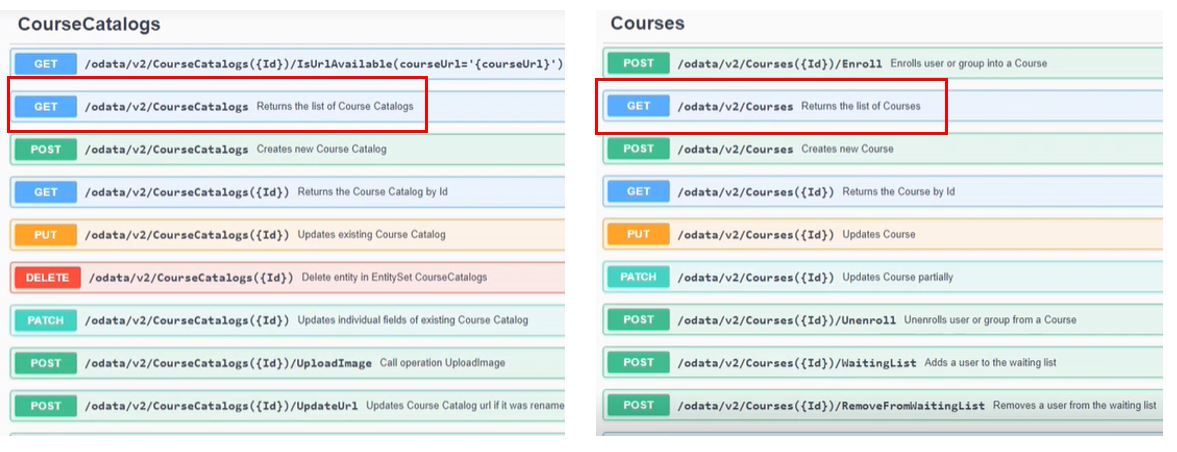
- If you want to connect EUM to LMS Course Catalogs, select the Get for Course Catalogs of the Swagger. If you want to connect to LMS Course, select the Get for Course. If you want to connect to LMS Training Plan, select Get for Course.
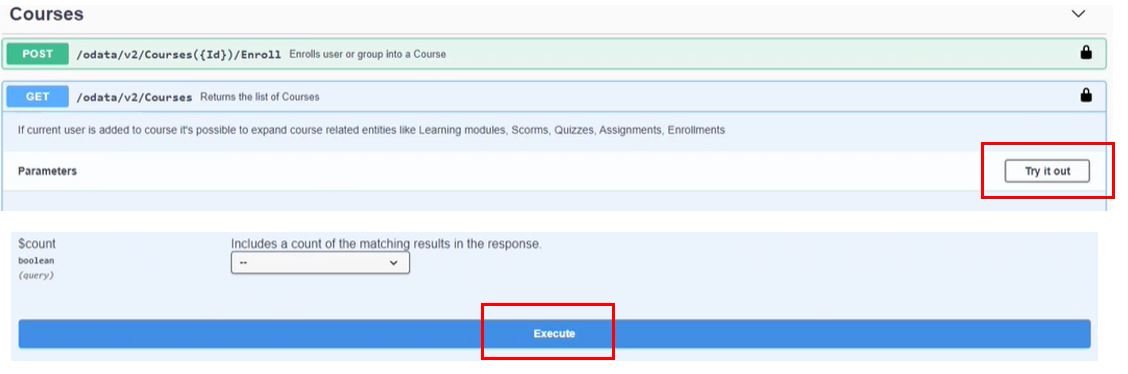
- Click Try it Out and then Execute
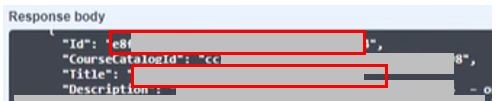
- This would display a list of all the Courses/Course Catalogs. Copy the ID and the Title of the relevant course/course catalog that is to be tied up to the EUM Group
- Login to EUM Configuration Site
- Depending on the requirement, click LMS365 Course Catalogs or LMS365 Courses (click LMS365 Courses for Training Plan)

- Click "+New" to add a new Course Catalog or Course (Each Course of the Training Plan, if Training Plan is to be integrated)
- Put in the Title and the Course ID or Course Catalog ID as required. These are the values copied earlier from the LMS API Swagger
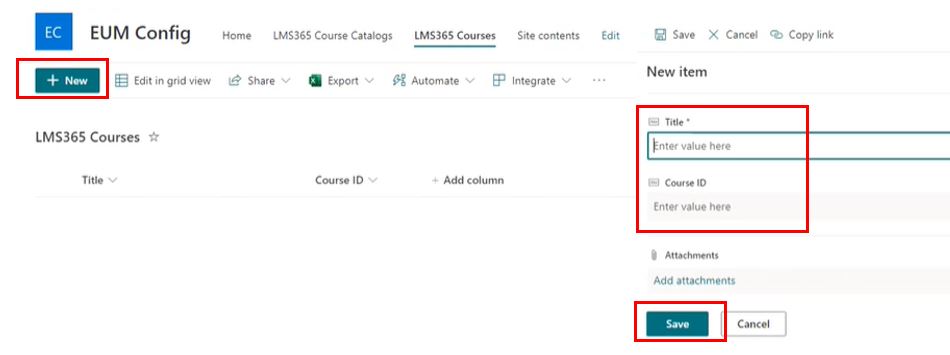
- Click Save
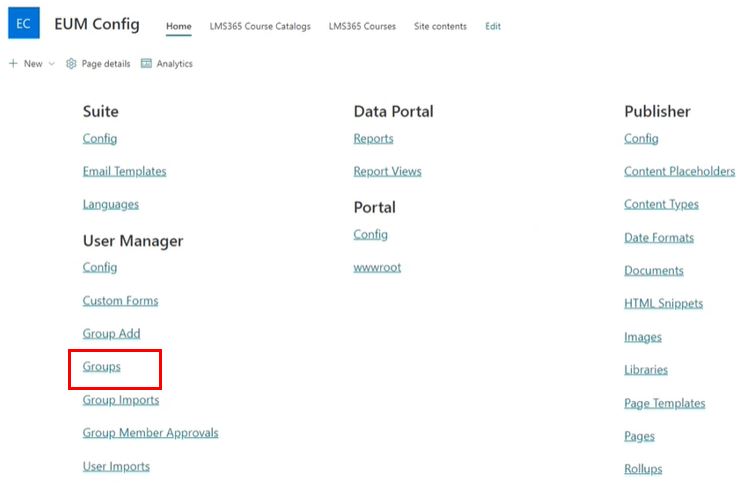
- Go to the EUM Config site Home page and click Groups under User Manager
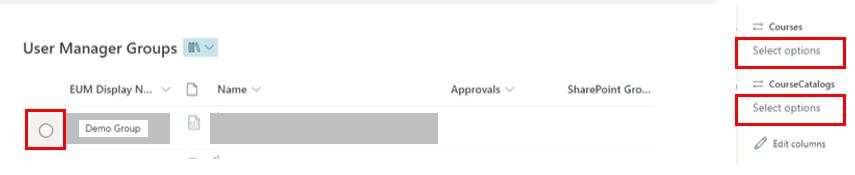
- Select the relevant group and go to Properties
- Click ether in the Courses or Course Catalogs field to select either the relevant Course or Course Catalog depending upon requirement
- Click anywhere outside the fields to save
LMS Admin (Optional)
- Login to LMS Admin
- Navigate to the Course Catalog/Training Plan/Course as needed
- Select the Course Catalog/Training Plan/Course to be integrated with EUM
For Course Catalog
- Click Manage Course Catalog
- Click Users in the left hand menu
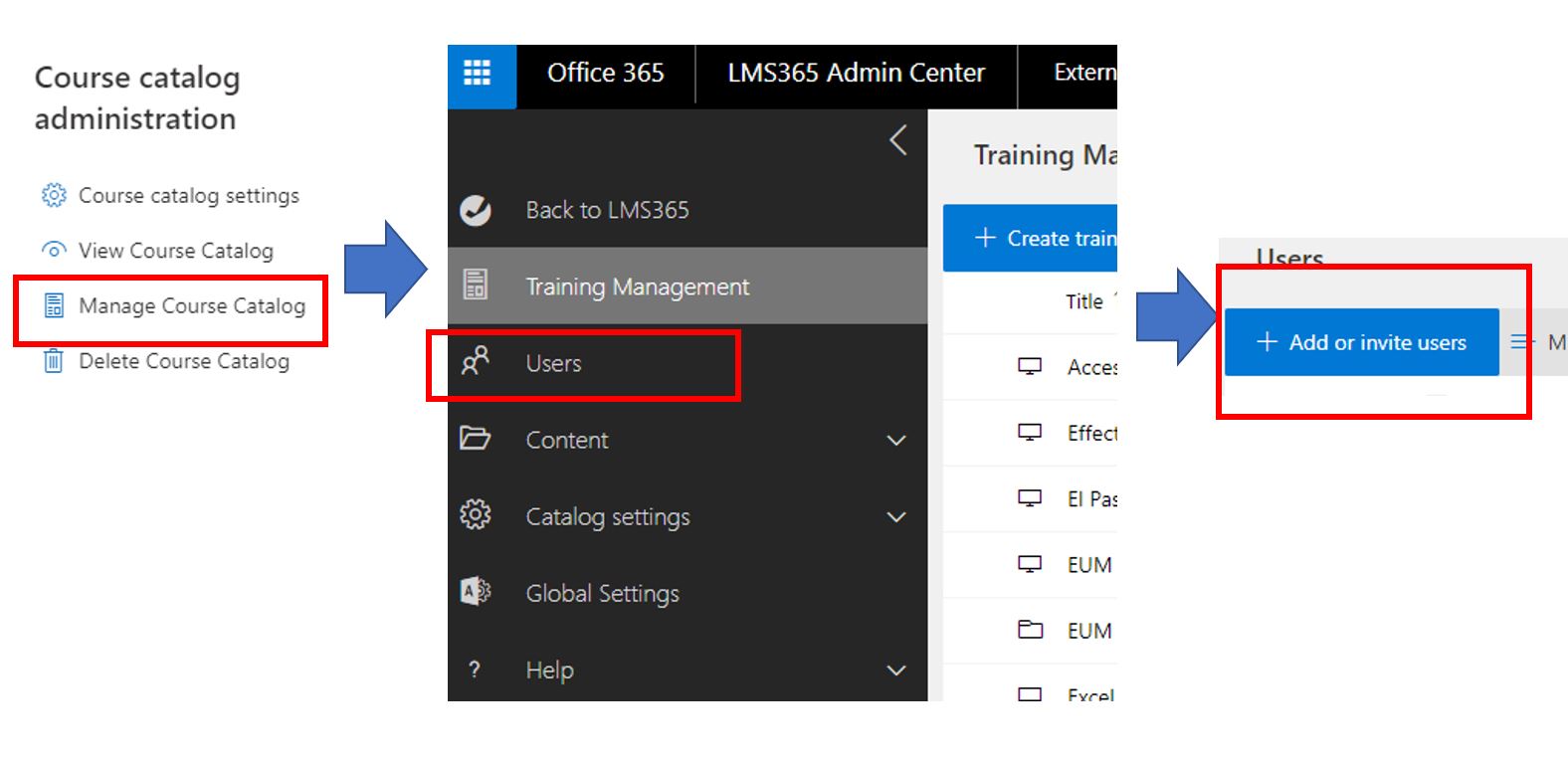
- Type in EUM in the right hand search box. That will bring up a list of EUM Groups
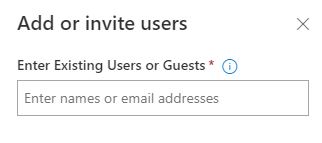
- Select the appropriate one
For Training Plan
- Click Manage People in the right hand menu
- Click Enroll Learners
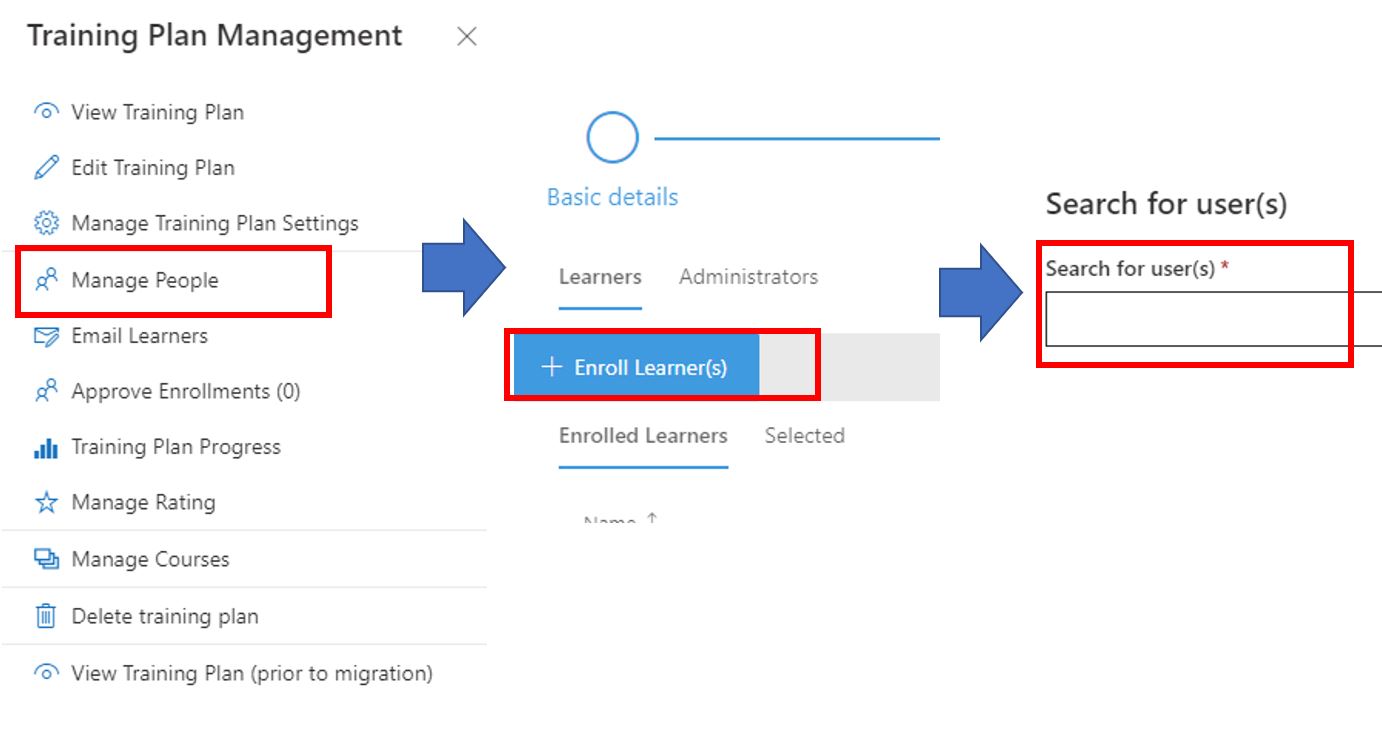
- Type in EUM in the right hand search box. That will bring up a list of EUM Groups
- Select the appropriate one
For Course
- Click Manage People in the right hand menu
- Click Enroll Learners
- Type in EUM in the right hand search box. That will bring up a list of EUM Groups
- Select the appropriate one