Change the messages in Set Password page in EUM V4
|
Published
In out of the box EUM when a user sets password or resets a password, the following messages are displayed:
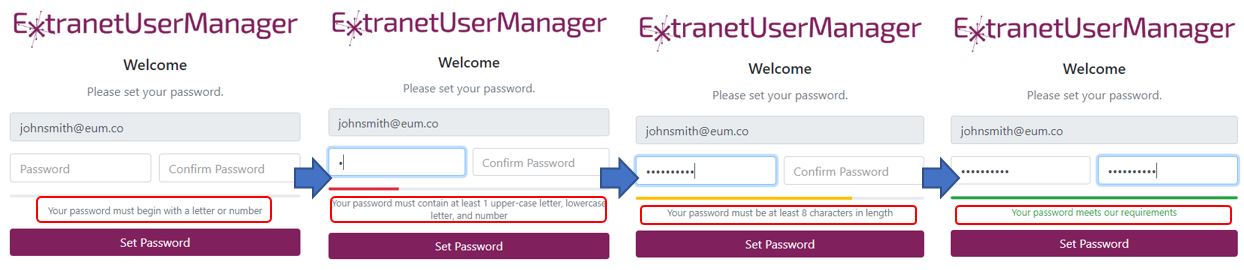
To change these messages go to where EUM is installed:
EUM installed a On Premise
Navigate to C:\inetpub\wwwroot\~Your EUM Folder~\IdentityServer\Views\Account
EUM installed as App Service
- Login to the Azure Portal, navigate to the EUM App Service
- On the left hand menu click </> App Service Editor (Preview)
- Click Go
- In the left menu expand IdentityServer to navigate to IdentityServer\Views\Account
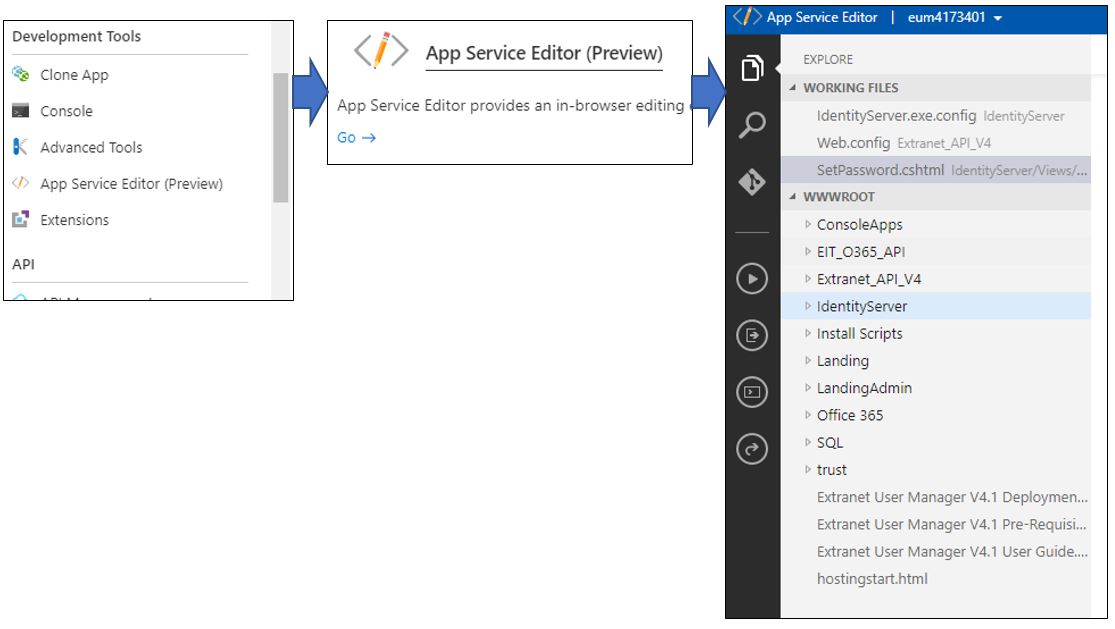
Change the messages in line 94 to suite your needs
