Bulk Delete Guest Users Using User Import Excel in EUM V7 and V6
|
Published
Bulk deletion of Guest Users using the User Import Excel can be done in EUM v7 and above. This can be done by exporting users from EUM based on your required search criteria, and then using the User Import process to delete these users.
In this article we have listed a few examples of user search criteria, and deleted the users accordingly.
Example 1: Delete Guest Users of a Specific User Status
Example 2: Delete Guest Users of a Specific Company
Example 1: Delete Guest Users of a Specific User Status
- Login to EUM Admin and navigate to Users in the left-hand menu.
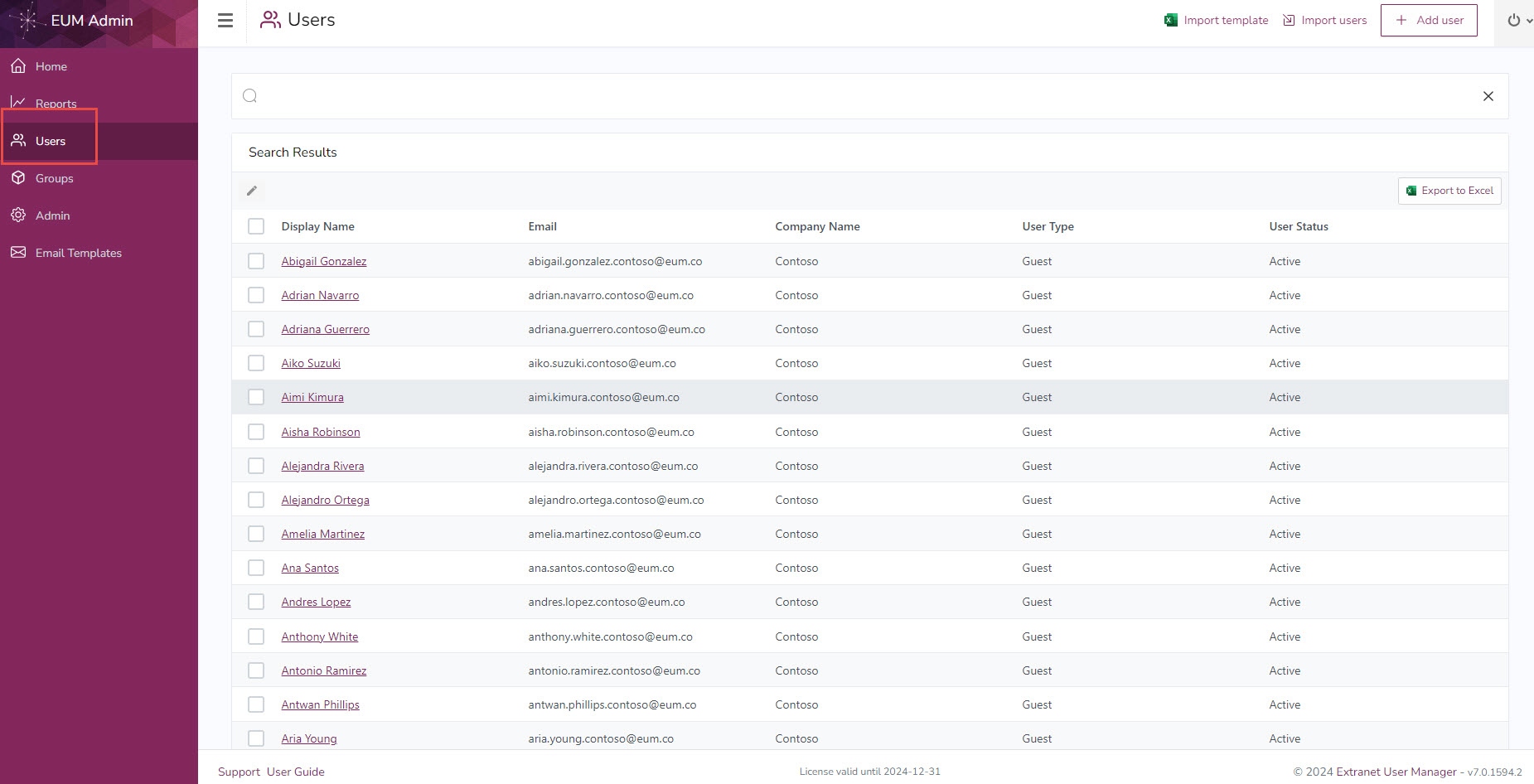
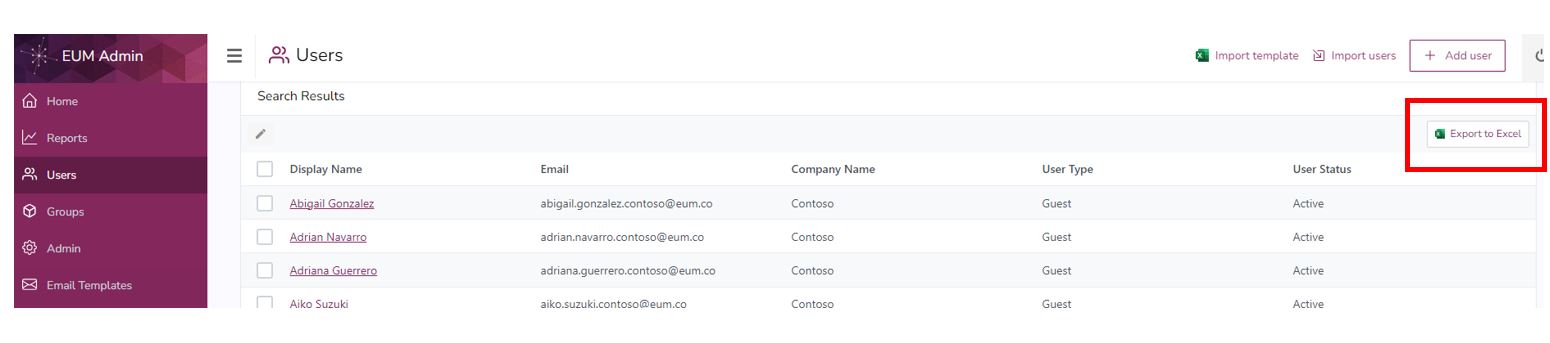
- Click the Export to Excel button at the top right of the Users Search Results table. This will download an Excel file containing the search result.
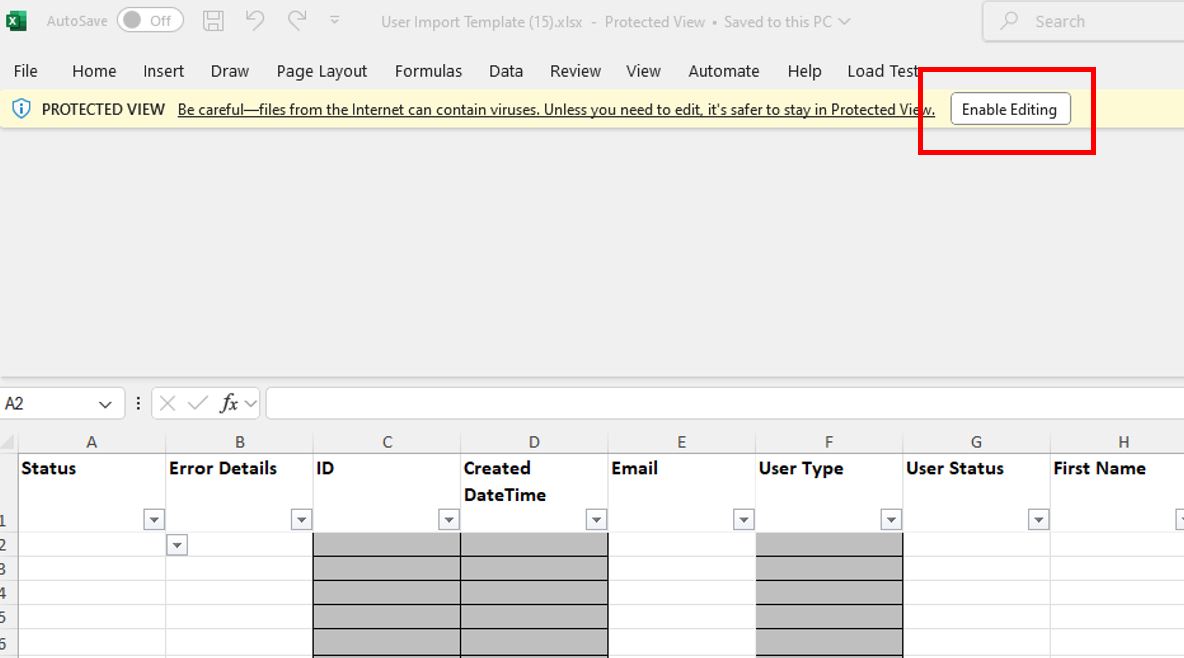
- In the Excel that got downloaded, click the Enable Editing button on top.
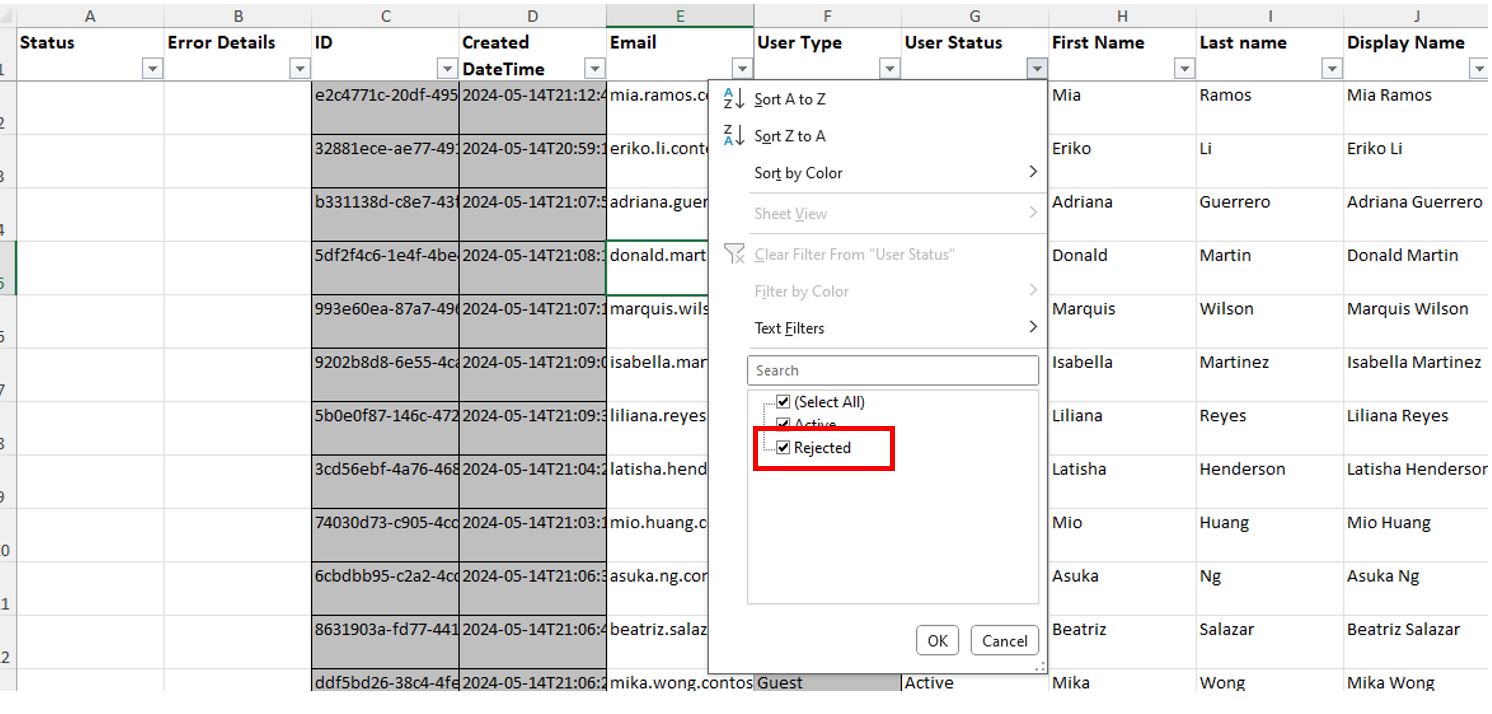
- Filter the User Status column for which type of users you would like to delete. For example, if you want to delete the users of User Status Rejected, filter the User Status column to show Rejected users.
- Filter User Type to show only Guest Users.
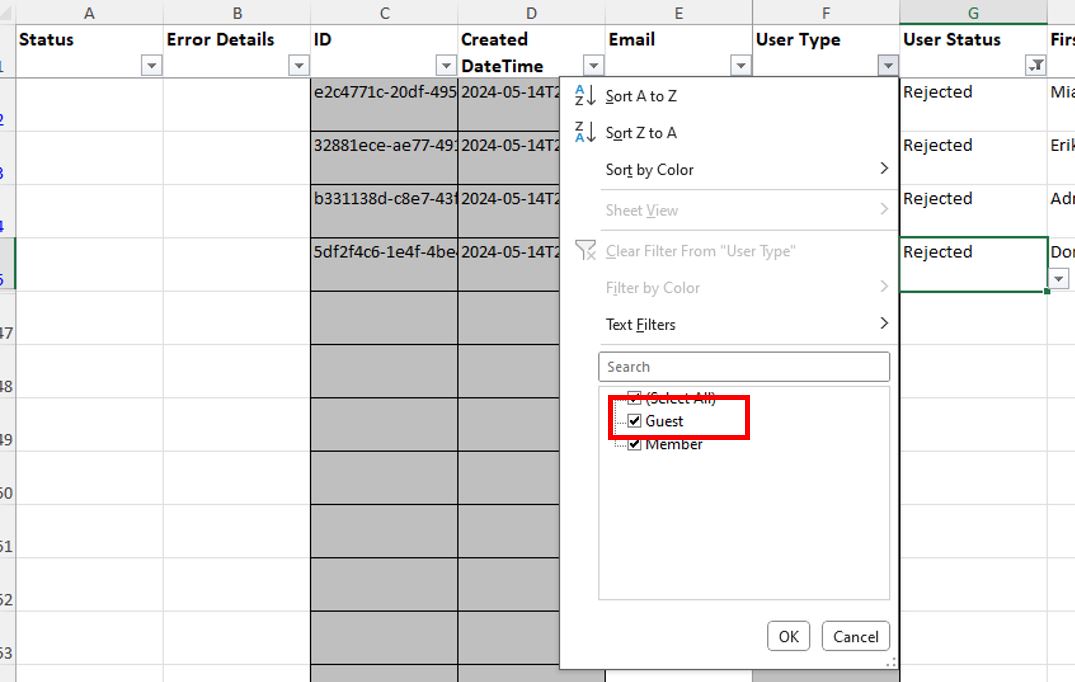
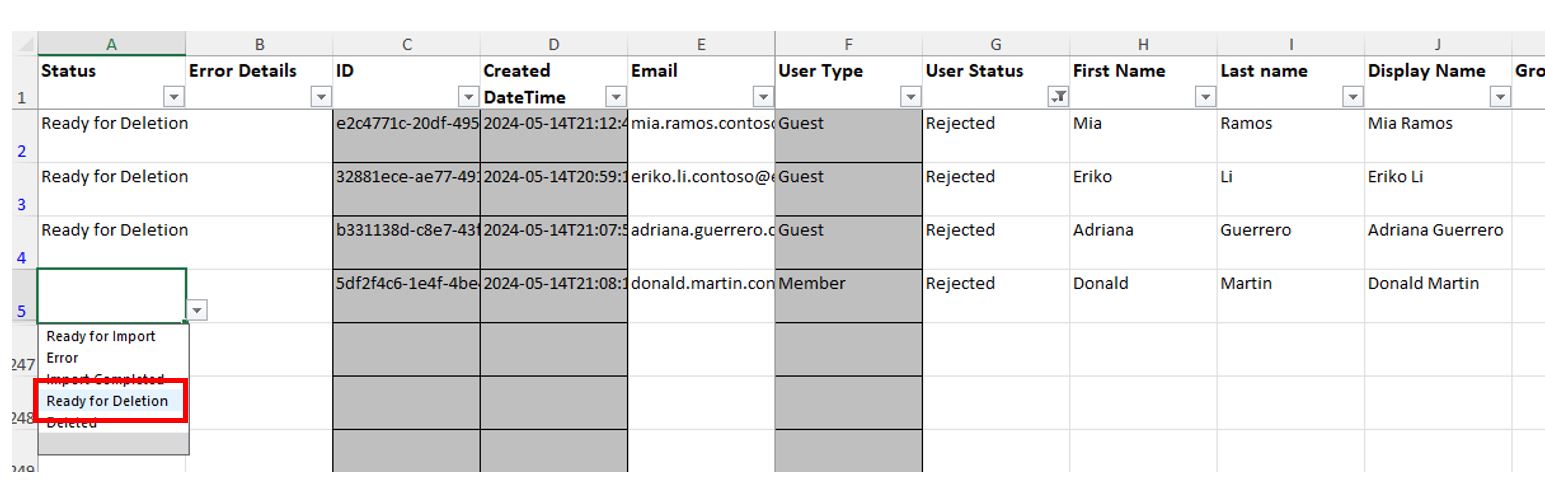
- Change the Status in Column A to Ready for Deletion for all the users you want to delete.
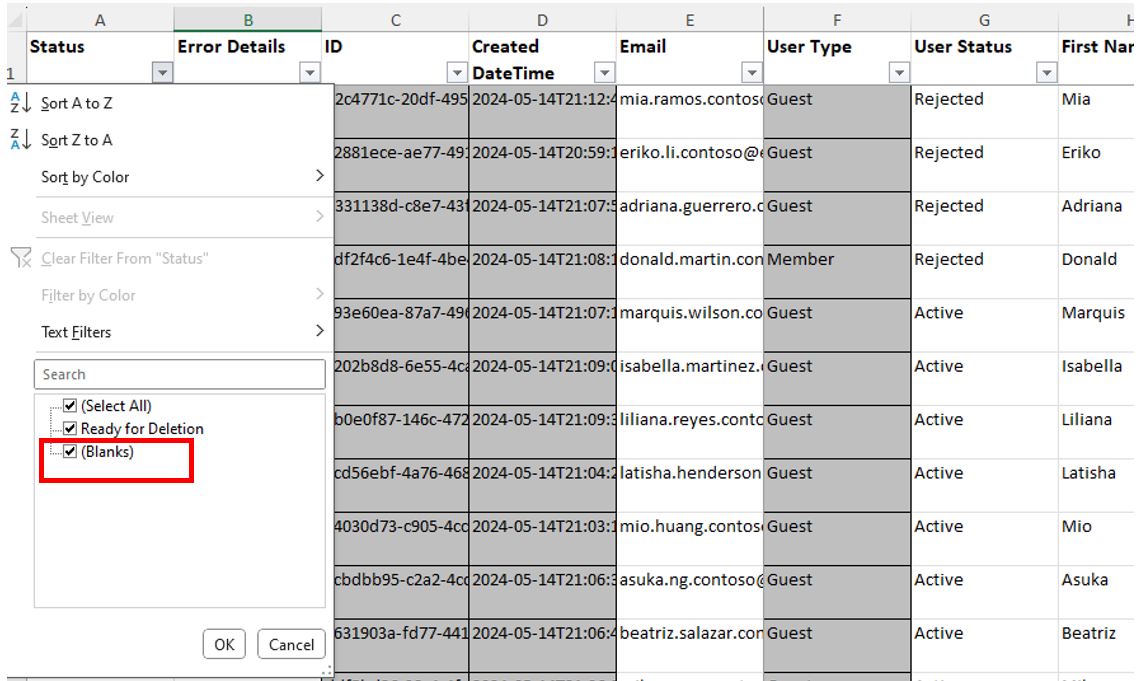
- Clear all the filters. For the Status column filter to show Blanks and delete these rows to shorten the Excel.
- Save the Excel.
- Follow the User Import process.
Example 2: Delete Guest Users of a Specific Company
- Login to EUM Admin and navigate to Users in the left-hand menu.
- Click the Export to Excel button at the top right of the Users Search Results table. This will download an Excel file containing the search result.
- In the Excel that got downloaded, click the Enable Editing button on top.
- Filter the Company Name column to show the Company you want to delete the users of. For example, if you want to delete the users of Company called "Fake Company", filter the Company Name column to show "Fake Company".
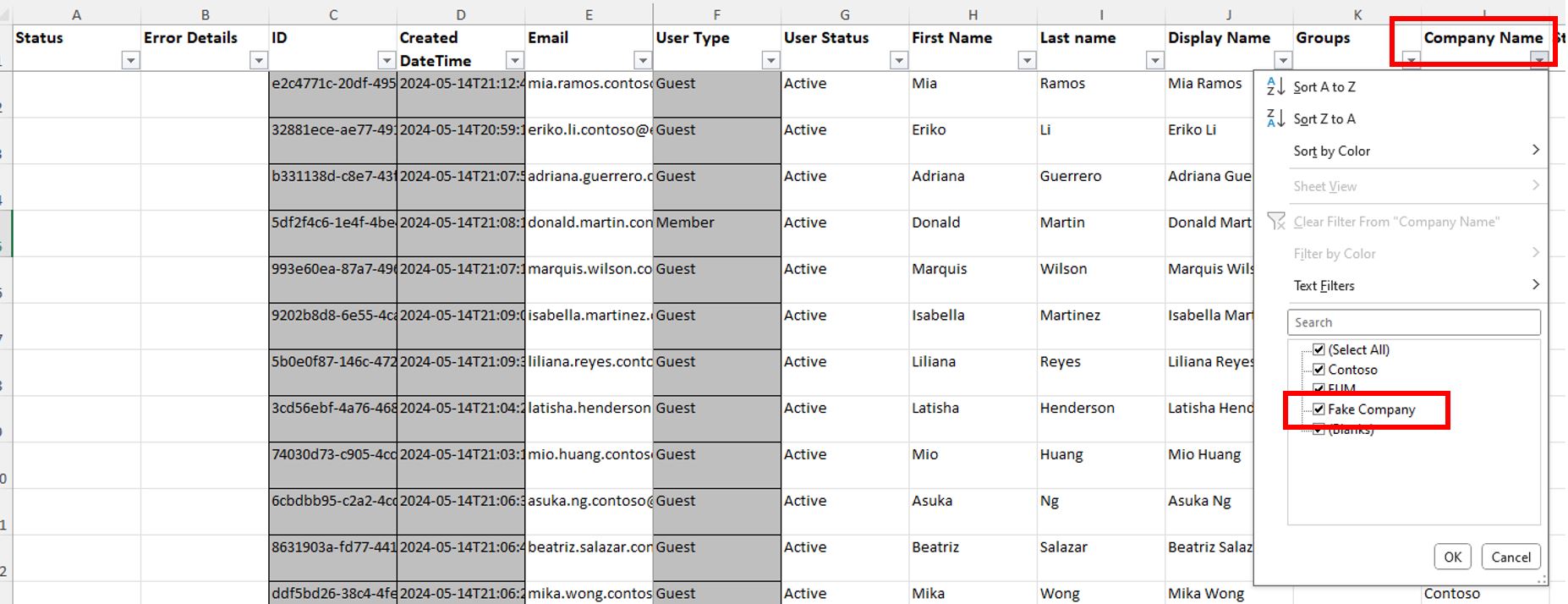
- Filter User Type to show only Guest Users.
- Change the Status in Column A to Ready for Deletion for all the users you want to delete.
- Clear all the filters. Filter Status to show Blanks, and delete these rows to shorten the Excel.
- Save the Excel.
- Follow the User Import process.
User Import Process
- On the EUM Admin Users page, click Import Users on the top right.
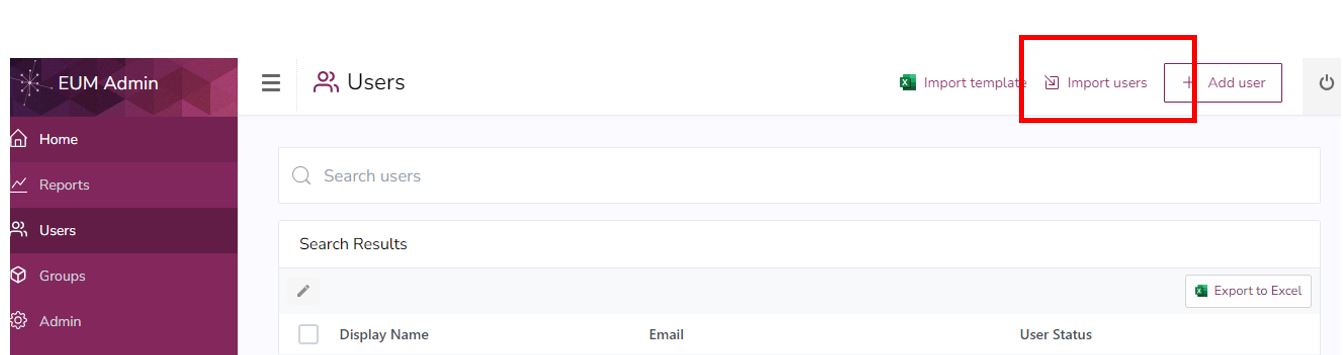
- That will take you to the EUM Config Site User Manager User Imports Document Library.
- Drag and drop the saved excel there.
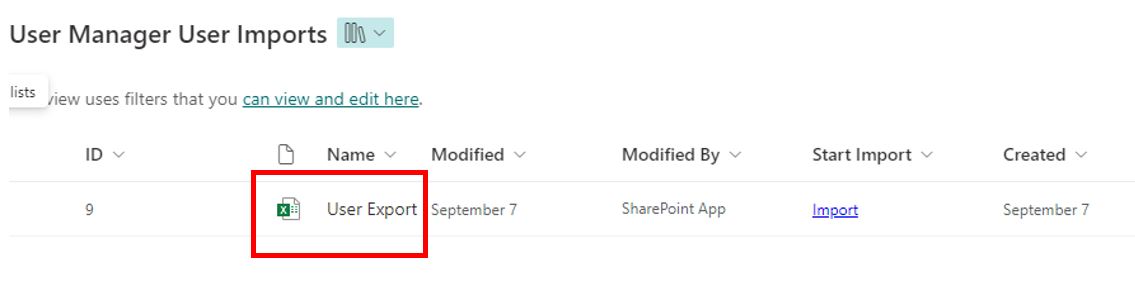
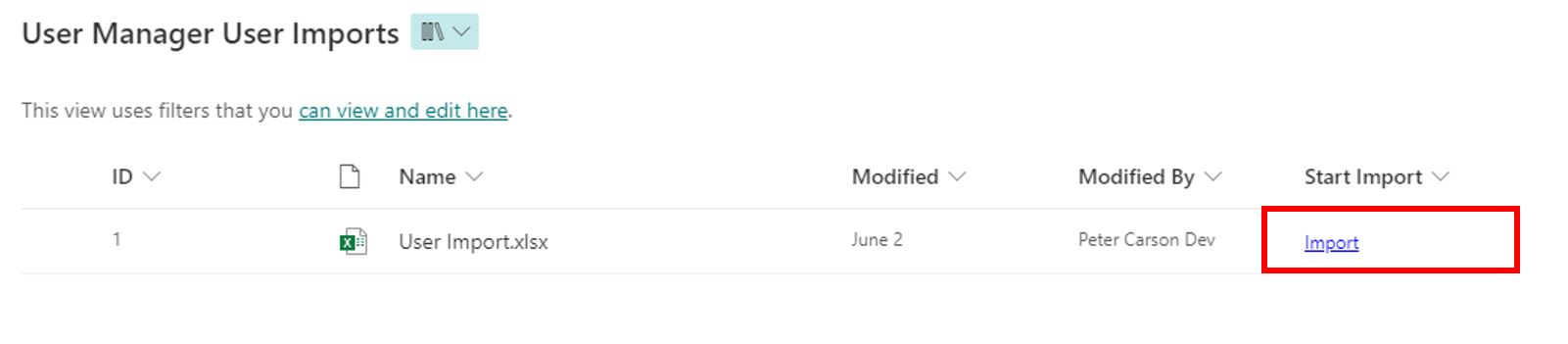
- Click the Import button beside the Excel to start the import process.
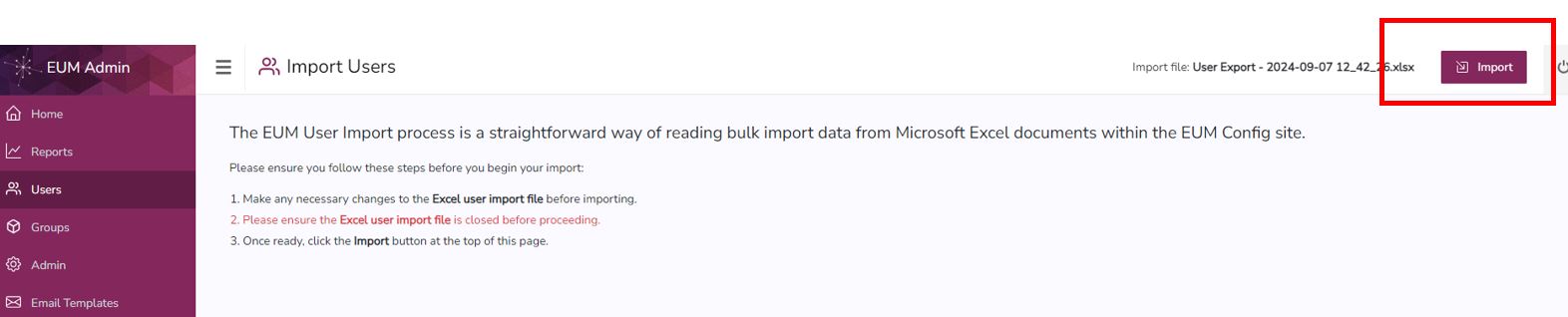
- That will take you back to the EUM User Import page. Follow the instructions and click the Import button at the top of the page. That will start the User Import process.
- Upon completion of the User Import process, the desired users will be deleted.