Authenticate EUM to Send Email Notifications - EUM V6 and V7
|
Published
For EUM to be able to send Email Notifications, you will need to set up a Member type of user in your Entra ID and give it an O365 Email license. This could be a Service Account, but not a shared mailbox.
After the user account is created and an O365 Email license provisioned for that user, follow these steps:
- Login to the Azure Portal and go to the EUM Resource Group.
- If your EUM is hosted by Envision IT, we will provide you with the link to the API Connector, as well as the needed access. Login to the link with your email address, as this is the account we would have invited into our tenant.
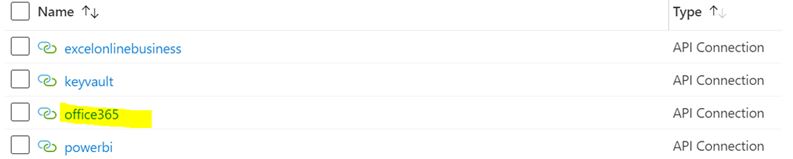
- Click on the office365 API Connection.
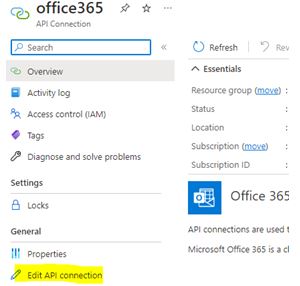
- Click Edit API Connection.
- Click the big Authorize button.
- This will open a sign in prompt.
- Sign in with the account you would be using to send EUM emails from.
- Click Save.