Apply an Updated EUM V6 or V7 License
|
Published
You will receive a license from an Envision IT representative whether it is the first time you’re applying your recently purchased license or a renewed license.
This article covers three scenarios:
- You are applying a renewed license to an active EUM V7
- You are applying a renewed license to an active EUM V6
- You are applying a renewed license to an inactive EUM (because EUM license is already expired)
If you are applying a renewed license to an already active EUM V7
- The license is a JSON file and has the following naming convention: Suite License - Customer_Name.
- Please open the license in Notepad or Notepad++ so that the contents can be copied.
- Login to EUM Admin as an Azure AD Global Admin or a member of the EUM Manager group.
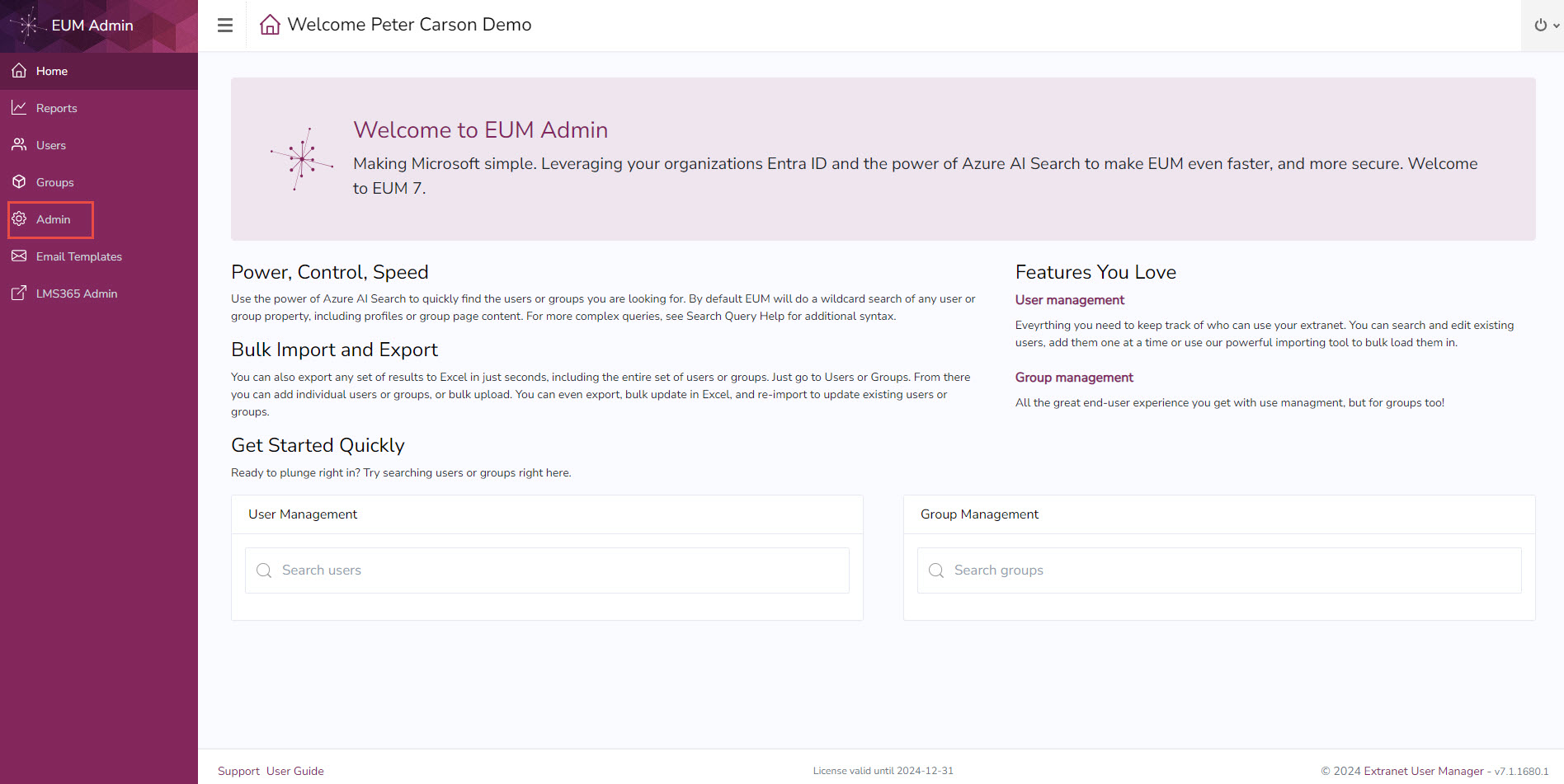
- Click Admin in the left-hand menu.
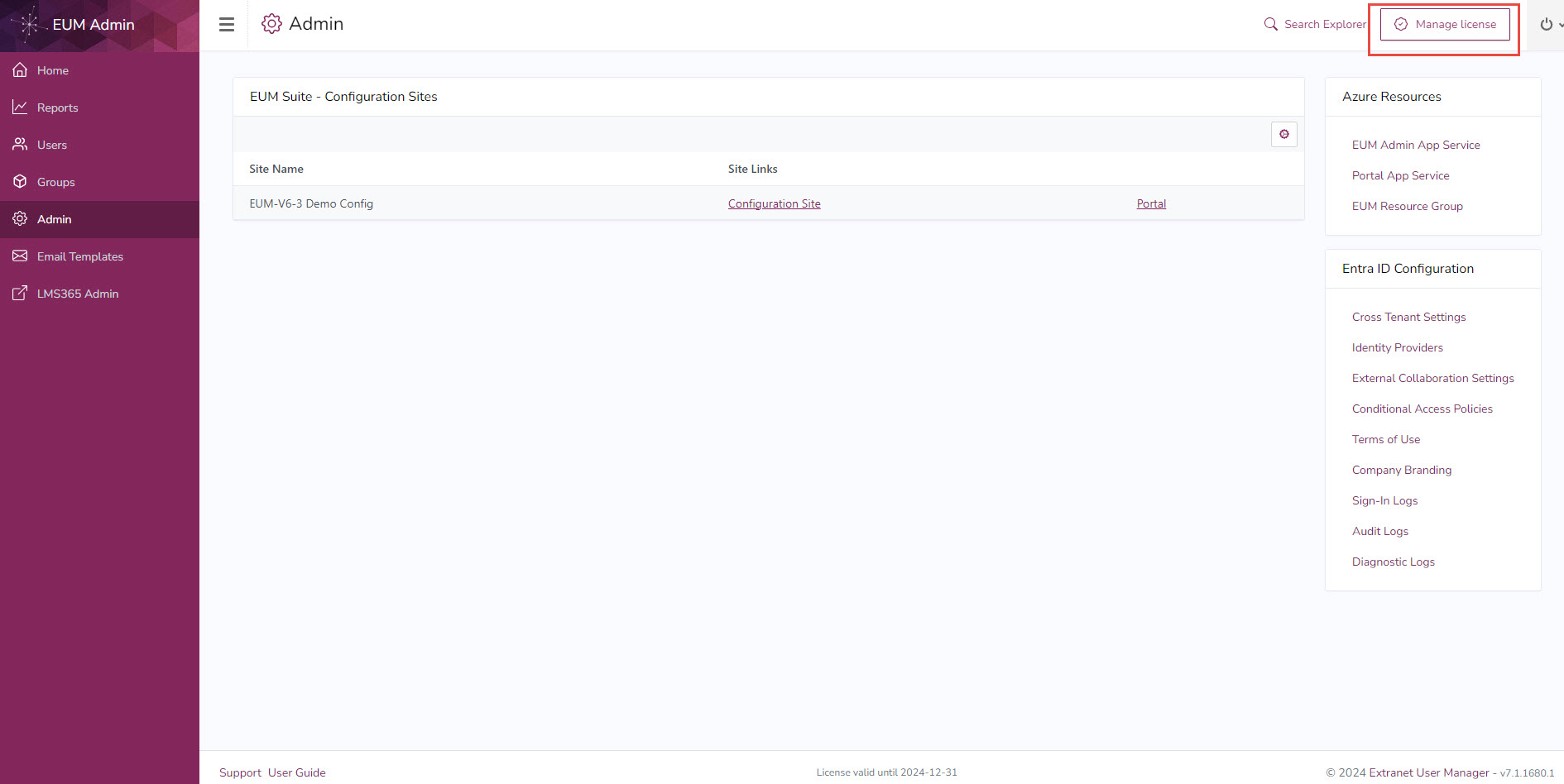
- Click Manage License in the top right.
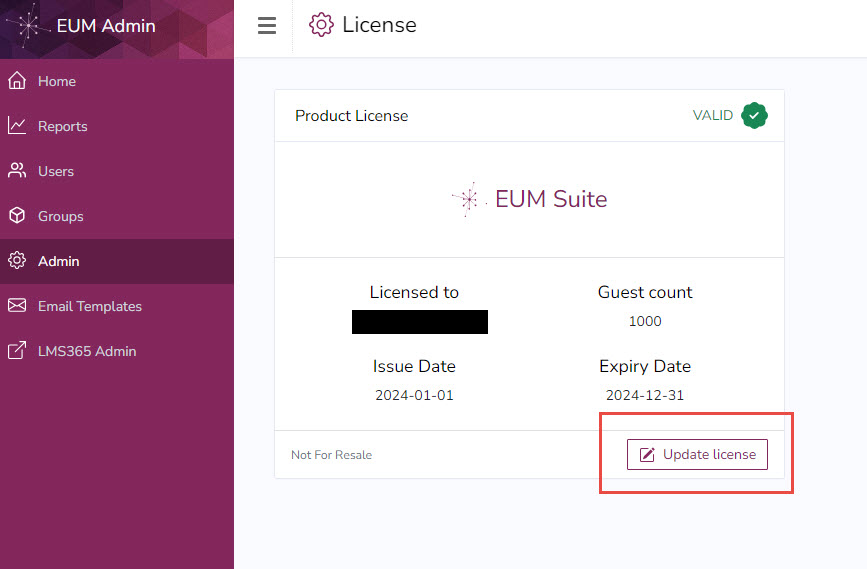
- This will open an EUM License page.
- Click the Update License button.
- This will open a form to put in the JSON contents from the EUM License you received from Envision IT.
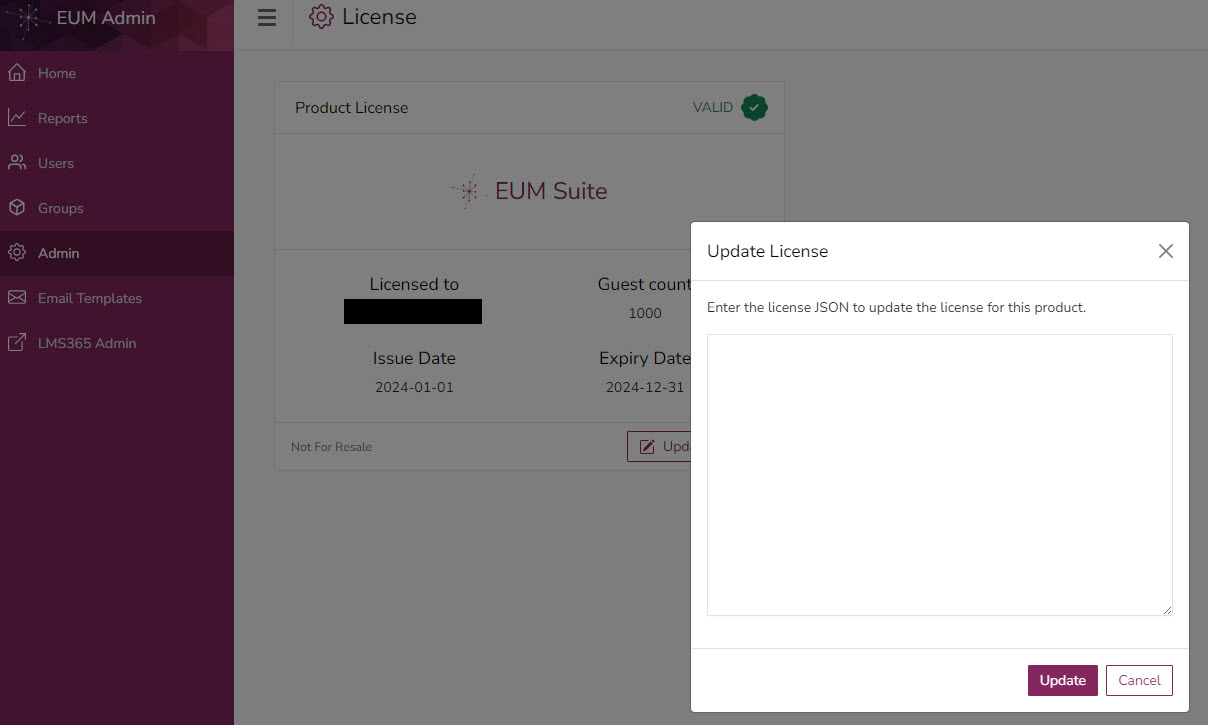
- In the text box please enter the content you copied from the EUM License in step 2.
- Click Update.
If you are applying a renewed license to an already active EUM V6
- The license is a JSON file and has the following naming convention: Suite License - Customer_Name.
- Please open the license in Notepad or Notepad++ so that the contents can be copied.
- Login to EUM Admin as an Azure AD Global Admin or a member of the EUM Manager group.
- Click License in the left-hand menu.
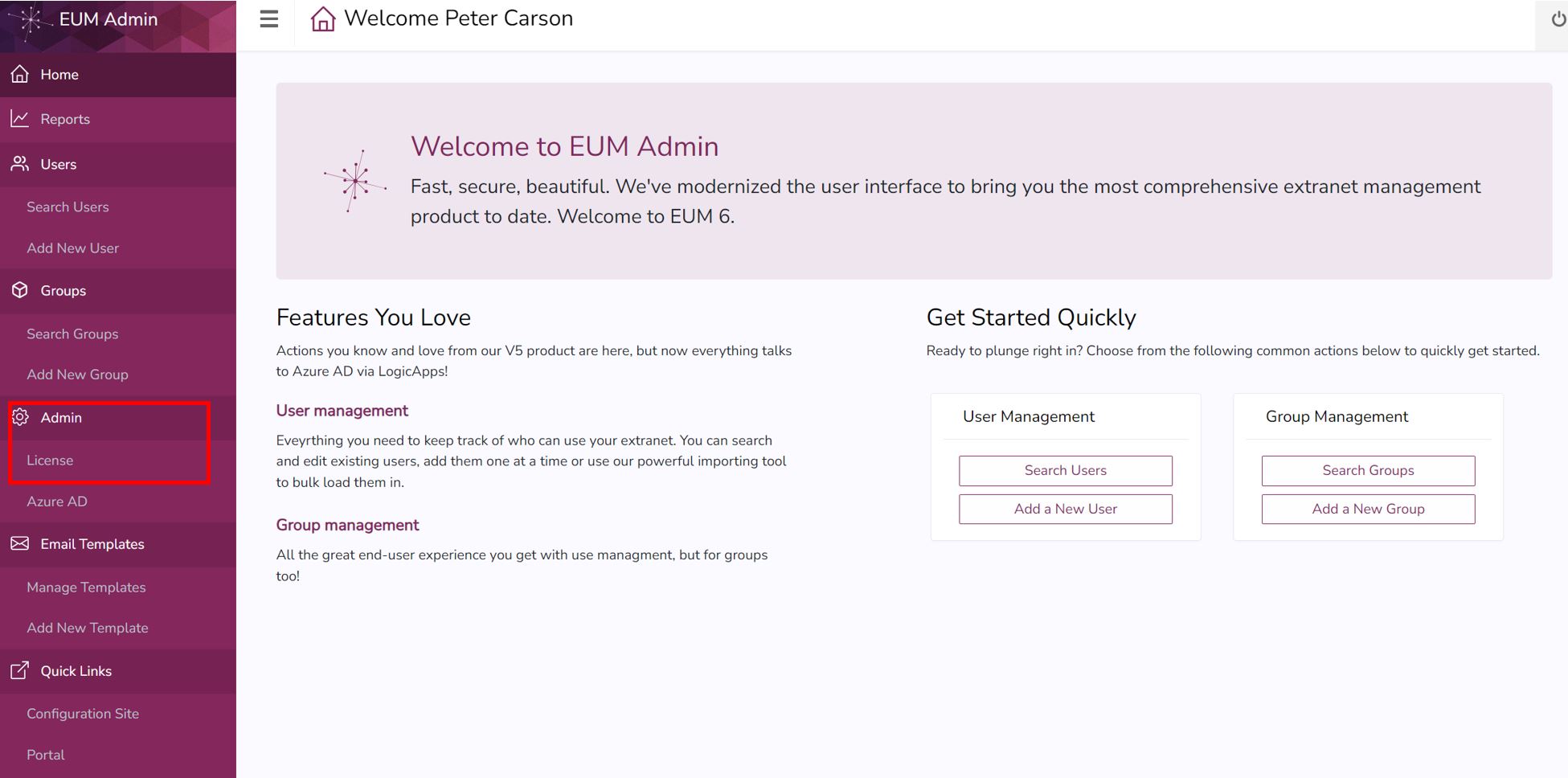
- This will open an EUM License page.
- Click the Update License button.
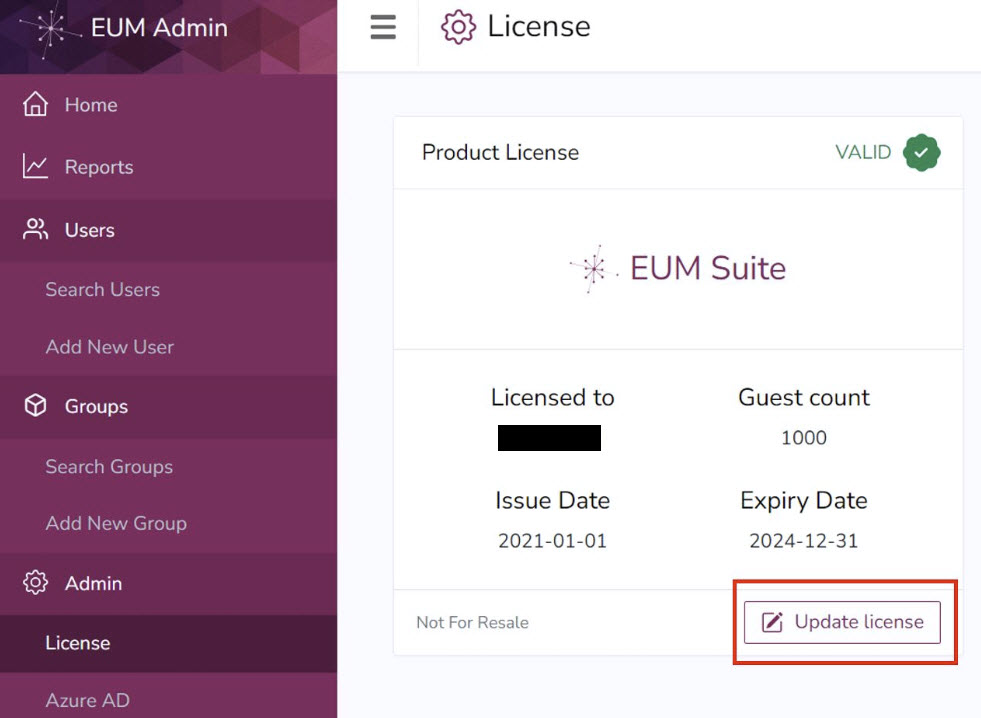
- This will open a form to put in the JSON contents from the EUM License you received from Envision IT.
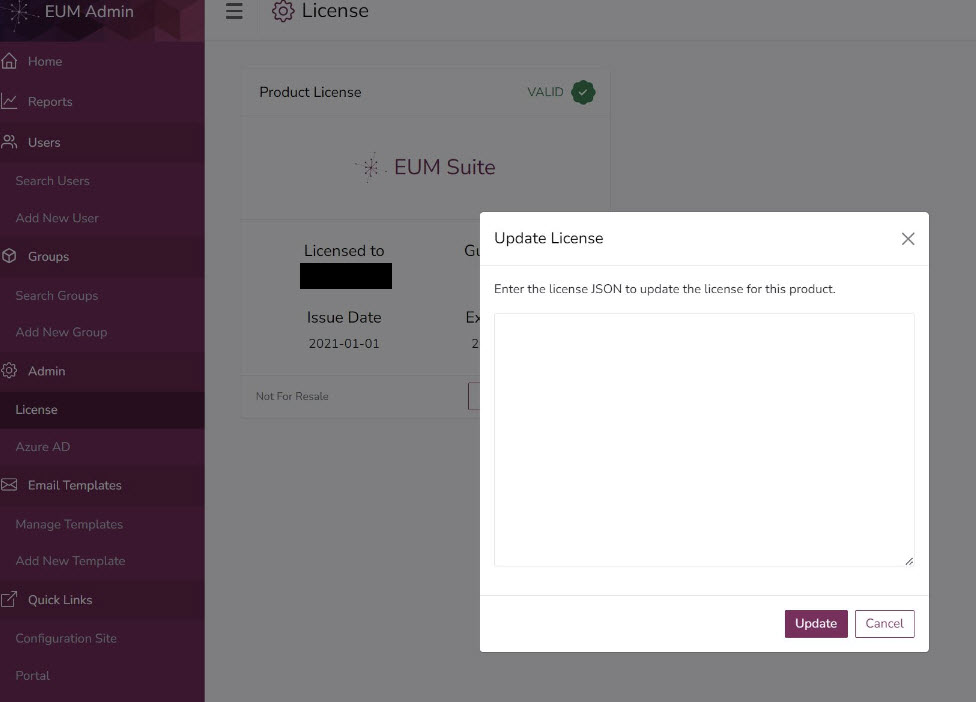
- In the text box please enter the content you copied from the EUM License in step 2.
- Click Update.
If you are applying a renewed license to an inactive EUM
- You will receive a license from an Envision IT representative.
- The license is a JSON file and has the following naming convention: Suite License - Customer_Name.
- Please open the license in Notepad or Notepad++ so that the contents can be copied.
- Sign in to the EUM Config SharePoint Site with Admin credentials.
- Navigate to the Suite Config list.
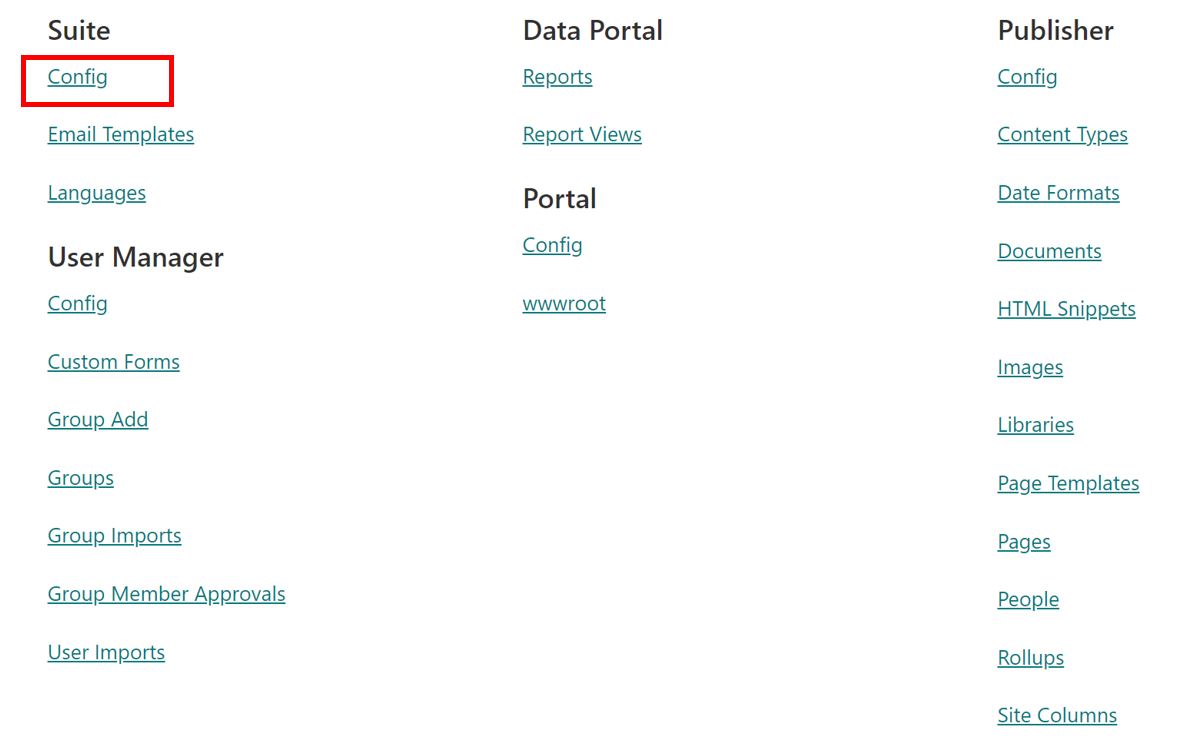
- Click on the License so that the metadata opens to the right of the page. Click See More to expand the Value field.
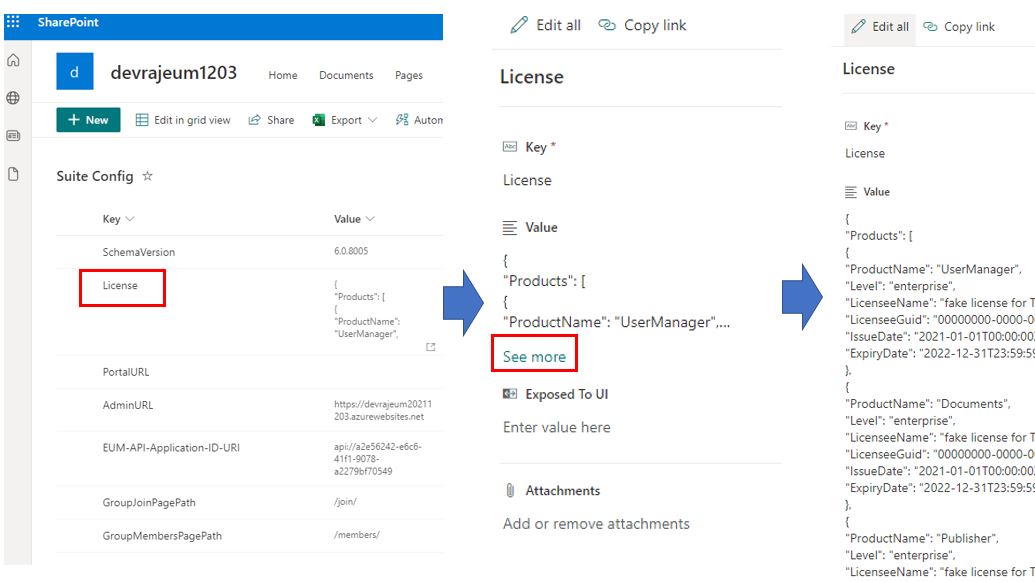
- Replace the value with the entire content of the License JSON file received. Make sure to save the changes.
Note: You must go to the Azure Portal and restart the EUM Admin and EUM Portal App Services for the license changes to take effect.