Add Custom Domain to EUM App Service for EUM V5 and below
|
Published
In this article we will see how to add a custom domain to the Azure App Service before installing EUM. Custom domains can be bought from Azure, and the SSL certificate would be available with Azure in that case. However, if the domain is bought from outside, the SSL certificate would have to be imported. This example shows how to add custom domains bought from Azure.
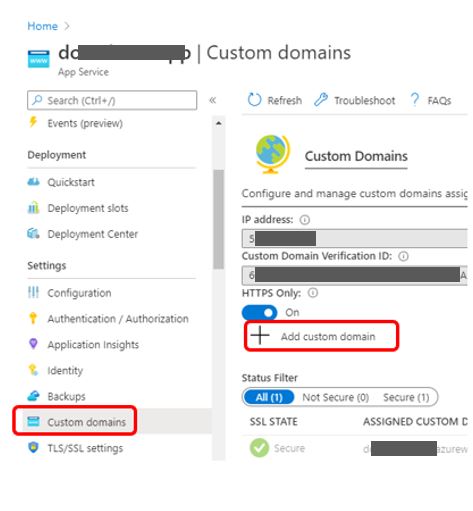
- In the App Service left hand menu click Custom Domains. This will open the Custom Domains tab
- In the Custom Domains tab click + Add custom domain. This will open a detailed tab
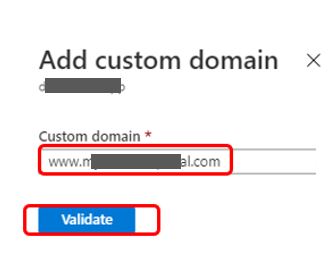
- In the detailed tab put in the custom domain without the https:// and click Validate. The form expands with a few more fields.
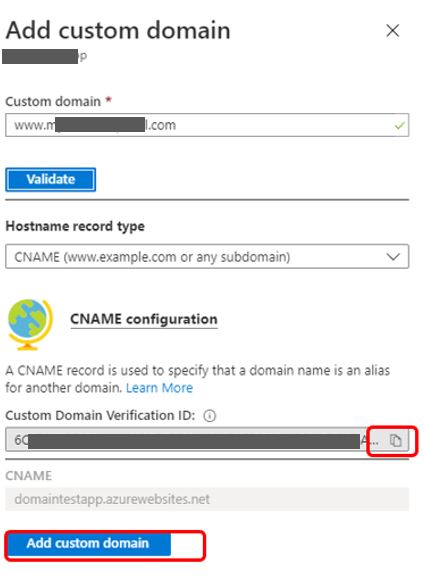
- At this point there might be a notification to add CName. Add the CName, and come back to the Azure App Services Custom domain page and repeat the above steps. This time, it would not ask for CName, and the Add custom domain button will be enabled
- Click Add custom domain. Keep a note of the Custom Domain Verification ID
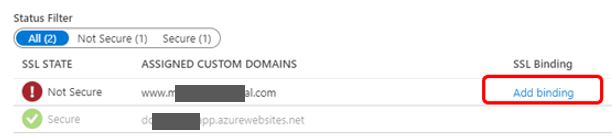
- Get back to the Custom Domains page and click Add binding
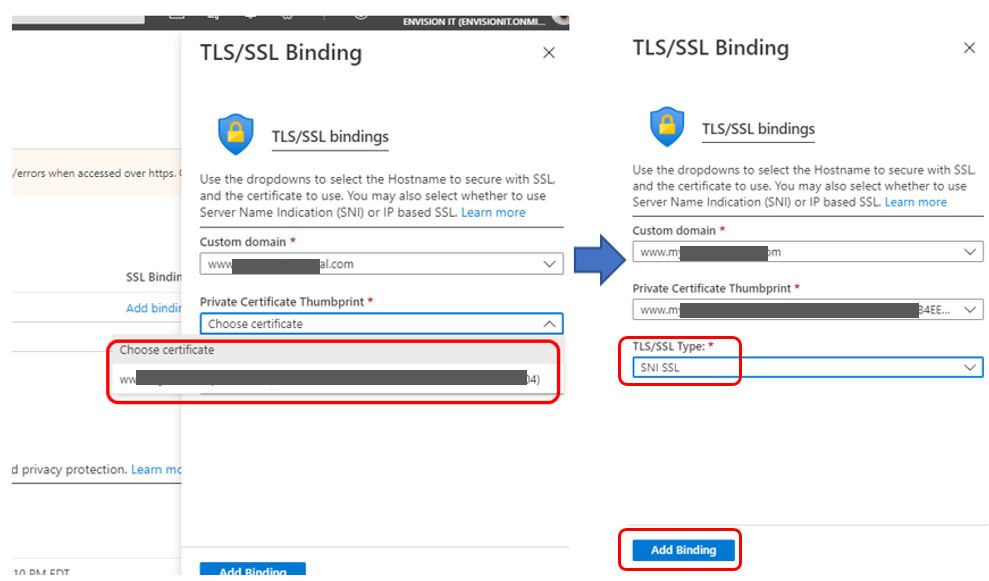
- At this point it will ask to upload or import certificate. Because in this example the domain is bought from Azure, there us no need to do anything. Close this tab, and after a few second click Add binding again. It will now have the certificate to choose from a dropdown.
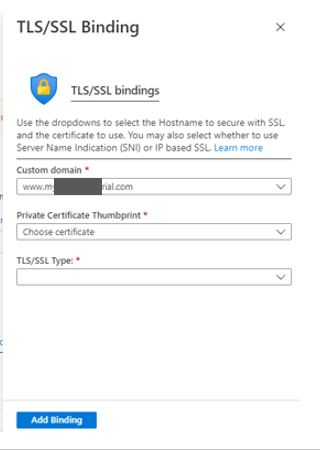
- Select the certificate, select SSL, and click Add Binding
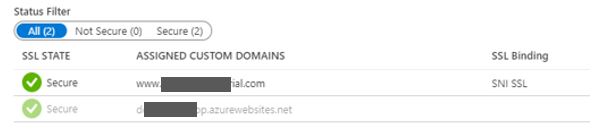
- Notice that the custom domain now shows Secured and the App Service URL in the Overview tab changes to the custom domain
Refer Microsoft Article: https://docs.microsoft.com/en-us/azure/app-service/app-service-web-tutorial-custom-domain