Add a User to a Group using EUM Admin - EUM V6
|
Published
One can add a User to a EUM Group using EUM Admin if one has any one of the below EUM Roles:
- Membership Manager
- Group Owner
- Group Creator
- EUM Manager
- Global Admin
User can be added as a Member to a Group either through the Group Details page, or User Details page.
Add User to a Group using Group Details page in EUM Admin
- Login to EUM Admin
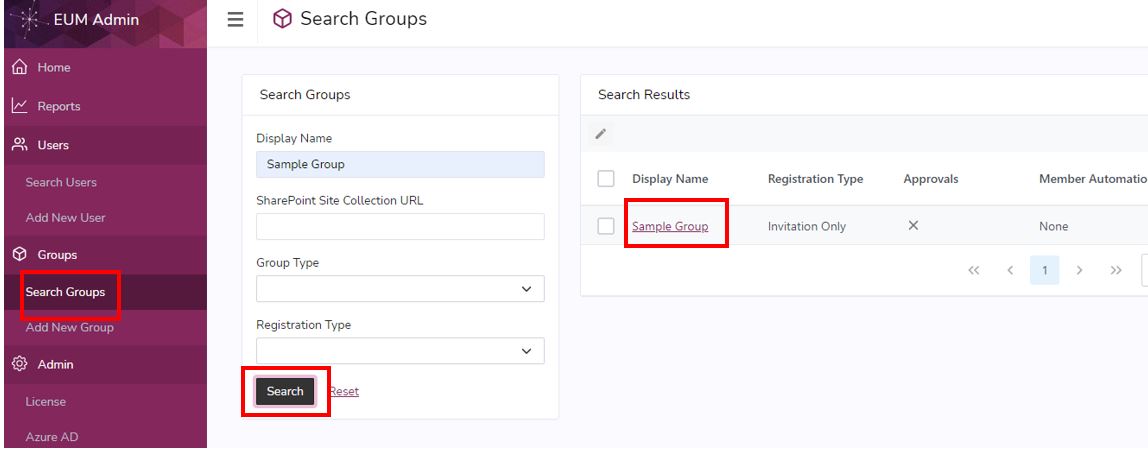
- Click "Search Groups"
- Search for the group you want to add the user to
- Click the Group in the Search Result to load the Group Details page
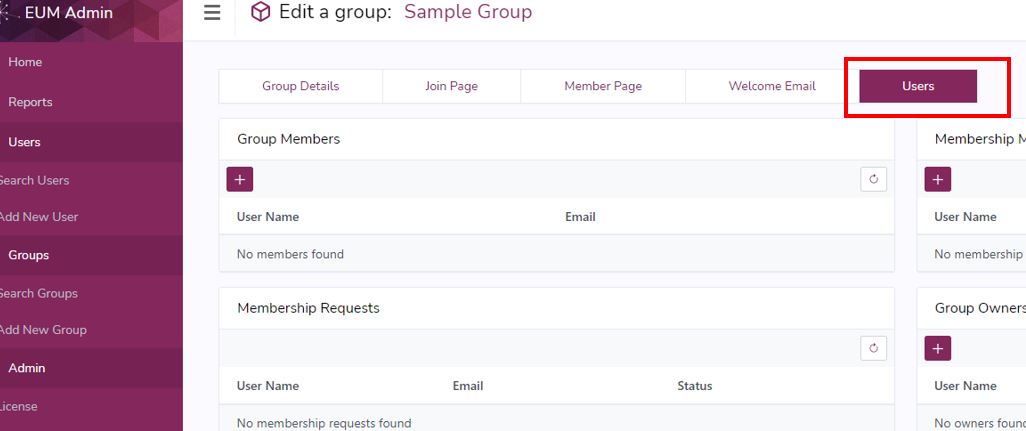
- In the Group Details page, click the Users tab to go to that view
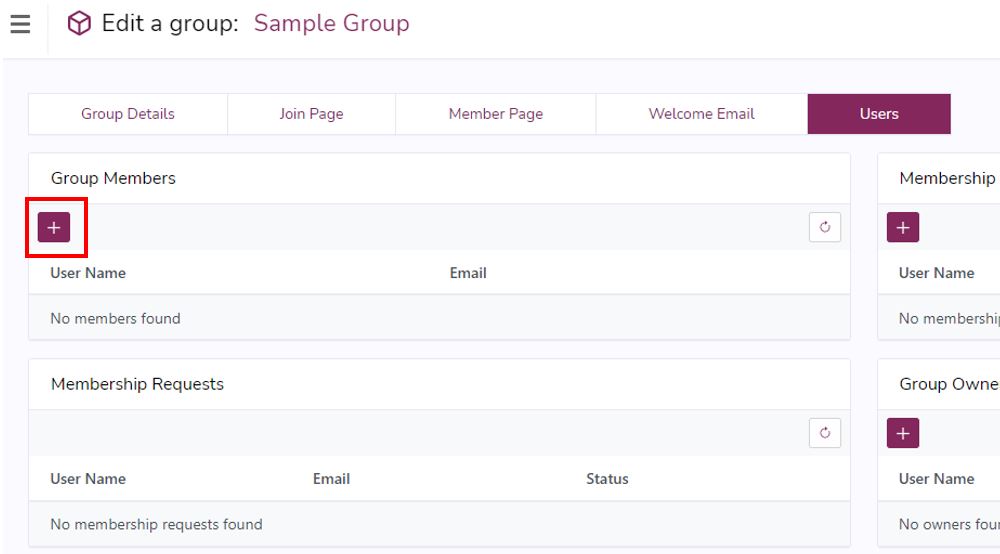
- Click the "+" button in the "Group Members" box. This will load a prompt.
- Search for user you want to add, and click Search
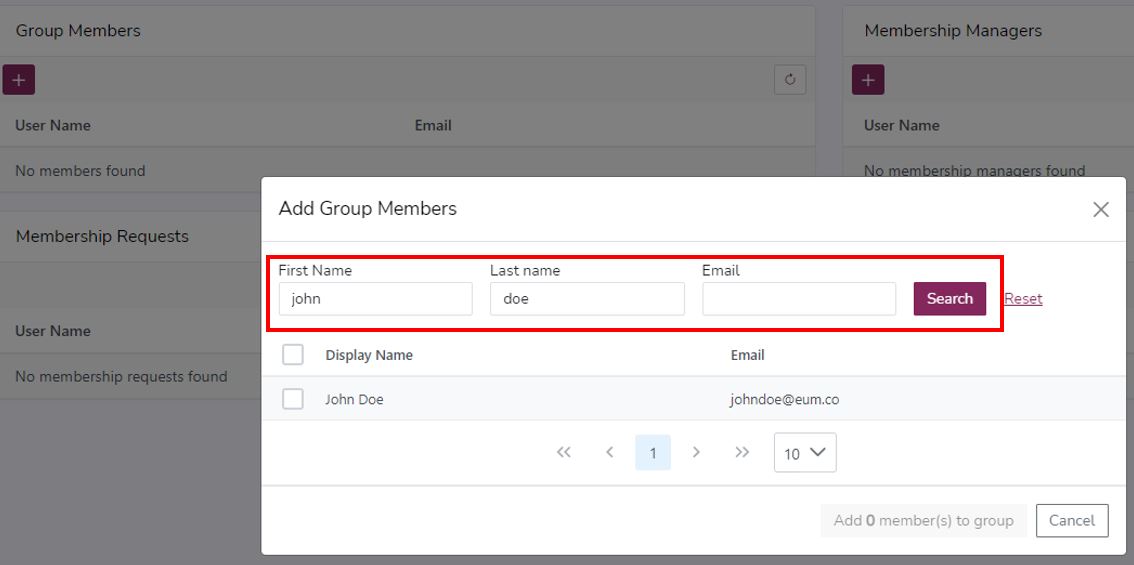
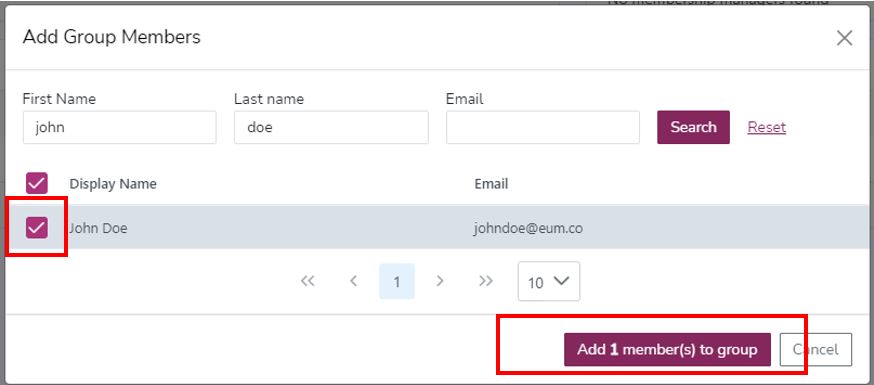
- Select the user you want to add and click "Add member to group" button
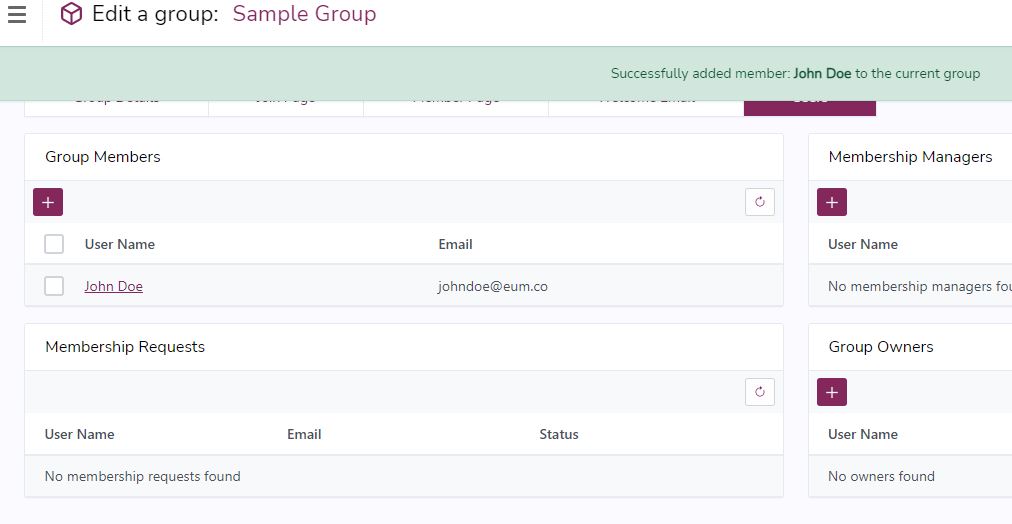
- The user will be added as a Member to the group, and a Success message will be displayed
Add User to a Group using User Details page in EUM Admin
- Login to EUM Admin
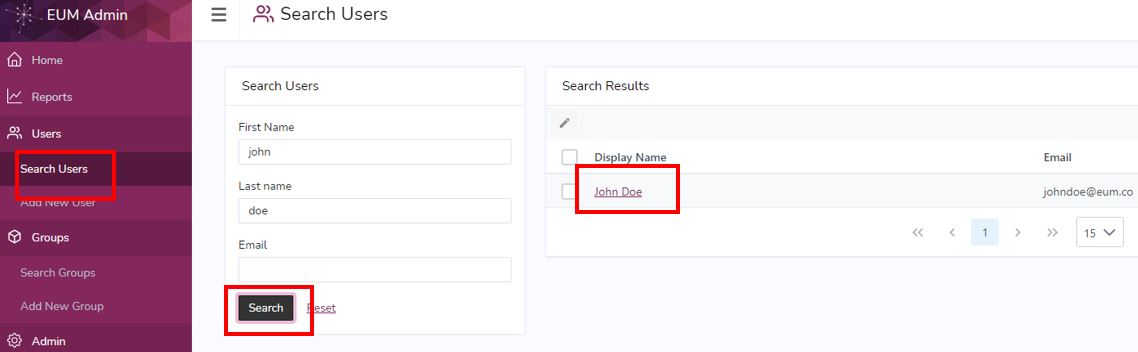
- Click "Search Users"
- Search for the user you want to add the group to
- Click the User in the Search Result to load the User Details page
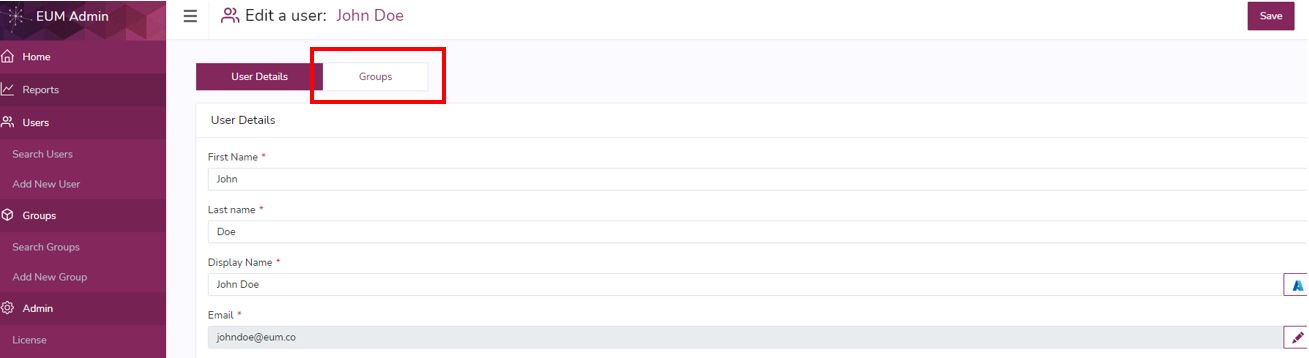
- In the User Details page, click the Groups tab to go to that view
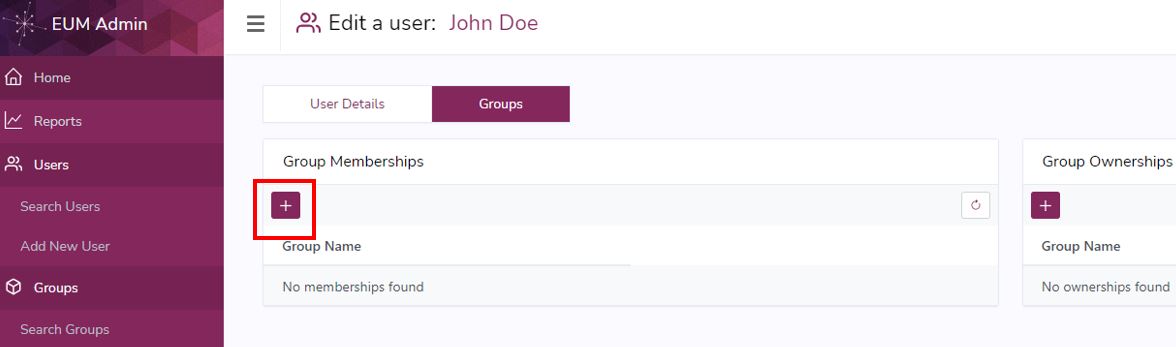
- Click the "+" button in the "Group Memberships" box. This will load a prompt.
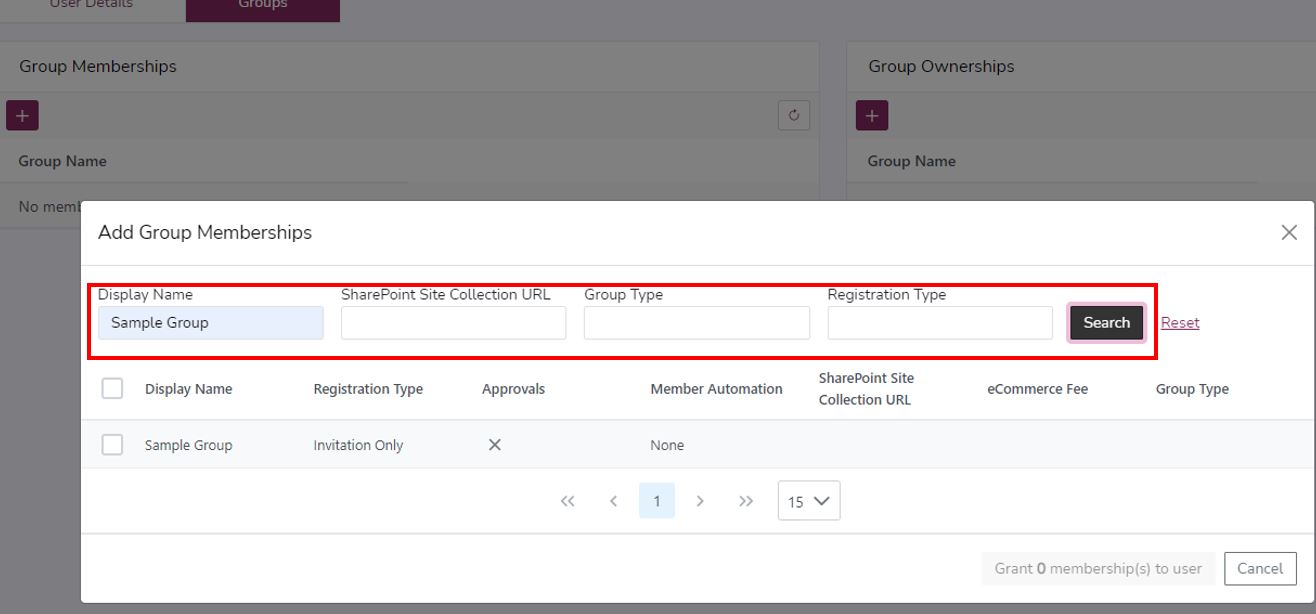
- Search for the group you want to add
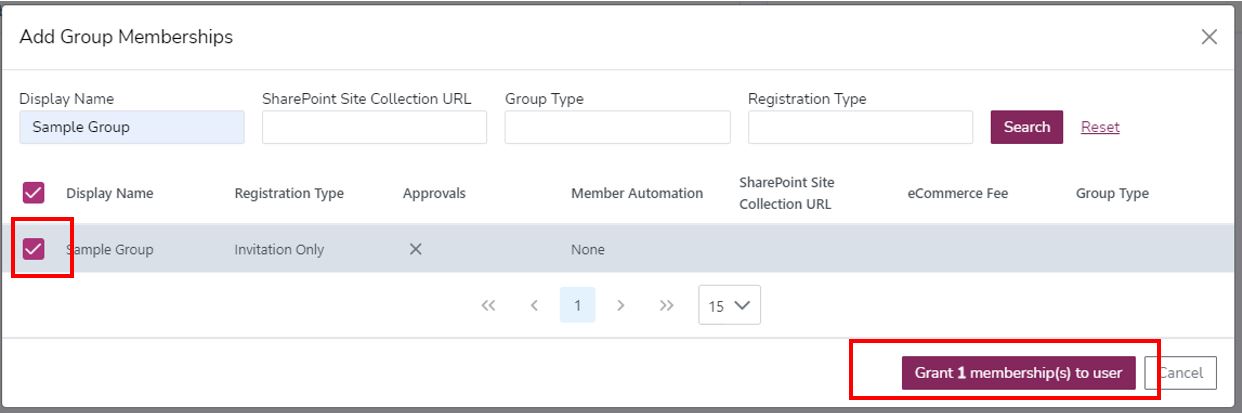
- Select the Group and click "Grant membership to user" button
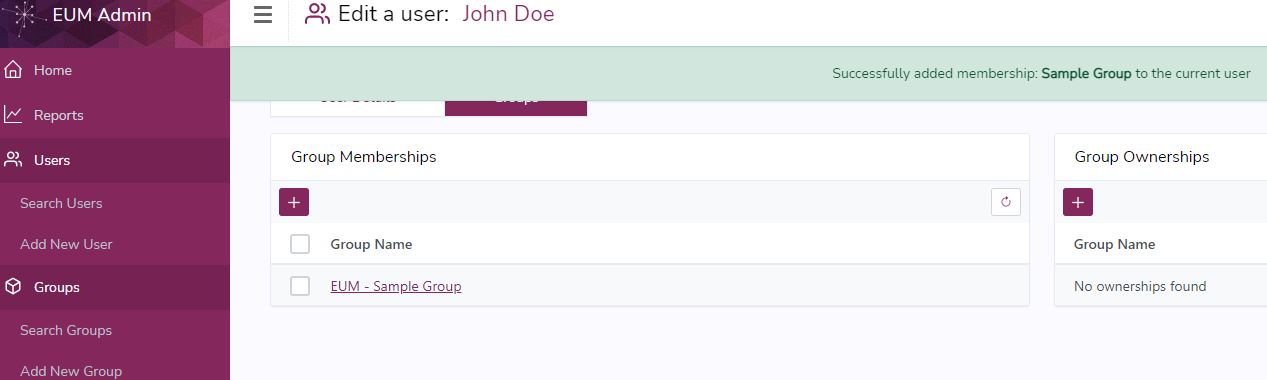
- The group will be added, and a Success message will be displayed