Add a Secret to Azure KeyVault EUM V4
|
Published
In Azure Key Vault, in this example, the Secret called “TwilioSecret” is saved. This contains the
TwilioAuthToken value. To save this value, go the Keyvault created for the Azure App Service in Azure
Portal.
- Logon to https://portal.azure.com/ with credentials that have admin rights to the EUM App Service
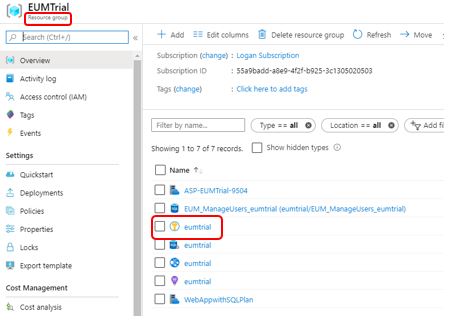
- Navigate to the Resource Group that hosts the EUM App Service
- Lookout for the Key Vault in the Resource Group's Overview page. The Key Vault has a yellow "Key" icon
- Click on the Key Vault to navigate there
In the Keyvault, click to open Secrets, and click Generate/Import
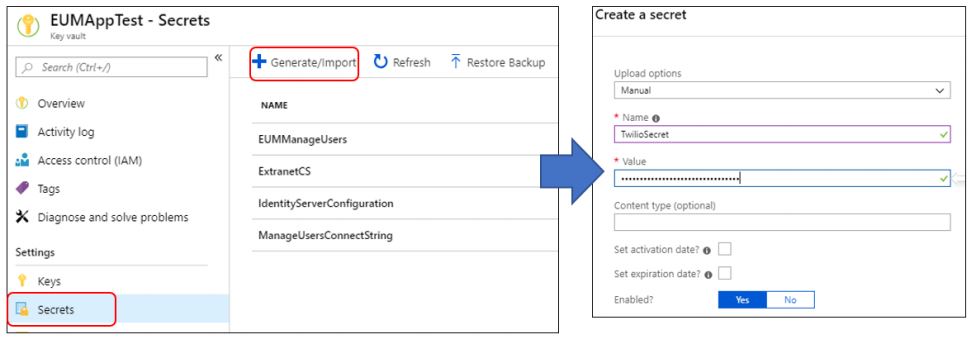
In the Create a secret page put in TwilioSecret as Name, and the TwilioAuthToken value in the Value.
Keeping everything same, click Create. Now drill down the Secret to get to the details page where the url
to the secret is displayed. Copy this url.
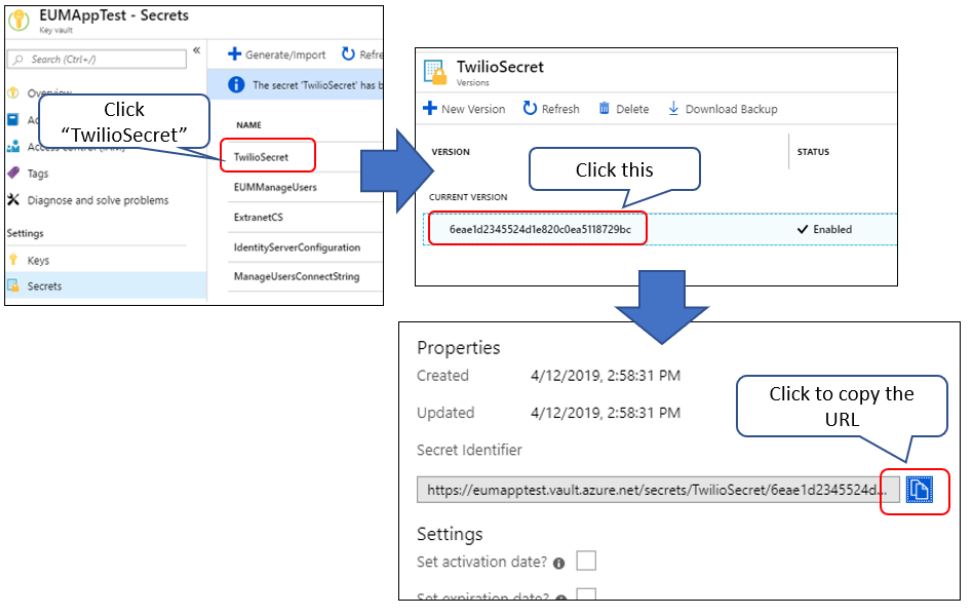
This url can be used in EUM for referring to the secret.