Add a New Guest User in EUM V6
|
Published
One can create a new Guest User using EUM Admin if one has any one of the below EUM Roles:
- Membership Manager
- Group Owner
- Group Creator
- EUM Manager
- Global Admin
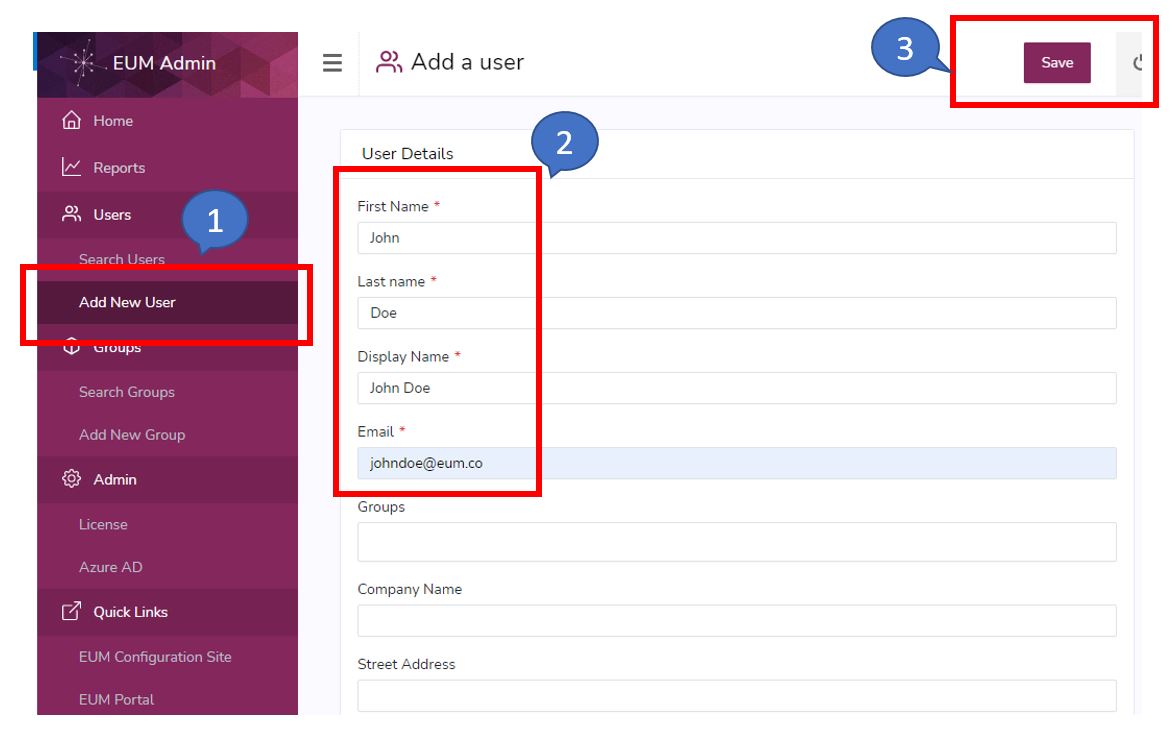
To add a new Guest User in EUM Admin follow the below steps:
- Login to EUM Admin
- Click "Add User" in the left hand menu
- Fill up First Name, Last Name, and Email at minimum
- The Display Name automatically comes up, but can be edited if needed
- Fill up the Groups is needed
- Type in the 1st 3 letters of the Group's EUM Display Name
- Select from the list of suggestions that come up
- If the one creating the new user is not EUM Manager or Global Admin, then it is advisable to add a Group before clicking Save
- In the Groups field type in the first three letters of the EUM Group Display name, and the form will suggest groups starting with those letters
- Select the correct group
- Click "Save" to create the user