Add a Group Rollup Image in EUM V6 or V7
|
Published
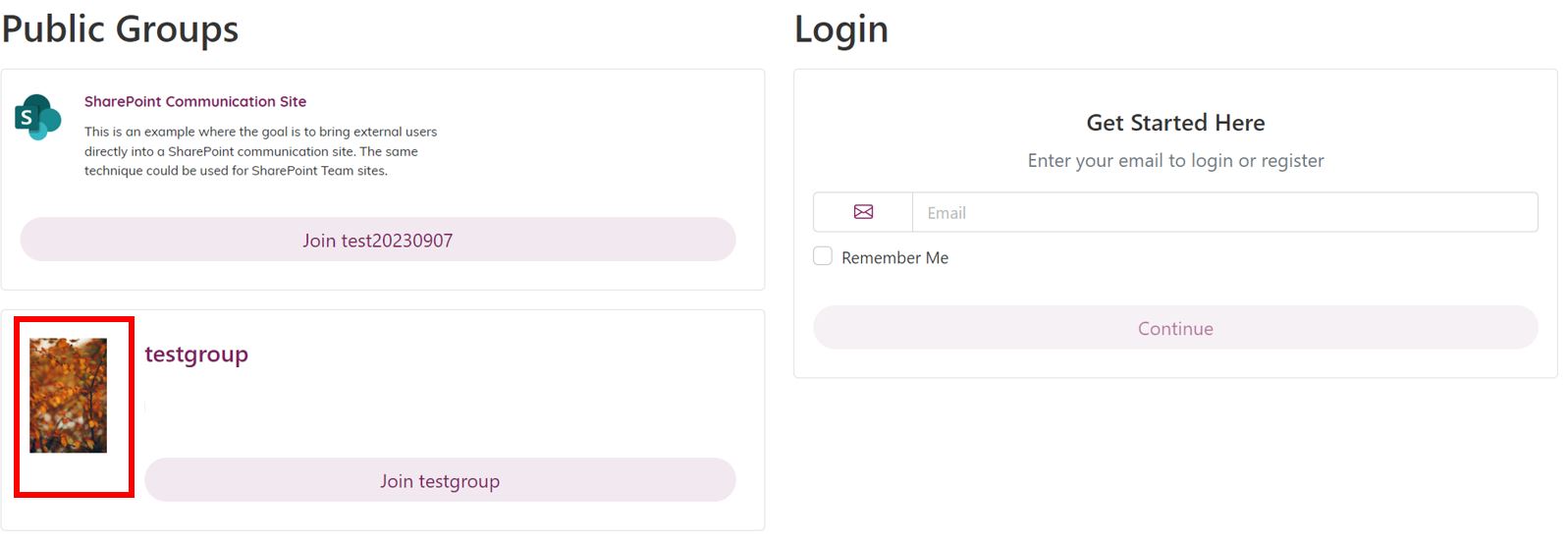
A group rollup image is the image that appears on the EUM Portal homepage as part of the rollup for the group.
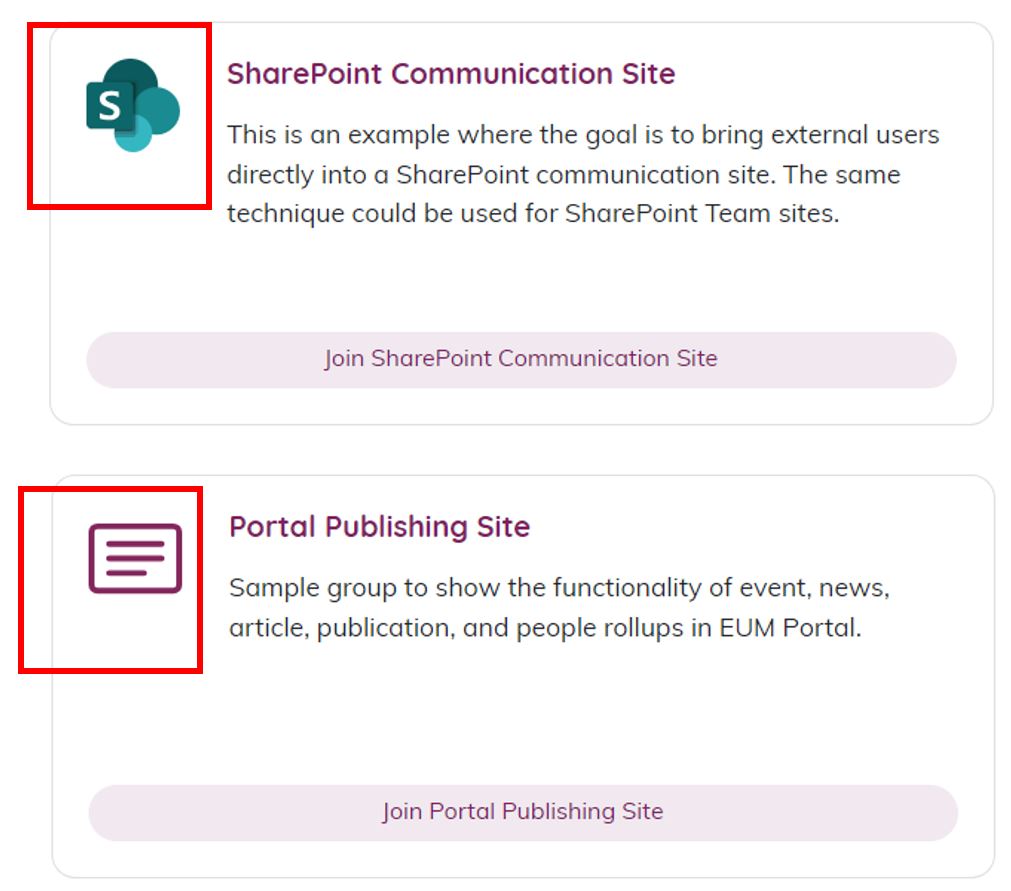
If you have an image downloaded, please follow the steps below to publish a group rollup image:
- Login to the EUM Config Site as an Admin.
- Under Publisher, click Images.
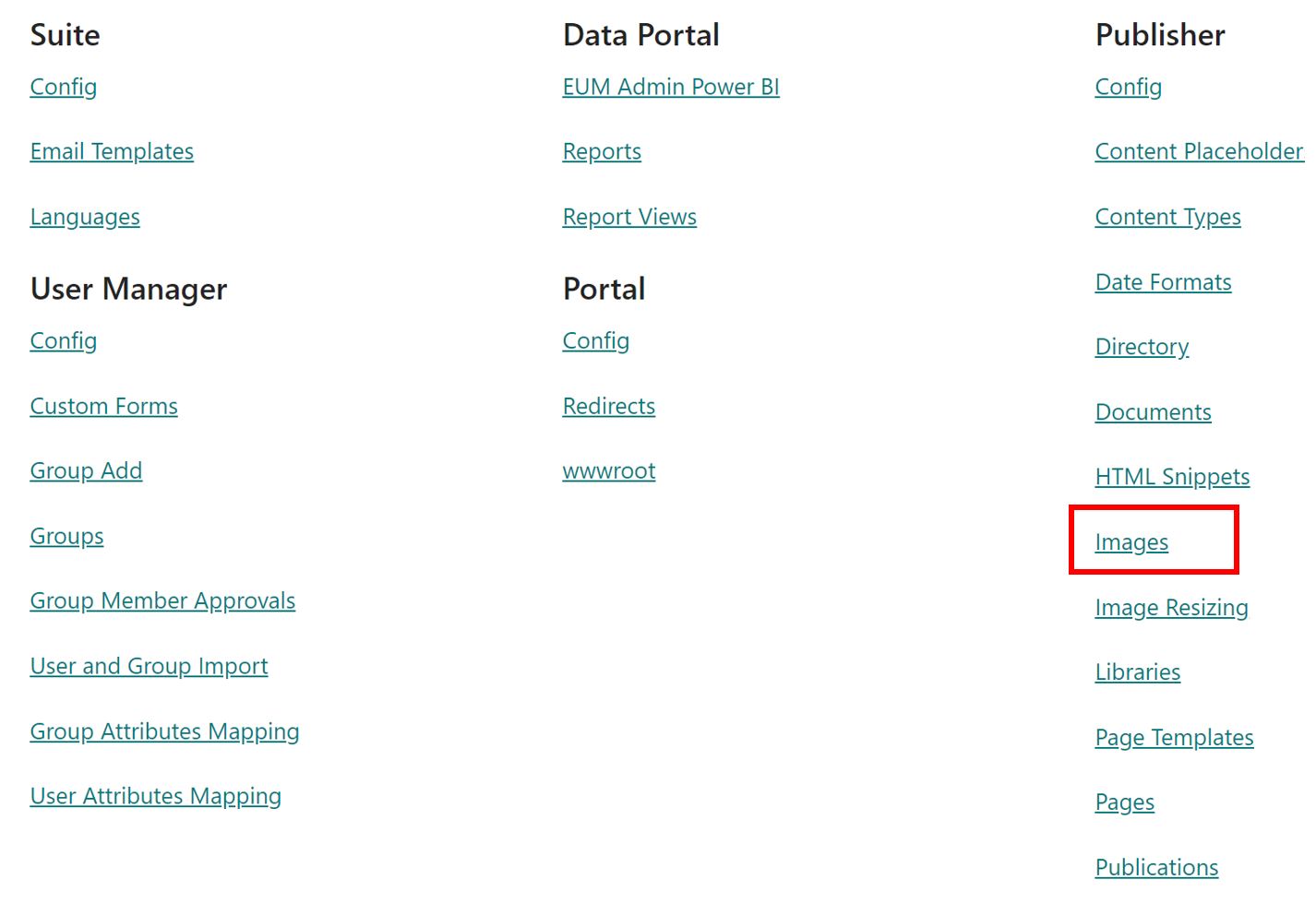
- Upload the image you want to set up as the group rollup image for a group here.
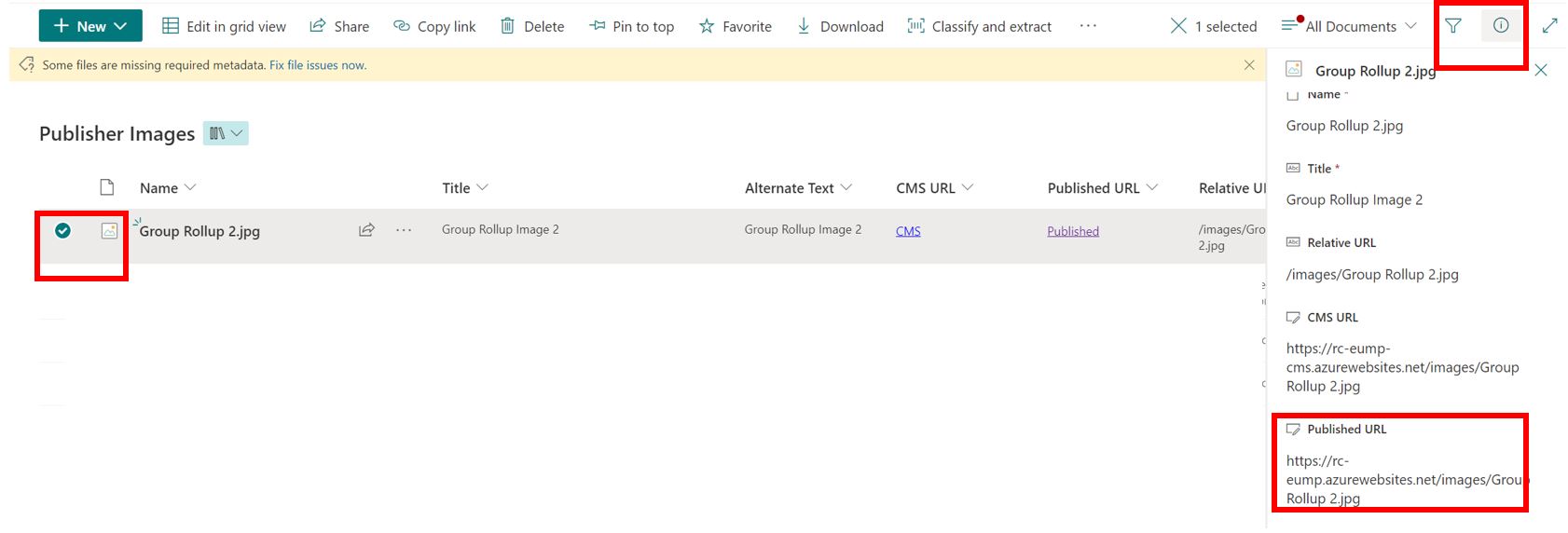
- Wait for a few minutes (maximum 15 minutes) till the full Published URL is created for the uploaded image. A full Published URL will end with the image type.
- Select the Image, go to the Detailed Properties, and copy the Published URL.
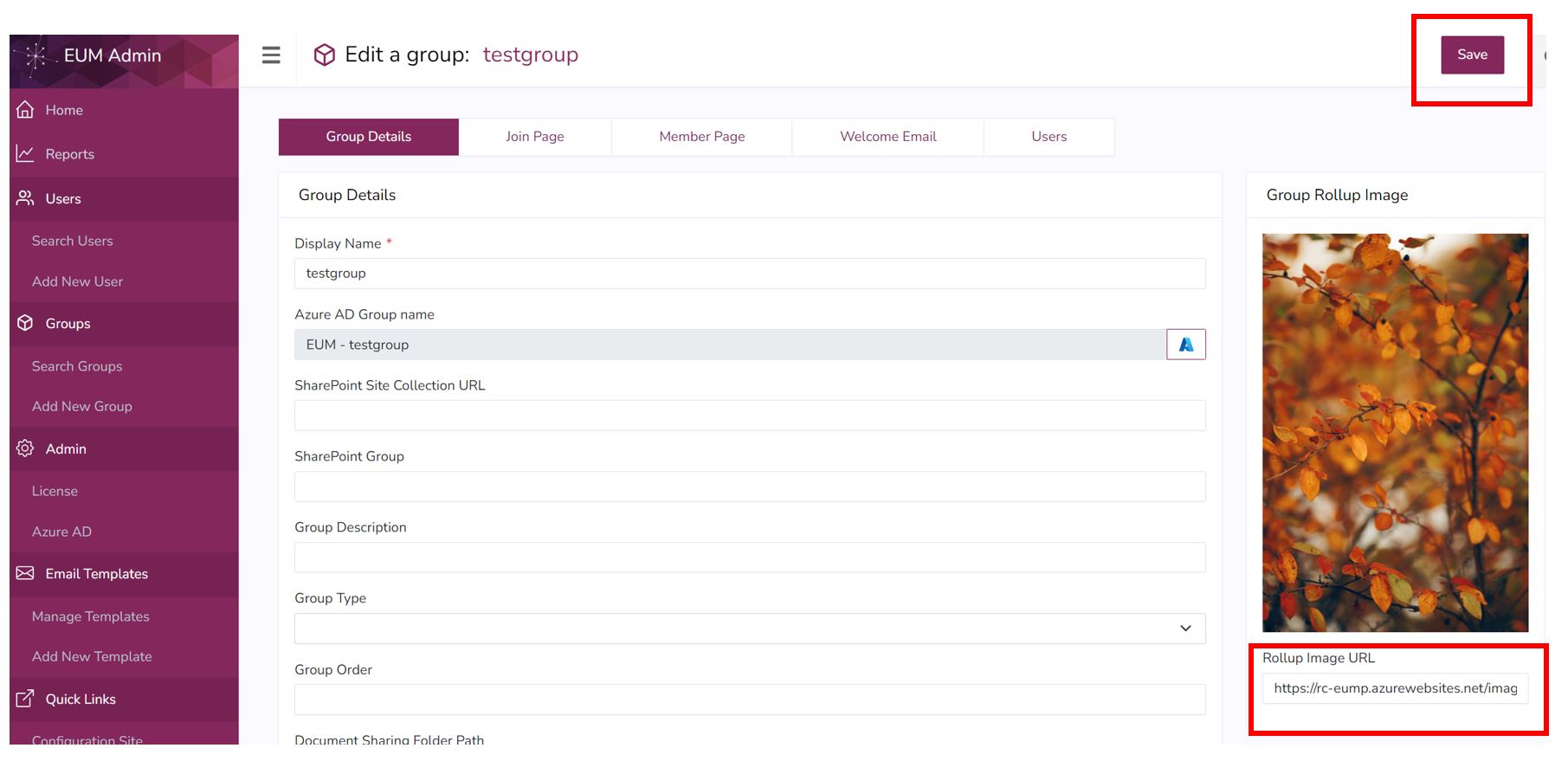
- Navigate to EUM Admin and sign in and search for the group which will have this rollup image.
- Click on the group to go to the Group Detail page.
- Paste the previously copied Published URL into the Group Rollup Image field. Make sure that the image is displayed above that field.
- Click Save.
- Navigate to the EUM Portal and wait for a few minutes (maximum 15 minutes), and refresh the homepage. The group for which the rollup image was added will display the image.
Please note that the image will be automatically resized by EUM, so the size of the image uploaded will not matter.