Elfify Me: How to Make Your Own Custom Elf Avatar Agent
.png "elfify-me")
The holidays are here, and we want to help you add a touch of festive magic to your workplace. Elfify Me is a playful Copilot Studio agent that turns ordinary selfies into custom, festive elf portraits.
You might be chuckling and wondering, What does this have to do with adopting Copilot for Microsoft 365? Think of it this way:
Elfify Me isn't just about creating elves. It's about unlocking creativity and demonstrating what's possible when work meets play, showing that Copilot can do much more than crunch numbers or summarize meetings.
With Copilot Studio, you can develop interactive tools that reflect your workplace culture, celebrate milestones, and make everyday tasks a little more magical.
Ready to bring a little holiday cheer to your workplace? Here's a step-by-step guide on how you can create your own Elfify Me chatbot in Copilot Studio.
How to Create Your Own 'Elfify Me' Agent in Copilot Studio
If you're an administrator, here's how you can create a custom elf avatar Copilot Studio agent that generates elf avatars for your team.
Before You Begin: Licensing & Requirements
Licensing
The Copilot experience in the Microsoft 365 admin centre depends on the Copilot license you have.
If your organization has a Microsoft 365 Copilot license, you see settings that manage some Microsoft 365 Copilot scenarios. If your organization doesn't have a Copilot license, your configuration options apply to Microsoft Copilot, which is the consumer version of Copilot.
For more information, see the following articles:
To create and publish custom Copilot agents in Microsoft Copilot Studio, make sure you have the following in place:
- Microsoft 365 Copilot licensing
Users who will create, test, or use custom agents should have access to Microsoft 365 Copilot and/or Copilot Studio features. Licensing affects which Copilot and agent controls are visible to admins and makers.
- Access to Copilot Studio + correct environment
You’ll build agents in Copilot Studio within a Power Platform environment linked to your tenant. Confirm you can sign in, create agents, and publish (roles and permissions may be required).
- Agents Toolkit/manifest editing
If you plan to enable advanced capabilities (like Image Generation via manifest which is used in this agent), be ready to edit declarativeAgent.json and provision your agent using the Microsoft 365 Agents Toolkit.
Step 1: Access Copilot Studio
Copilot Studio is your creative workshop for building custom Copilot agents.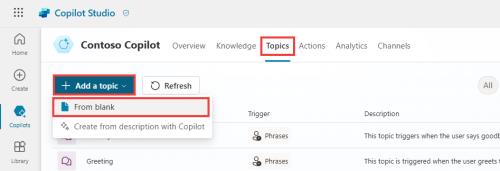
- Navigate to Microsoft Copilot Studio from your Microsoft 365 admin portal.
- Click Create a new agent.
- Give it a festive name like Elfify Me and add a short description (e.g., "Generates holiday elf images and spreads cheer!").
For example, our description was: A festive agent that helps users create personalized elf avatars from their photos and job titles, offering privacy guidance and customization options.
- Choose the environment where your agent will run (usually your Microsoft 365 tenant).
Step 2: Enable Image Generation Capability
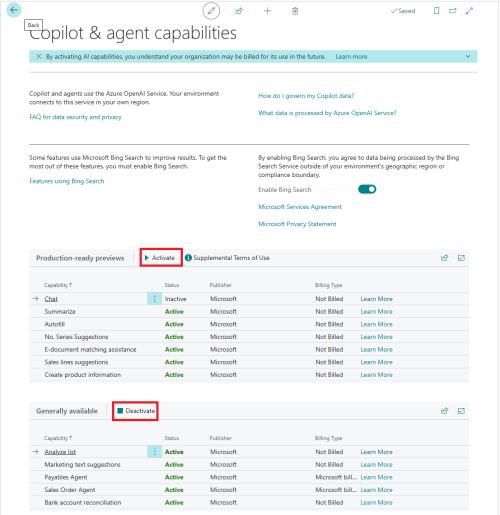
To give your chatbot the power to create elf images:
- Go to the Configure tab in Copilot Studio.
- Under Capabilities, toggle Create images to ON.
- This enables the generation of visuals based on user prompts.
- (Optional) If you're using the Agents Toolkit, add "GraphicArt" to your declarativeAgent.json capabilities section.
Step 3: Create Topics for Elf Magic
Topics define what your chatbot can do. For Elfify Me:.png "agent-topics")
- Click Add Topic and name it Generate Elf.
- Add Trigger Phrases like:
- "Make me an elf."
- "Create a holiday elf image."
- “Elfify me!”
- In the Message node, add a prompt such as:
"Design a cheerful holiday elf in a snowy forest with festive lights and a glowing lantern. Style: vibrant, high-resolution digital art."
.png "envision-it-elfify-me-agent")
- Guide users to submit a photo and job title for elf avatar creation.
- Provide clear privacy tips before uploading (e.g., avoid sensitive info, use appropriate images).
- Always start with Santa's Workshop as the first background option, plus customization choices like accessories, colours, and backgrounds.
- Maintain a cheerful, festive tone throughout.
- Handle user data securely and only for avatar generation.
- Greet users with a holiday message and encourage creativity.
- Respond promptly to questions and ask no more than two before generating the image
You can also create multiple topics for different styles, like:
- Watercolour Elf
- Dark Fantasy Elf
- Gift-Giving Elf
Step 4: Add Actions and Variations
- Use Image Generation Action to produce multiple image options.
- Configure follow-up prompts for refinements:
- "Make the elf's outfit more colourful."
- "Add a decorated Christmas tree in the background."
- This creates an interactive experience that lets users tweak their own designs.
Step 5: Test Your Chatbot
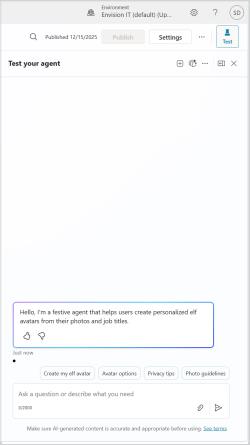
- Open the Test pane in Copilot Studio.
- Type "Elfify me!" and check if:
- The chatbot responds with image options.
- Variations appear for different styles.
- Adjust prompts for clarity and creativity.
Step 6: Publish and Share
Once your chatbot is ready:
- Go to the Lifecycle tab.
- Click Publish and assign permissions.
- Deploy to Microsoft Teams, SharePoint, or embed it on your intranet for everyone to enjoy.
After creating your elf image, download it and use it as your Teams profile picture or LinkedIn profile photo to spread holiday cheer across your team and network!
Ready to Build Your Own?
If your staff feels comfortable creating their own bot, they can use the prompt examples in this guide to build a custom Copilot agent in the Microsoft 365 Copilot application and share it within your organization.
Sample Elf Prompts to Try
Here are some creative prompts to get started:
- Classic Holiday Elf
"Create a cheerful holiday elf wearing a red and green outfit, holding a glowing lantern in a snowy forest with twinkling lights.".png "elf-avatar")
2. Whimsical Watercolour Elf
"Paint a graceful elf in a dreamy watercolour style, surrounded by winter flowers and soft pastel tones."
3. Dark Fantasy Warrior Elf
"Design a fierce warrior elf in black armour with glowing runes, standing in a misty enchanted forest."
4. Gift-Giving Elf
"Illustrate a joyful elf carrying a stack of colourful presents in front of a decorated Christmas tree."
5. Santa's Workshop Elf
"Generate a joyful elf working in Santa's Workshop, holding a hammer, building a toy, alongside Santa in the North Pole."
Looking Ahead: From Elves to Enterprise Magic
Yes, Elfify Me is a fun AI-generated experience that might seem small in the grand scheme of things. But it offers a glimpse into what's possible when creativity meets technology. Today, we're turning team members into festive elves; tomorrow, we could change how employees learn, connect, and thrive.
Imagine onboarding new hires with interactive guides that feel as enjoyable as a holiday game. You could create personalized learning journeys that adapt on the fly, or even wellness check-ins and recognition programs that help people feel valued.
With Copilot Studio, you're not just building bots. You're creating experiences that encourage collaboration, make work meaningful and engaging, and prepare it for the future. And if those experiences include a few elves along the way, even better.
Share Your Elf!
If you created your elf avatar, we'd love to see it. Spread the holiday cheer and tag us on LinkedIn with your festive elf profile picture.
Subscribe to Modern Work Monthly
Get the latest Microsoft 365 + Copilot insights to help your teams work smarter, faster.
We respect your inbox. Unsubscribe anytime.